-
![]()
Joey Albert
Joey has been involved with tech ever since she joined the EaseUS editor team in March 2011 and now she is a senior website editor. She is good at solving various issues, such as video downloading and recording.…Read full bio -
![]()
Alin
Alin is a sophisticated editor for EaseUS in tech blog writing. She is proficient in writing articles related to screen recording, voice changing, and PDF file editing. She also wrote blogs about data recovery, disk partitioning, data backup, etc.…Read full bio -
![]()
Gorilla
Gorilla joined EaseUS in 2022. As a smartphone lover, she stays on top of Android unlocking skills and iOS troubleshooting tips. In addition, she also devotes herself to data recovery and transfer issues.…Read full bio -
![]()
Rel
Rel has always maintained a strong curiosity about the computer field and is committed to the research of the most efficient and practical computer problem solutions.…Read full bio -
![]()
Dawn Tang
Dawn Tang is a seasoned professional with a year-long record of crafting informative Backup & Recovery articles. Currently, she's channeling her expertise into the world of video editing software, embodying adaptability and a passion for mastering new digital domains.…Read full bio -
![]()
Sasha
Sasha is a girl who enjoys researching various electronic products and is dedicated to helping readers solve a wide range of technology-related issues. On EaseUS, she excels at providing readers with concise solutions in audio and video editing.…Read full bio
Page Table of Contents

Myra
Updated on Jun 16, 2026
0 Views |
0 min read
Whether you want to broadcast an intense Valorant match to your server, host a virtual movie night, or share your screen for a work presentation, learning how to stream on Discord is a must-have skill. Discord's native "Go Live" feature makes it incredibly easy to share your screen with friends and communities in just a few clicks.
In this comprehensive, up-to-date guide, we will walk you through exactly how to stream on Discord from a PC, Mac, mobile device, or console. Plus, we will share an insider secret on how using a real-time AI voice changer like EaseUS VoiceWave can instantly upgrade your stream's engagement and audio quality. Let's dive in!
Prerequisites: What You Need to Start Streaming on Discord
Before hitting the stream button, you need to ensure your account, server permissions, and hardware are fully ready. Checking these prerequisites beforehand will prevent the most common streaming errors.
- Check Permissions: Go to Server Settings > Roles and ensure your role has Video permissions enabled. This permission covers both webcam sharing and screen streaming.
- A Verified Discord Account: Active and logged into your device.
- The Official Discord App: Installed on your PC, Mac, iPhone, or Android device.
- Stable Internet Connection: A minimum upload speed of 5 Mbps for standard quality, and 10+ Mbps for high-definition streaming.
- An Audio Input Device: A working microphone or headset.
💡 Pro Tip: Download the App for the Best Experience
While you can use Discord inside a web browser (like Chrome or Safari), it is highly recommended to download the official app. Browser versions have strict security limitations and cannot capture game audio or system sounds—leaving your viewers with a completely silent stream.
How to Stream on Discord from a PC or Mac (Desktop)
Streaming from your desktop computer offers the highest performance and the best customization options. Follow these five simple steps to go live on Windows or macOS.
Step 1. Join a Voice Channel
Open the Discord app and navigate to the server where you want to stream. Look for a voice channel (marked with a 🔊 speaker icon) and click it to join. You must be in a voice channel to share your screen.
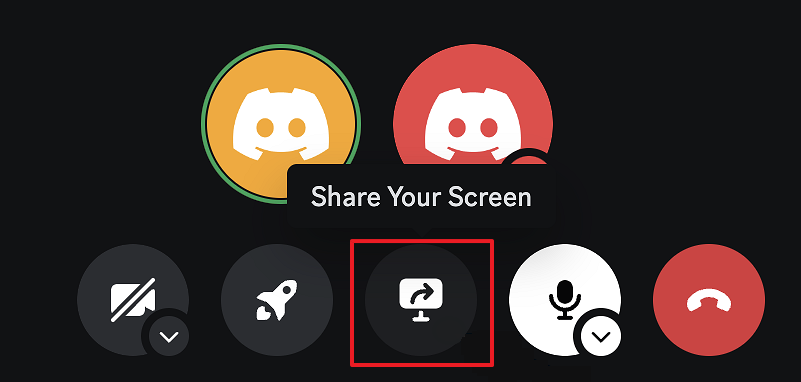
Step 2. Click the "Share Your Screen" Button
Once inside the channel, click the Share Your Screen button, which looks like a computer monitor with a small arrow inside it.
Step 3. Choose Applications vs. Entire Screen
A pop-up window will appear asking what you want to broadcast. This is the most crucial step for stream quality:
- Applications (Recommended for Gaming): Select a specific game or app (like Minecraft or Chrome). Discord will lock onto this window, capturing crystal-clear game audio and system sound. If you minimize the game, viewers will only see a loading screen, preserving your privacy.
- Screens (Recommended for General Sharing): This captures your entire monitor. Viewers will see everything you do, including your desktop icons, notifications, and open folders. Note: Capturing your entire screen may result in no audio for certain apps
Step 4. Adjust Stream Settings (Resolution & Frame Rate)
Before going live, customize your stream output based on your hardware capabilities:
- Stream Quality (Resolution): Free users can stream up to 720p. Discord Nitro subscribers can unlock 1080p, 2K, or source quality.
- Frame Rate (FPS): Choose between 15 FPS, 30 FPS, or 60 FPS (Nitro required for 60 FPS). Higher frame rates make fast-paced gameplay look much smoother.
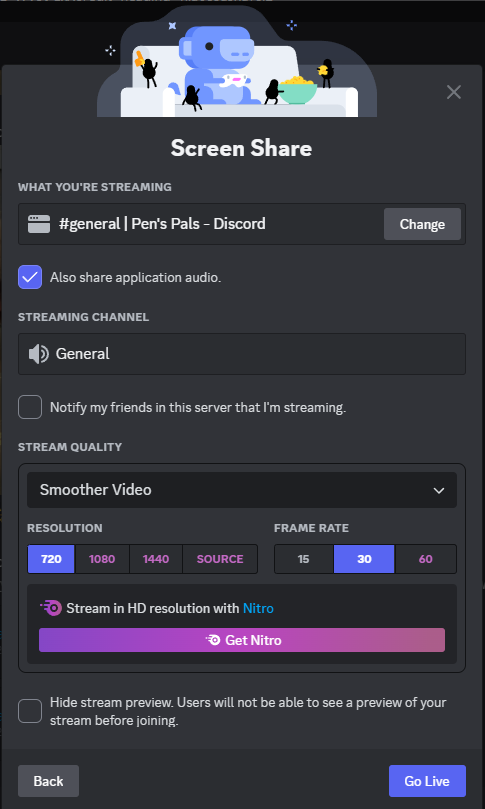
Step 5. Click "Go Live" to Start
Once you are satisfied with your settings, click the blue Go Live button at the bottom of the pop-up window. A smaller picture-in-picture window will appear on your Discord app, showing you exactly what your audience sees. To stop streaming, simply click the monitor icon with the "X" inside it in your voice controls bar.
How to Stream on Discord from Mobile (iPhone & Android)
Streaming directly from your smartphone or tablet is perfect for sharing mobile games like Genshin Impact, broadcasting a TikTok scroll, or co-watching videos with friends.
Guide for iOS and Android Screen Sharing
Step 1. Open the Discord app, tap on your chosen server, and select a voice channel. Tap Join Voice.
Step 2. Swipe up from the bottom of your screen (or tap the bottom voice control panel) to expand the call settings.
Step 3. Tap the Share Your Screen button, which looks like a mobile phone with an outgoing arrow.
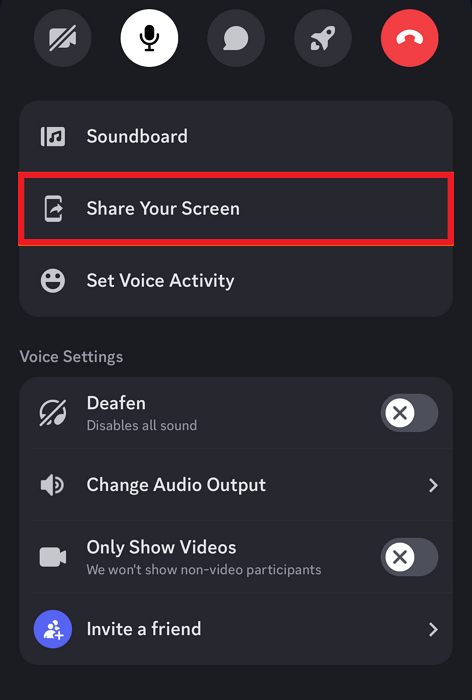
Step 4. Grant System Permissions:
- iOS: A system pop-up will appear. Select Discord from the list and tap Start Broadcast. A red clock icon will appear in your top-left corner, indicating your screen is live.
- Android: A system prompt will ask for permission to record your screen. Tap Start Now.
Step 5. Minimize Discord and open the game or application you want to share. To stop streaming, go back to Discord and tap Stop Sharing.
Important Audio Settings for Mobile Streaming
Mobile operating systems have strict privacy laws regarding background audio capture. Keep these rules in mind to avoid a silent stream:
- You cannot use in-game voice chat (like PUBG Mobile or Call of Duty mic) while streaming on Discord. Mobile devices only allow one app to control your microphone at a time. Disable the in-game mic to keep your Discord stream audio working.
- Both Android (Android 10 and above) and iOS will capture internal game audio automatically. However, certain apps with digital rights management (DRM), like Netflix, Disney+, or Prime Video, will completely block audio and show a black screen to your viewers due to copyright protections.
- Ensure the volume on your actual phone is turned up. If your physical device is set to silent or "Vibrate Only" mode, Discord may occasionally mute the internal game audio for your audience.
How to Stream on Discord from Xbox or PlayStation (Consoles)
Console players can share their live gameplay directly to a Discord voice channel without needing an expensive external capture card. Here is how to configure your Xbox or PlayStation 5 to stream right from your couch.
Connecting Xbox Live to Discord (Xbox Series X/S & Xbox One)
Xbox offers full integration, allowing you to stream your gameplay directly to a Discord server channel or private DM call.
Step 1. Open the Discord app on your PC or phone. Go to User Settings > Connections and select the Xbox logo. Log in with your Microsoft account to link them.
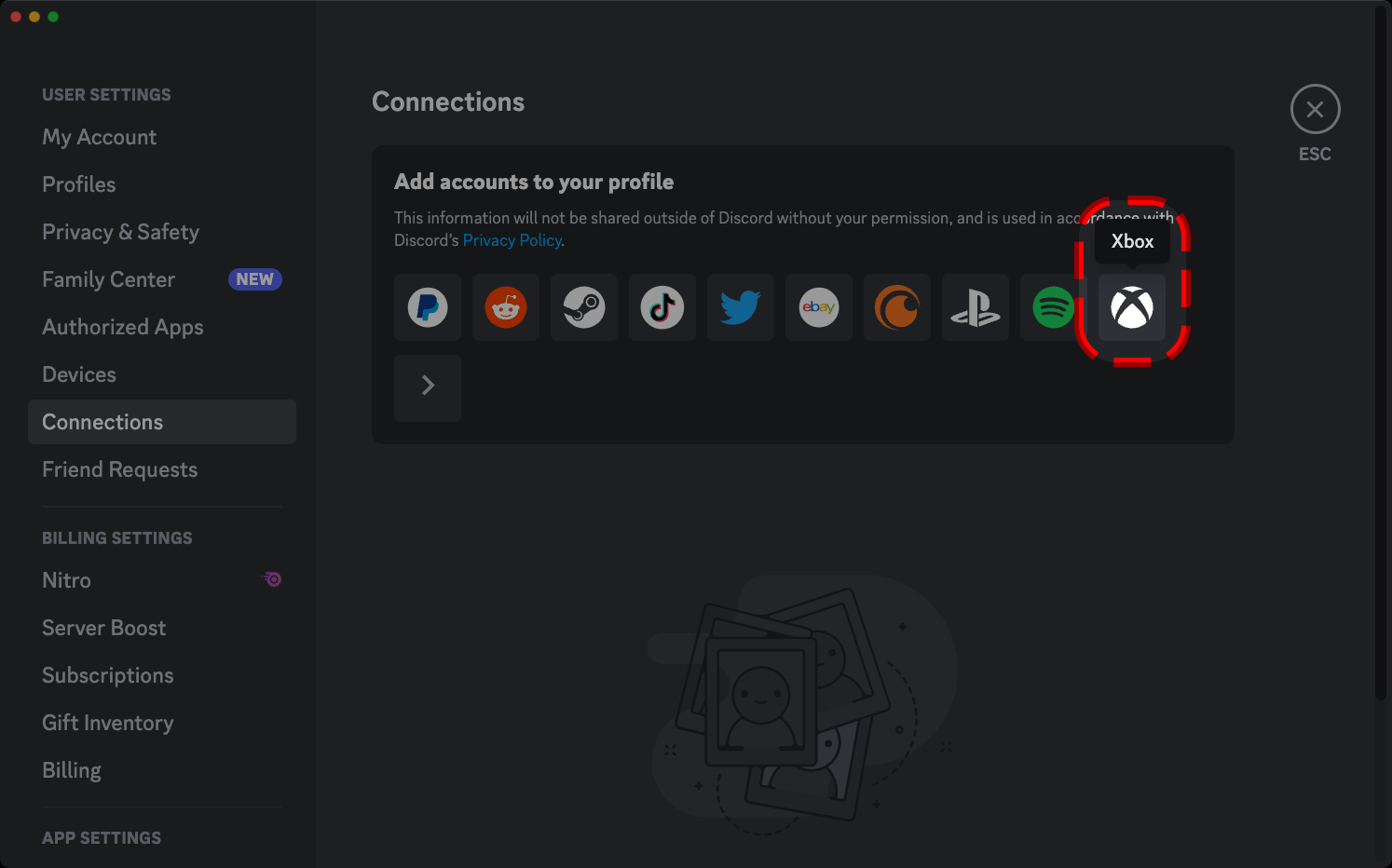
Step 2. Join a Discord voice channel on your mobile app or desktop client. Swipe up on the mobile app menu and tap Transfer to Xbox .
Step 3. On your Xbox console, press the Xbox guide button on your controller. Go to the Parties & Chats tab, select your transferred Discord voice channel, and click Stream your game.
Step 4. Customize your resolution and frame rate, then select Start Stream.
Connecting PlayStation Network (PS5) to Discord
If you don't own a capture card, you can use Sony's official PS Remote Play app to mirror your PlayStation 5 gameplay onto your PC or Mac, and then share that screen directly to Discord.
Step 1. Turn on your console and navigate to Settings > System > Remote Play. Toggle the switch to turn on Enable Remote Play.
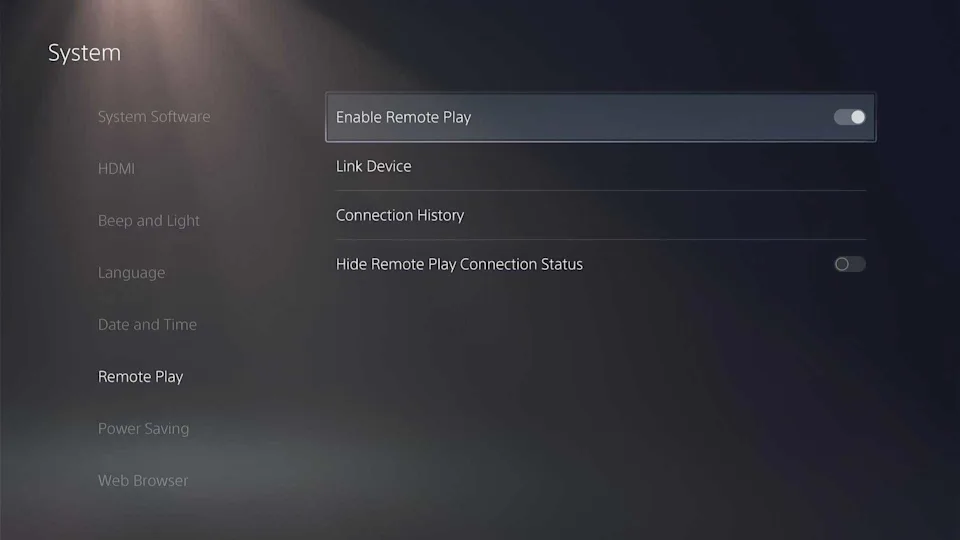
Step 2. Go to the official PlayStation website and download the PS Remote Play app for Windows or macOS. Log in using the exact same PlayStation Network (PSN) credentials you use on your console.
Step 3. Launch the Remote Play app on your computer, select PS5, and wait a few moments for the software to connect to your console over your local network.
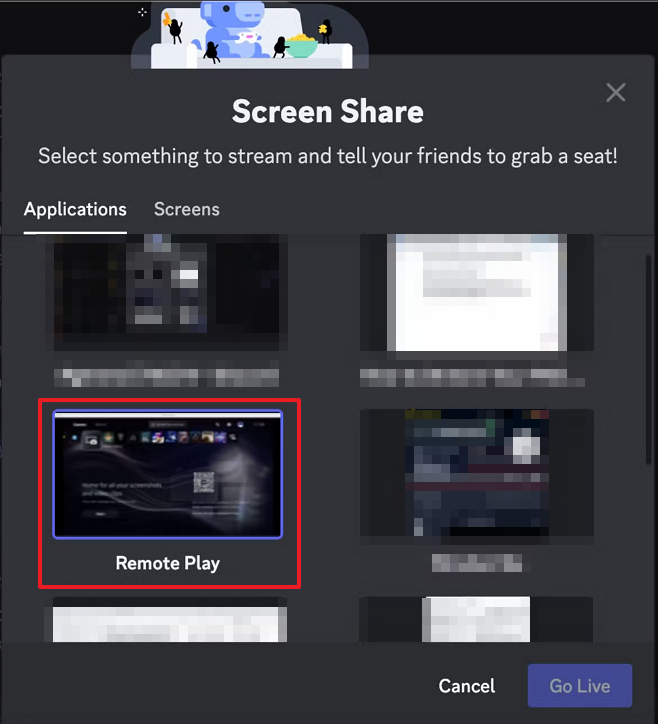
Step 4. Open the Discord desktop client and join your target voice channel. Click the Share Your Screen button. In the pop-up menu, go to the Applications tab, select the PS Remote Play application window, and click Go Live.
Advanced Tips to Improve Your Discord Stream Quality
A great Discord stream isn't just about high-resolution graphics; it's about keeping your audience and friends engaged and entertained. If you want to elevate your stream's fun factor and create unforgettable gaming moments, the ultimate secret weapon is EaseUS VoiceWave.
EaseUS VoiceWave is a powerful AI Discord voice changer designed specifically for streamers and gamers to boost their channel's entertainment value. Here is how it transforms your Discord streaming experience:
Live Role-Playing
Want to surprise your teammates during a match of Valorant or Among Us? Instantly switch your voice to a sci-fi robot, a scary demon, or a funny cartoon character with zero latency.
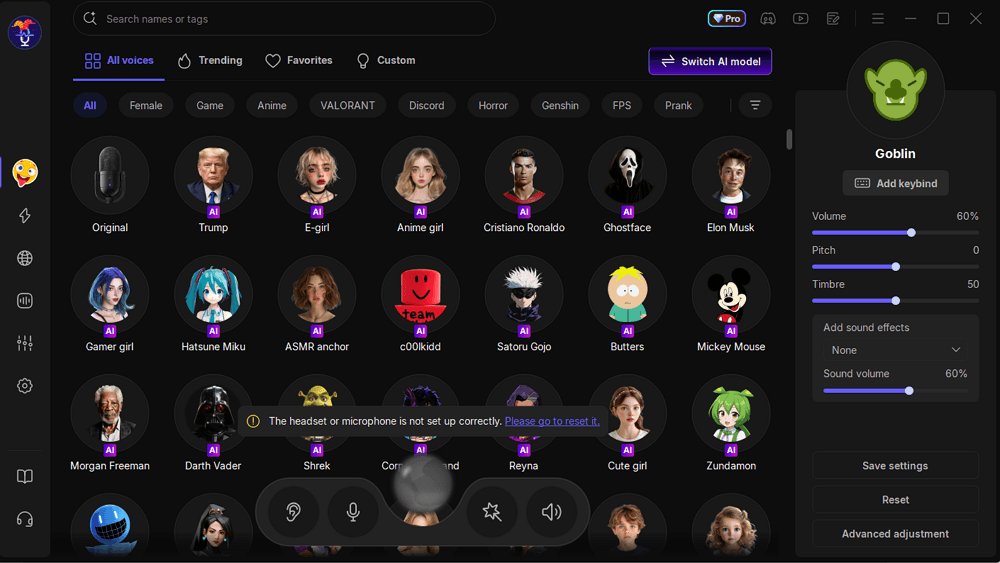
Instant Hype with Soundboard
Keep the energy high by playing custom sound effects, memes, or background music during clutch plays or epic fails.

Professional, Distraction-Free Audio
While delivering top-tier entertainment, its AI-powered noise reduction filters out background distractions, such as mechanical keyboard clicks, ensuring your voice sounds professional and crisp.
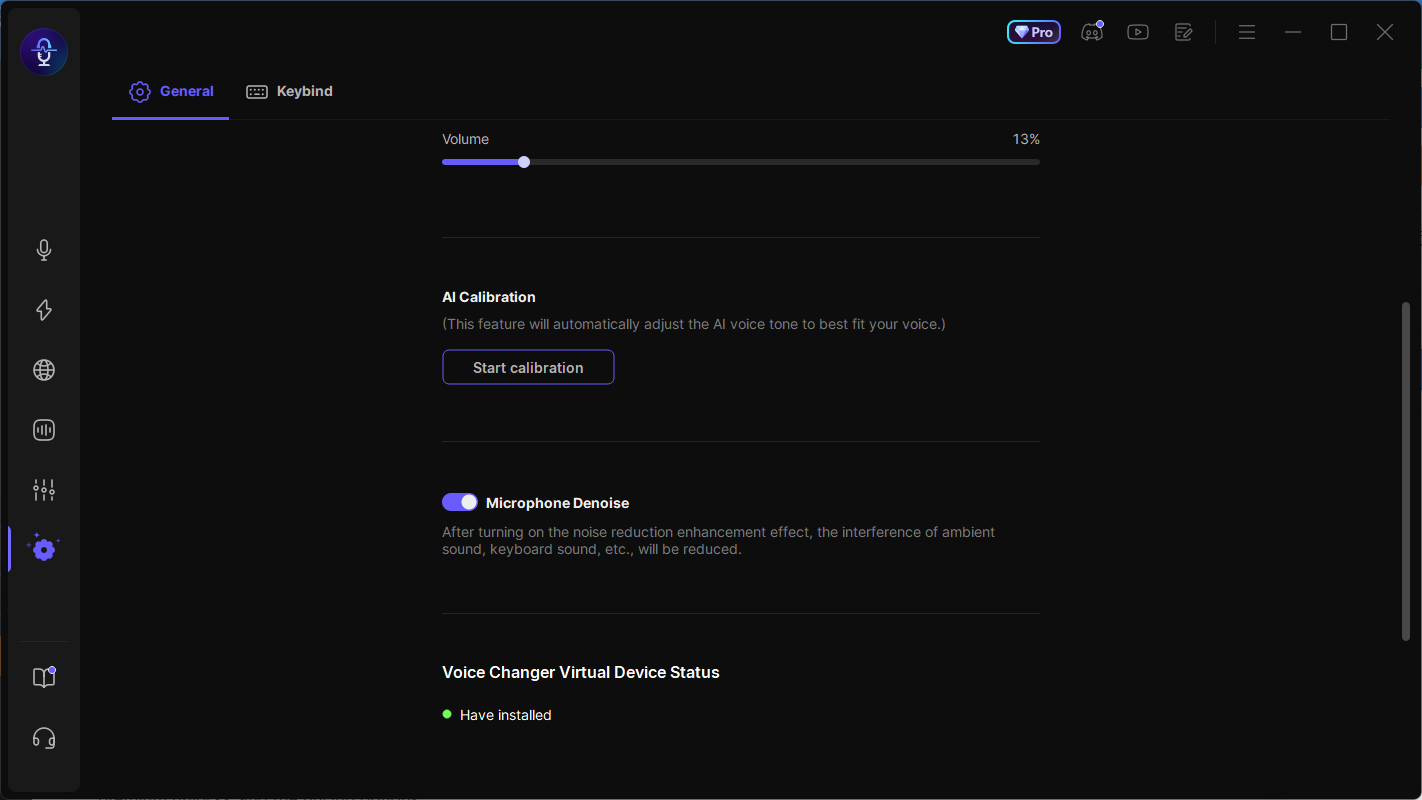
To hook it up to your stream, simply download EaseUS VoiceWave, go to your Discord User Settings > Voice & Video, and set your Input Device to "VoiceWave Microphone". You are now ready to host the most entertaining stream on your server!
Conclusion
Learning how to stream on Discord is the ultimate way to share your gaming victories, host movie nights, and build a tighter community. By mastering the core setup steps for PC, mobile, and consoles, you can easily go live anytime.
Just remember: a high-quality stream requires more than a stable internet connection. To truly stand out, focus on the audience experience. Using a high-utility entertainment tool like EaseUS VoiceWave ensures your audio stays crisp while adding hilarious, real-time voice filters to keep your viewers laughing and engaged. Download your setup, join a voice channel, and launch your most entertaining broadcast today!
FAQs
1. Can you stream on Discord for free?
Yes. Discord allows all users to stream completely free of charge. However, free accounts are limited to a maximum resolution of 720p at 30 Frames Per Second (FPS). To unlock 1080p, 2K, 4K, and 60 FPS streaming, you must subscribe to Discord Nitro.
2. Why can't I stream in 1080p 60FPS on Discord?
If your stream is locked at 720p, you either lack a Discord Nitro subscription or your computer's hardware acceleration is turned off. If you have Nitro and still lag, check your upload speed; you need a minimum stable upload speed of 10 Mbps to handle a 1080p 60FPS broadcast smoothly.
3. How many people can watch a Discord stream at once?
By default, up to 50 people can simultaneously watch a single user's stream inside a standard Discord server voice channel. Discord occasionally adjusts this viewer limit during peak global traffic events or for officially partnered community servers.
4. Why is my Discord screen share showing a black screen?
A black screen usually happens when you try to stream a copyright-protected application (like Netflix, Hulu, or Disney+) through a web browser. It can also occur if you select "Screens" (entire monitor) instead of "Applications" (the specific game window) during your stream setup.