-
![]()
Joey Albert
Joey has been involved with tech ever since she joined the EaseUS editor team in March 2011 and now she is a senior website editor. She is good at solving various issues, such as video downloading and recording.…Read full bio -
![]()
Alin
Alin is a sophisticated editor for EaseUS in tech blog writing. She is proficient in writing articles related to screen recording, voice changing, and PDF file editing. She also wrote blogs about data recovery, disk partitioning, data backup, etc.…Read full bio -
![]()
Gorilla
Gorilla joined EaseUS in 2022. As a smartphone lover, she stays on top of Android unlocking skills and iOS troubleshooting tips. In addition, she also devotes herself to data recovery and transfer issues.…Read full bio -
![]()
Rel
Rel has always maintained a strong curiosity about the computer field and is committed to the research of the most efficient and practical computer problem solutions.…Read full bio -
![]()
Dawn Tang
Dawn Tang is a seasoned professional with a year-long record of crafting informative Backup & Recovery articles. Currently, she's channeling her expertise into the world of video editing software, embodying adaptability and a passion for mastering new digital domains.…Read full bio -
![]()
Sasha
Sasha is a girl who enjoys researching various electronic products and is dedicated to helping readers solve a wide range of technology-related issues. On EaseUS, she excels at providing readers with concise solutions in audio and video editing.…Read full bio
Page Table of Contents

Jane Zhou
Updated on Jun 16, 2026
0 Views |
0 min read
If your TikTok Live voice chat is not showing or not working, you’re not alone. This is a common issue on TikTok Live, usually caused by account limits, app settings, or audio permission problems. In this guide, you’ll learn the most effective ways to quickly identify the cause and fix it so your live audio works properly again.
Why TikTok Live Voice Chat Is Not Showing?
If the voice chat feature is missing on TikTok Live, it is usually caused by one of the following system-level or account-level limitations:
- Feature rollout & account restrictions: TikTok deploys Live features in stages, and some accounts or regions may not have access to Live even when it's enabled.
- Live mode compatibility issues: Different broadcast modes (mobile vs Live Studio) use separate audio handling systems, and incompatible settings may hide or disable voice chat options.
- Hardware and audio routing conflicts (desktop streamers): On PC setups, apps like OBS, Discord, or games running in exclusive audio mode can take control of the microphone, preventing TikTok Live Studio from correctly detecting audio input.
- App version or permission issues: Outdated apps or missing microphone permissions can also cause the feature to disappear or malfunction.
So before moving forward, make sure you've done the absolute basics: restart your app/PC, ensure you have 1,000+ followers, and check that your mic permissions are enabled in Windows settings. If these aren't the issue, let's look at how to deploy the real fixes.
5 Proven Fixes to Bring Back TikTok Live Voice Chat
If the basic checks didn't work, follow these step-by-step technical fixes to resolve the deeper system and configuration glitches on both mobile and PC.
Fix 1: Clear App Cache & Force Refresh (Mobile)
A corrupted local cache can prevent TikTok from loading newer UI elements, such as the Voice Chat button.
- 1️⃣Android/iOS: Go to your TikTok Profile > Settings and Privacy > Free up space > Tap Clear next to Cache.
- 2️⃣Force Close: Close the app completely, toggle Airplane Mode on and off for 10 seconds to reset the network handshake, and reopen TikTok.
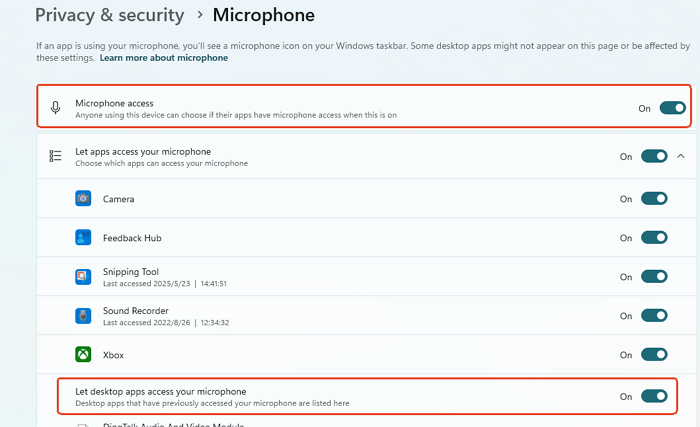
Fix 2: Adjust Windows Microphone Privacy Settings (PC)
If Windows blocks TikTok Live Studio from accessing your microphone at the OS level, the software will automatically hide the Voice Chat module.
- Press Win + I to open Settings and go to Privacy & Security > Microphone.
- Ensure Microphone access is turned ON.
- Scroll down to "Let desktop apps access your microphone" and verify that TikTok Live Studio is allowed.
Fix 3: Switch to the Correct Broadcast Mode
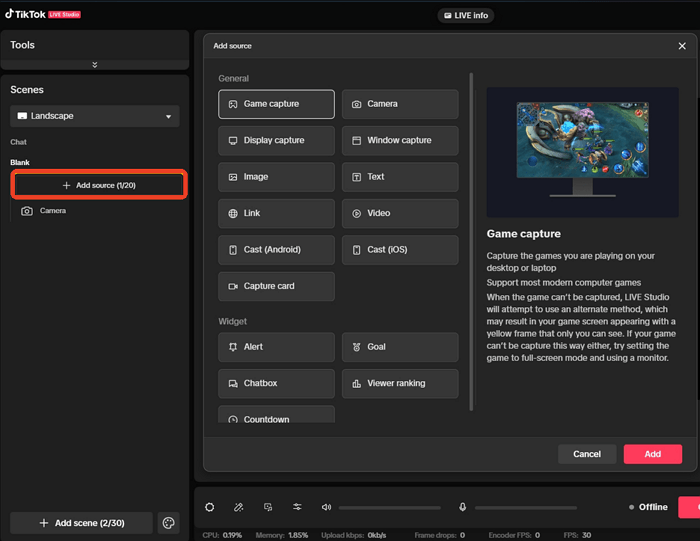
TikTok dynamically changes its live features based on the streaming mode you select. Choosing the wrong mode can cause the Voice Chat option to disappear.
- On PC: Open TikTok Live Studio, click the Add Source button, and ensure your microphone is added as a global audio source rather than just a scene-specific capture.
- On Mobile: Ensure you select Device Camera or LIVE Studio mode. Certain restricted "Mobile Gaming" sub-modes disable guest voice chats to save bandwidth.
Fix 4: Disable Hardware "Exclusive Mode" Conflicts
Other background apps (like Discord, Zoom, or games) can monopolize your mic, preventing TikTok from initializing its voice chat framework.
- Right-click the speaker icon on your Windows taskbar, then select Sound settings > More sound settings.
- Go to the Recording tab, right-click your active microphone, and select Properties.
- Under the Advanced tab, uncheck "Allow applications to take exclusive control of this device".
- Click Apply and restart TikTok Live Studio.
Fix 5: Reset Audio Routing via a Virtual Audio Input
If TikTok Live Studio still fails to show the voice chat feature, it means the software's built-in encoder cannot properly handshake with your physical hardware or mixer.
The Solution: The industry-standard fix is to bypass your hardware driver by routing your microphone through a stable Virtual Audio Driver. This creates a clean, dedicated digital bridge that TikTok can instantly recognize without system conflict.
Why This Audio Issue Keeps Coming Back
Even after fixing it, the Voice Chat feature can randomly vanish again. The root cause is that TikTok Live Studio’s audio engine cannot handle minor changes in Windows drivers.
Every time you stream, two silent triggers break your connection:
- 1️⃣USB & Windows Updates: Unplugging a device or a quick OS update silently resets your default microphone path, causing TikTok to lose track of it.
- 2️⃣Background App Conflict: Heavy software like Discord or your game constantly fights for audio priority. If your physical mic driver stutters for even a millisecond, TikTok drops the Voice Chat module to avoid crashing.
To stop this permanently, you need to stop relying on direct physical hardware and use a stable virtual audio bridge to lock your settings in place.
Fix & Elevate Your TikTok Live Audio via EaseUS VoiceWave
The most reliable way to prevent TikTok Live from losing your microphone is to use a dedicated virtual audio routing tool like EaseUS VoiceWave.
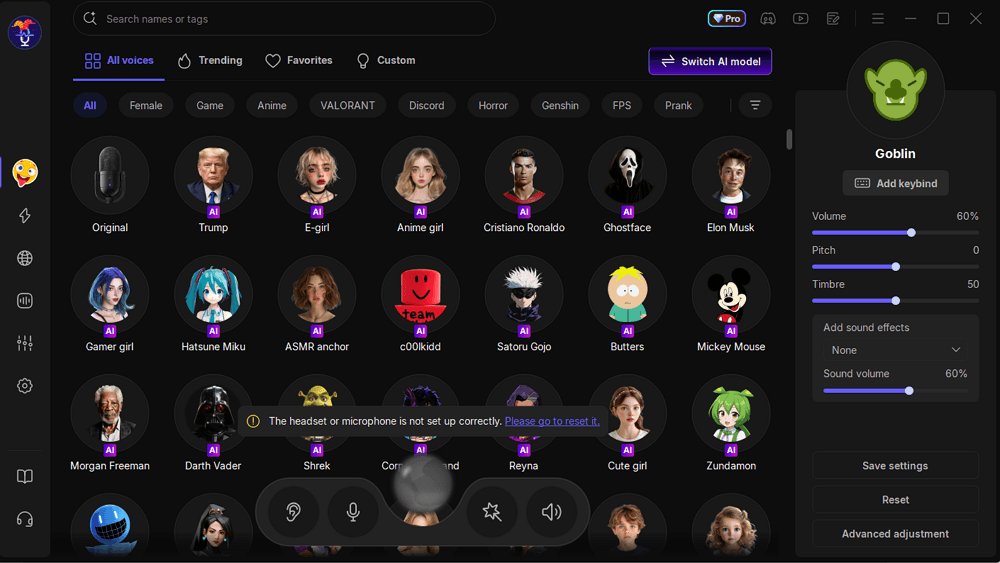
Instead of connecting TikTok directly to your sensitive physical hardware, VoiceWave creates a highly stable Virtual Audio Device on your PC. It acts as an unbreakable bridge: Windows keeps your microphone locked, and TikTok Live Studio never loses the connection.
Beyond solving routing conflicts, it enhances your streaming setup with:
- Eliminates silent microphone drops and "missing voice chat" glitches in TikTok Live Studio.
- Access 400+ pro-level voice filters (AI anime, gaming characters, deep voice) designed for live streamers.
- Play atmospheric sound effects (cheering, laughter, BGM) to boost audience engagement and watch time.
How to Set Up VoiceWave with TikTok Live Studio
Configuring the virtual bridge takes less than a minute:
Step 1. Download, launch, and open EaseUS VoiceWave on your Windows PC, then select your physical microphone as the input device.
Step 2. Open TikTok Live Studio, then click the Audio Settings (gear icon) at the bottom of the dashboard.
Step 3. Under the Microphone Device dropdown, change it from "Default" to "VoiceWave Virtual Microphone".
Step 4. Once applied, TikTok will permanently lock onto this stable virtual channel. Your Live Voice Chat will stay visible and working perfectly, while you gain full control over your live sound effects.
FAQs
1. Why is the TikTok Live Voice Chat missing?
This usually happens due to account eligibility, regional rollout, or microphone permission issues on TikTok Live. Some features are not enabled for all users at the same time, even if Live access is available.
2. Why does Voice Chat disappear during a live stream?
This can happen when there are temporary audio interruptions, device switching, or when another app takes priority over your microphone during streaming.
3. How do I fix TikTok Live Voice Chat not working?
You can try updating TikTok, checking microphone permissions, closing background audio apps, and restarting Live Studio or your device. In most cases, it is caused by settings or audio conflicts.
4. Does using a virtual audio tool affect Voice Chat?
A virtual audio tool like EaseUS VoiceWave will not affect Voice Chat if configured correctly. It may also help stabilize microphone input in streaming setups with multiple audio sources.