-
![]()
Joey Albert
Joey has been involved with tech ever since she joined the EaseUS editor team in March 2011 and now she is a senior website editor. She is good at solving various issues, such as video downloading and recording.…Read full bio -
![]()
Alin
Alin is a sophisticated editor for EaseUS in tech blog writing. She is proficient in writing articles related to screen recording, voice changing, and PDF file editing. She also wrote blogs about data recovery, disk partitioning, data backup, etc.…Read full bio -
![]()
Gorilla
Gorilla joined EaseUS in 2022. As a smartphone lover, she stays on top of Android unlocking skills and iOS troubleshooting tips. In addition, she also devotes herself to data recovery and transfer issues.…Read full bio -
![]()
Rel
Rel has always maintained a strong curiosity about the computer field and is committed to the research of the most efficient and practical computer problem solutions.…Read full bio -
![]()
Dawn Tang
Dawn Tang is a seasoned professional with a year-long record of crafting informative Backup & Recovery articles. Currently, she's channeling her expertise into the world of video editing software, embodying adaptability and a passion for mastering new digital domains.…Read full bio -
![]()
Sasha
Sasha is a girl who enjoys researching various electronic products and is dedicated to helping readers solve a wide range of technology-related issues. On EaseUS, she excels at providing readers with concise solutions in audio and video editing.…Read full bio
Page Table of Contents

Jane Zhou
Updated on Jun 18, 2026
0 Views |
0 min read
Is your virtual desktop microphone not working? The issue is often caused by disabled permissions, incorrect audio settings, or virtual audio driver problems. Follow the steps below to fix microphone issues and get your audio working again in remote desktops and meeting apps.
Why Is My Virtual Desktop Microphone Not Working?
A virtual desktop microphone may stop working due to incorrect audio settings, disabled microphone permissions, or issues with virtual audio drivers. In remote desktop environments, microphone input also depends on audio redirection settings to properly transfer sound from your local device.
Common causes include:
- Microphone access is disabled in Windows settings.
- Audio redirection is turned off in Remote Desktop or Citrix.
- Virtual audio drivers are outdated or conflicting.
- The wrong microphone is selected in your virtual desktop or meeting app.
Once you identify the possible cause, follow the steps below to fix your virtual desktop microphone and restore audio input.
How to Fix Virtual Desktop Microphone Issues
Fix 1: Enable Microphone Permissions in Windows
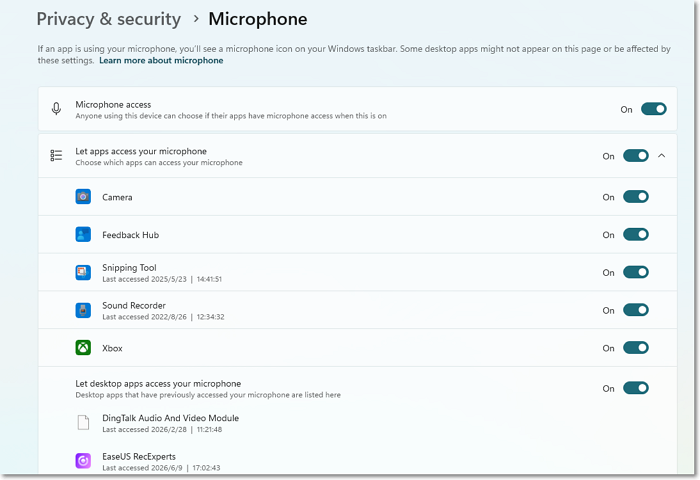
Windows may block microphone access for desktop apps, preventing your virtual desktop or meeting applications from receiving audio input. Check your privacy settings and make sure microphone access is enabled.
- Open Settings on your Windows PC.
- Go to Privacy & security > Microphone.
- Turn on Microphone access and Allow desktop apps to access your microphone.
- Restart your virtual desktop session and check if the microphone works again.
Fix 2: Enable Microphone Redirection in Remote Desktop or Citrix
In a virtual desktop environment, your local microphone needs to be redirected to the remote session before it can be detected. If microphone redirection is disabled, apps inside the virtual desktop may not recognize your audio input device.
- Open your Remote Desktop or virtual desktop connection settings.
- Go to the Local Resources or Audio Settings section.
- Make sure the microphone or audio input redirection is enabled.
- Reconnect to the virtual desktop and check whether the microphone is available.
For Citrix or other virtual desktop platforms, check the audio policies to ensure microphone access is allowed.
Fix 3: Update or Reinstall Virtual Audio Drivers
Virtual microphones rely on audio drivers to capture and transmit audio input. If the driver is outdated, corrupted, or conflicts with other audio devices, your virtual desktop may fail to detect the microphone.
- Open Device Manager on Windows.
- Expand Sound, Video, and Game Controllers.
- Find your virtual audio device or microphone driver.
- Right-click the device and select Update driver.
- If the issue continues, uninstall the driver and reinstall it.
After reinstalling the driver, restart your virtual desktop session and check whether the microphone appears correctly.
Fix 4: Select the Correct Microphone in Meeting Apps
Your virtual desktop microphone may be working properly, but the meeting app could still be using another input device. Check your app settings and make sure the correct microphone is selected.
- Open your meeting app, such as Zoom, Microsoft Teams, or Google Meet.
- Go to the Audio or Microphone settings.
- Select your virtual microphone or the correct input device.
- Test the microphone to make sure your voice is detected.
If you are using a voice changer or other virtual audio tools, make sure the related virtual microphone is selected as the input device.
Tips: Use a Virtual Microphone for Better Online Meetings
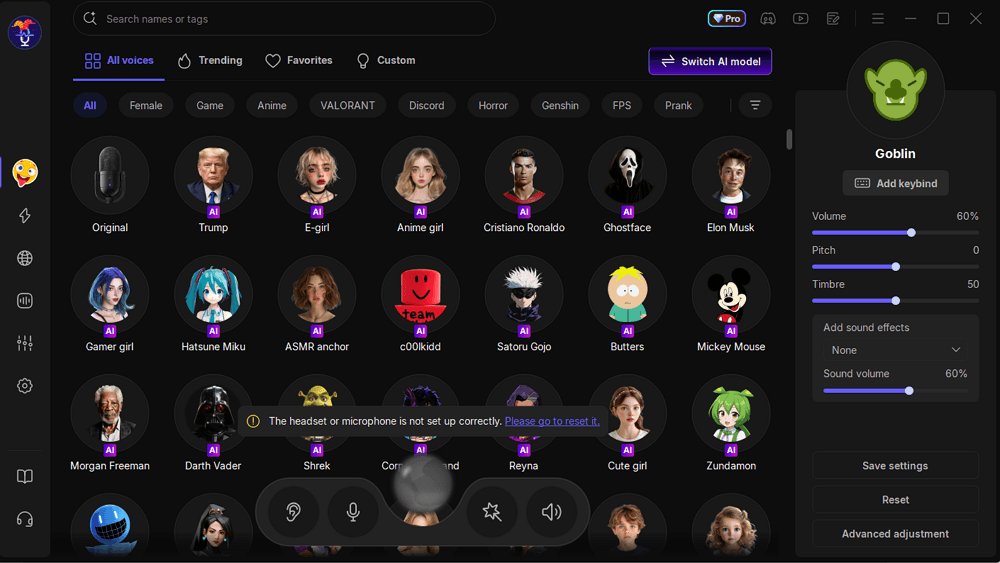
Virtual microphones are not only used to fix audio connection issues. They can also help users customize their voice, protect privacy, or add real-time voice effects during online meetings.
With a virtual microphone tool like EaseUS VoiceWave, users can apply voice effects in real time and use the virtual microphone as an input device in supported apps. This can be useful for online meetings, presentations, or other voice communication scenarios.
Final Words
A virtual desktop microphone not working issue is usually caused by permission settings, audio redirection problems, driver issues, or incorrect input devices. By checking these settings step by step, you can quickly restore microphone access for remote desktops and meeting apps.
If you also want to customize your voice during online meetings, a virtual microphone solution like EaseUS VoiceWave can help you apply real-time voice effects while using your preferred communication apps.
FAQs
1. Why is my virtual desktop microphone not detected?
A virtual desktop microphone may not be detected if microphone permissions are disabled, audio redirection is turned off, or the virtual audio driver has issues. Check your Windows settings, remote desktop configuration, and input device selection to fix the problem.
2. How do I enable microphone access on Remote Desktop?
To enable microphone access in Remote Desktop, open the connection settings, go to Local Resources, and make sure audio recording or microphone redirection is allowed. Then reconnect to the remote desktop session and check the available input devices.
3. Why is my microphone not working in Zoom on a virtual desktop?
Zoom may not detect your microphone if the wrong input device is selected or microphone redirection is disabled. Open Zoom audio settings and choose the correct virtual microphone or redirected microphone as the input source.
4. Can I use a virtual microphone in Microsoft Teams?
Yes. A virtual microphone can work with Microsoft Teams if it is properly installed and selected as the input device. Make sure Teams has microphone permission and that the virtual audio device is available in the device settings.
5. Why does my voice changer microphone not work?
A voice changer microphone may stop working if the virtual audio driver is not installed correctly or another microphone is selected by the application. Check your voice changer settings and make sure the virtual microphone is selected as the input device.