-
![]()
Joey Albert
Joey has been involved with tech ever since she joined the EaseUS editor team in March 2011 and now she is a senior website editor. She is good at solving various issues, such as video downloading and recording.…Read full bio -
![]()
Alin
Alin is a sophisticated editor for EaseUS in tech blog writing. She is proficient in writing articles related to screen recording, voice changing, and PDF file editing. She also wrote blogs about data recovery, disk partitioning, data backup, etc.…Read full bio -
![]()
Gorilla
Gorilla joined EaseUS in 2022. As a smartphone lover, she stays on top of Android unlocking skills and iOS troubleshooting tips. In addition, she also devotes herself to data recovery and transfer issues.…Read full bio -
![]()
Rel
Rel has always maintained a strong curiosity about the computer field and is committed to the research of the most efficient and practical computer problem solutions.…Read full bio -
![]()
Dawn Tang
Dawn Tang is a seasoned professional with a year-long record of crafting informative Backup & Recovery articles. Currently, she's channeling her expertise into the world of video editing software, embodying adaptability and a passion for mastering new digital domains.…Read full bio -
![]()
Sasha
Sasha is a girl who enjoys researching various electronic products and is dedicated to helping readers solve a wide range of technology-related issues. On EaseUS, she excels at providing readers with concise solutions in audio and video editing.…Read full bio
Page Table of Contents

Myra
Updated on Jun 16, 2026
0 Views |
0 min read
To enable voice chat in Roblox, you need to verify your age (13+), turn on Spatial Voice in settings, and allow microphone access on your device. Once enabled, you can join voice-supported experiences and chat with nearby players in real time.
What Is Roblox Voice Chat/Spatial Voice?
Roblox voice chat, also known as Roblox Spatial Voice, is a feature that lets players talk using real-time audio in Roblox. It uses proximity-based communication, meaning you can only hear players who are nearby in the game. Voices get louder as players get closer and quieter as they move away.
Roblox Spatial Voice Chat Features:
- Real-time communication with nearby players
- Proximity-based audio (distance affects volume)
- Only available in voice-enabled Roblox experiences
- Requires enabling voice chat in settings
Because Roblox Spatial Voice focuses on localized communication, it's often used in social games, roleplay environments, and open-world experiences where interaction between nearby players enhances gameplay.
Requirements to Enable Voice Chat in Roblox
To use voice chat in Roblox, you have to meet several basic requirements. If any of these are not fulfilled, the voice chat option will not appear in your settings.
- You Must Be 13 Years or Older: Roblox voice chat is only available for users aged 13 and above. This is a strict requirement and cannot be bypassed.
- Complete ID Verification: You need to verify your age using a government-issued ID through Roblox's verification system. Without successful verification, voice chat will remain locked.
- Supported Device & Region: Voice chat is not available on all devices or in all regions. You need to use a supported platform (PC or mobile in most cases) and be in an eligible country.
- Microphone Permissions Enabled: Your device must allow microphone access for Roblox. If permissions are blocked, voice chat will not function even if it is enabled in settings.
How to Enable Voice Chat in Roblox (Step-by-Step)
To enable Roblox voice chat, you need to complete age verification and turn on Spatial Voice in your settings. Follow the steps below to activate it.
Step 1. Go to Roblox Settings > Account Info > Verify Age.

Step 2. Follow the prompts to submit and scan the QR code to verify your identity.

Step 3. Navigate to Privacy & Content Maturity > Communication > Voice Chat > Enable Microphone.

Step 4. Once voice chat is enabled, you can start using it in any voice-supported experience in Roblox. Your avatar will automatically connect to nearby players through Spatial Voice.
Step 5. You can launch a game and customize your voice chat settings, including selecting your input/output device (microphone), adjusting volume levels, and muting or unmuting yourself when needed.

Roblox Voice Chat Not Working? (Fix Guide)
If voice chat is not working in Roblox, it is usually caused by missing requirements, permission issues, or outdated settings. Try the fixes below.
- Voice Chat Option Not Showing
If you cannot see the voice chat option, it usually means your age has not been verified, or your account does not meet the requirements. Make sure you have completed ID verification and are 13+.
- Microphone Not Working
If your microphone is not detected, check your device settings and ensure Roblox has permission to access your microphone. Also, confirm the correct input device is selected.
- Voice Chat Disabled or Greyed Out
A greyed-out voice chat option usually means the feature is not available in your region, or your account has not fully unlocked Spatial Voice yet.
- Roblox App Outdated
An outdated version of Roblox may prevent voice chat from working properly. Update the app to the latest version and restart your device.
Tips for a Better Voice Chat Experience
To improve your experience in voice chat inside Roblox, focus on audio quality, privacy control, and stable communication settings. Small adjustments can make conversations clearer and more enjoyable in-game.
1️⃣Use a High-Quality Microphone
A clear microphone reduces background noise and improves how other players hear you. Avoid built-in laptop mics if possible.
2️⃣Adjust Input and Output Settings
Select the correct input device in Roblox voice settings and adjust volume levels to avoid distortion or very low audio.
3️⃣Use Voice Effects for Better Control
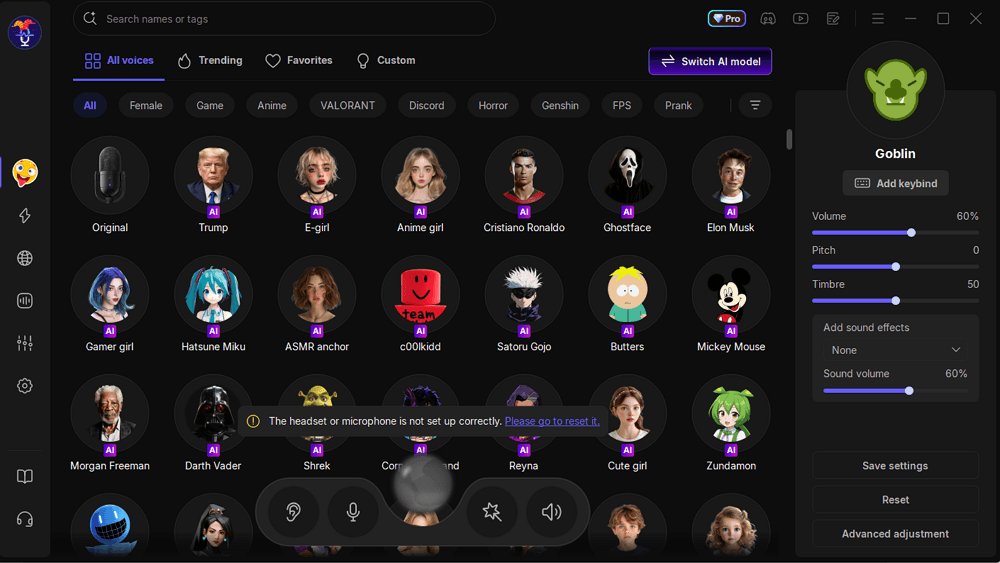
If you want more control over your voice, you can use tools like EaseUS VoiceWave. It allows you to modify your voice in real time, reduce noise, and apply effects for a more personalized voice chat experience.
With this tool, you can:
- 🎤 Change your voice in real time (e.g., deeper voice, robotic voice, cartoon effects)
- 🔇 Reduce background noise to make your voice clearer in crowded environments
- 🎧 400+ voice filters and soundboards for roleplay or entertainment purposes
4️⃣Ensure a Stable Internet Connection
A stable connection reduces lag, voice delay, and disconnections during voice chat sessions.
Conclusion
Enabling voice chat in Roblox is a simple process once you meet the basic requirements, including age verification, ID confirmation, and enabling Spatial Voice in settings. After activation, you can enjoy real-time communication with nearby players in supported experiences.
If voice chat is not working, the issue is usually related to missing verification, microphone permissions, or outdated app versions. By following the steps and troubleshooting tips in this guide, you can quickly fix the most common problems and start using voice chat smoothly.
FAQ
1. Why can't I enable voice chat in Roblox?
You may not be able to enable voice chat if you are under 13, have not completed ID verification, or have not enabled Spatial Voice in your privacy settings.
2. Do I need an ID to use Roblox voice chat?
Yes. Roblox requires users to complete age verification using a government-issued ID before voice chat becomes available.
3. Is Roblox voice chat available on all devices?
Voice chat is supported on most PC and mobile devices, but availability may vary depending on region and platform restrictions.
4. Can I turn off voice chat in Roblox?
Yes. You can disable voice chat anytime in Privacy settings by turning off the Spatial Voice option.