-
![]()
Joey Albert
Joey has been involved with tech ever since she joined the EaseUS editor team in March 2011 and now she is a senior website editor. She is good at solving various issues, such as video downloading and recording.…Read full bio -
![]()
Alin
Alin is a sophisticated editor for EaseUS in tech blog writing. She is proficient in writing articles related to screen recording, voice changing, and PDF file editing. She also wrote blogs about data recovery, disk partitioning, data backup, etc.…Read full bio -
![]()
Gorilla
Gorilla joined EaseUS in 2022. As a smartphone lover, she stays on top of Android unlocking skills and iOS troubleshooting tips. In addition, she also devotes herself to data recovery and transfer issues.…Read full bio -
![]()
Rel
Rel has always maintained a strong curiosity about the computer field and is committed to the research of the most efficient and practical computer problem solutions.…Read full bio -
![]()
Dawn Tang
Dawn Tang is a seasoned professional with a year-long record of crafting informative Backup & Recovery articles. Currently, she's channeling her expertise into the world of video editing software, embodying adaptability and a passion for mastering new digital domains.…Read full bio -
![]()
Sasha
Sasha is a girl who enjoys researching various electronic products and is dedicated to helping readers solve a wide range of technology-related issues. On EaseUS, she excels at providing readers with concise solutions in audio and video editing.…Read full bio
Page Table of Contents

Myra
Updated on Jun 16, 2026
0 Views |
0 min read
Microphone issues on Google Meet can be frustrating, especially when they happen right before an important meeting or online class. In many cases, users can join the call normally but find that others cannot hear them, or the system fails to detect any microphone input at all. These problems are usually not caused by hardware failure. Instead, they often come from simple issues such as browser permission settings, incorrect input device selection, or system-level audio conflicts.
In this guide, we will go through the most effective solutions to help you restore your microphone and get back into your meeting without interruption.
Why Your Microphone Is Not Working on Google Meet
Google Meet microphone issues are usually caused by a few common configuration or system-related problems. In most cases, the issue is not serious and can be identified quickly. Common reasons include:
- Browser permission not granted: Your browser may be blocking microphone access, preventing Google Meet from receiving audio input.
- Wrong input: If you have multiple microphones (laptop mic, headset, external mic, etc.), the system may choose the incorrect one by default.
- System privacy settings disabled: Your operating system might block microphone access for browsers or specific apps.
- Background apps using the microphone: Apps like Discord, Zoom, or recording tools may take exclusive control of your audio device.
- Outdated browser or temporary glitches: An outdated browser version or cached errors can also affect microphone detection.
Once you understand these possible causes, it becomes much easier to narrow down the exact issue and apply the correct fix in the next steps.
Fix Microphone Not Working Issues on Google Meet
If your microphone isn't working in Google Meet, you can try the following fixes directly. Each solution targets a specific configuration area, so go through them one by one until your issue is resolved.
Check Browser Microphone Permission
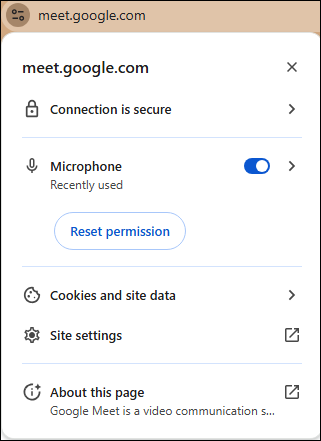
Browser permissions are one of the most common reasons a microphone fails to work in Google Meet. If your browser has blocked microphone access, Google Meet won't be able to detect any audio input. Click the site information icon next to the website address and make sure microphone access is set to Allow. After updating the permission, refresh the page and rejoin the meeting to see if the issue is resolved.
Select the Correct Microphone Input Device
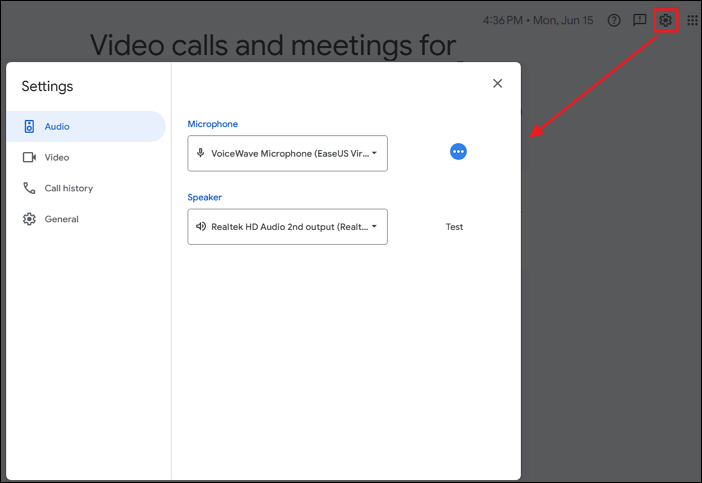
If you use multiple audio devices, Google Meet may be listening to the wrong microphone. Open Google Meet settings and navigate to the Audio section. Check the microphone dropdown menu and select the device you want to use. If you're using a headset or external USB microphone, reconnect it and verify that it appears in the available device list before joining the meeting.
Verify System Microphone Settings
If browser permissions are configured correctly but your microphone still isn't working, verify that microphone access is enabled in your operating system.
On Windows/Mac:
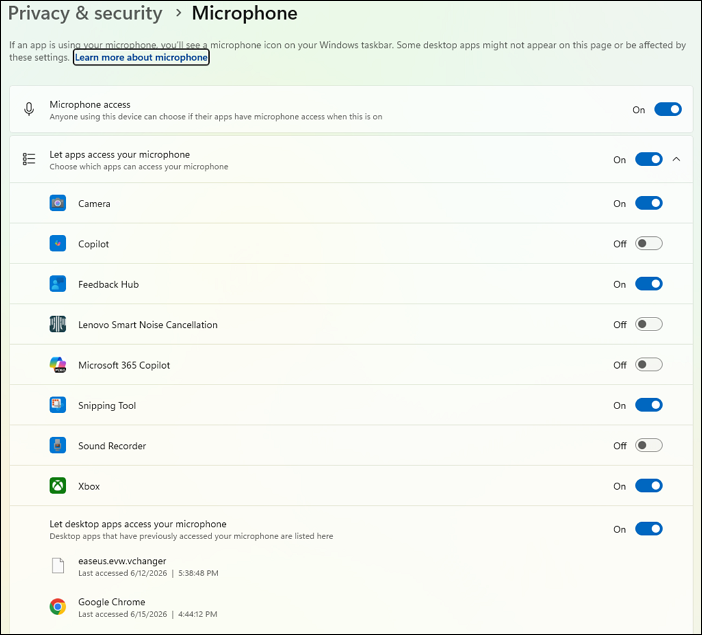
Step 1. Open your system's Privacy & Security settings.
Step 2. Navigate to the Microphone section.
Step 3. Make sure microphone access is turned on.
Step 4. Verify that your browser is allowed to use the microphone.
Step 5. Restart your browser and test Google Meet again.
Restart or Change Your Browser
Temporary browser glitches can sometimes prevent Google Meet from accessing your microphone correctly.
Step 1. Close all browser windows completely and reopen them before joining the meeting again.
Step 2. If the issue persists, try using another supported browser such as Chrome or Edge.
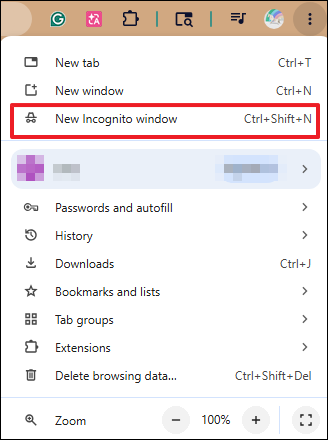
Step 3. You can also test in an Incognito or Private window to determine whether browser extensions or cached data are causing the problem.
Close Background Apps That Use Microphone
Some applications can interfere with microphone access by using the audio device in the background. Programs such as Discord, Zoom, OBS, recording software, or communication tools may prevent Google Meet from accessing the microphone properly.
Step 1. Close any unnecessary applications, then leave and rejoin the meeting.
Step 2. Check Task Manager (Windows) or Activity Monitor (Mac) for background processes.
Step 3. Disconnect from the meeting and join again after closing these apps.
Step 4. Test your microphone to see if the conflict has been resolved.
Update or Reinstall Audio Drivers
Outdated or corrupted audio drivers may cause microphone detection issues across multiple applications, including Google Meet.
Step 1. On Windows, open Device Manager. Expand Audio Inputs and Outputs.
Step 2. Right-click your microphone device and select Update Driver.
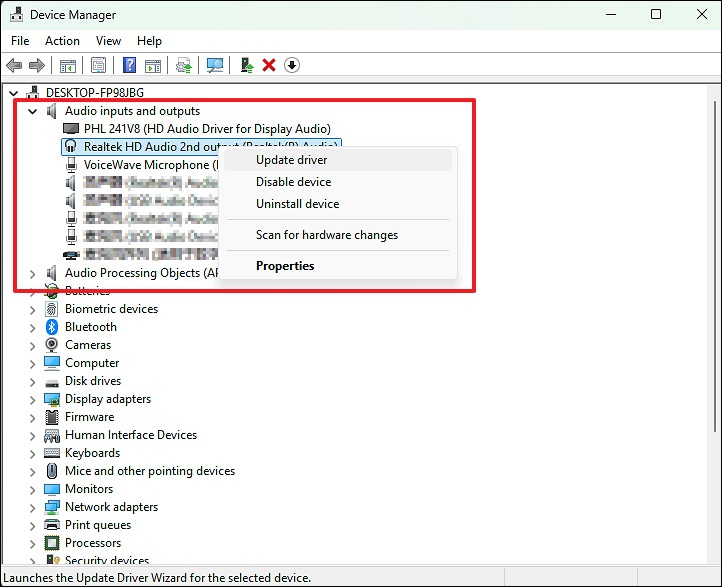
Step 3. Follow the on-screen instructions to complete the update.
Step 4. Restart your computer and test Google Meet again.
If updating doesn't resolve the issue, consider uninstalling the driver and allowing Windows to reinstall it automatically after a reboot.
Bonus Tip: Make Your Voice More Engaging in Google Meet
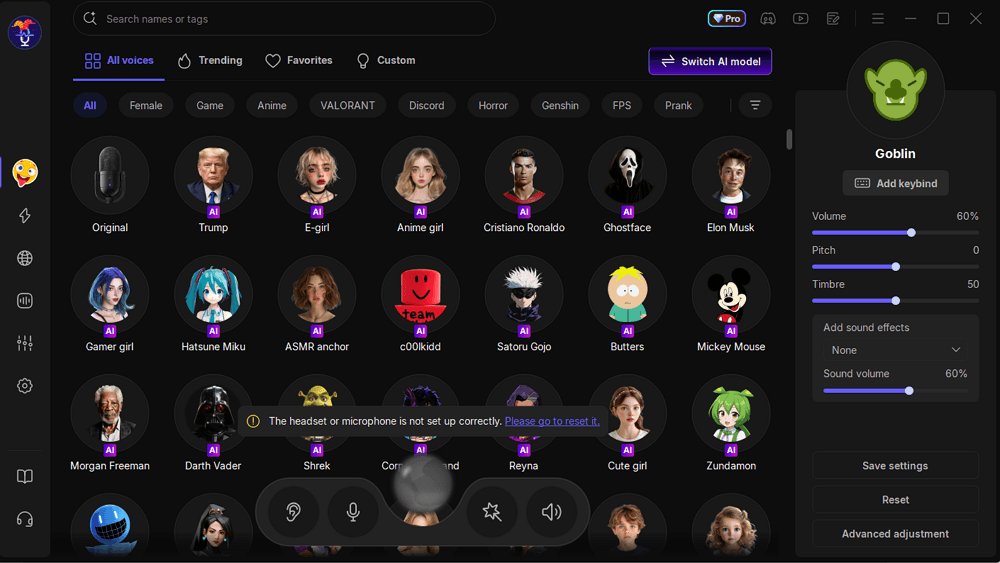
Once your microphone is working properly, you may want to improve how your voice sounds during meetings, online classes, or virtual events. You can enhance your voice quality and add more personality to your communication using real-time voice tools, such as EaseUS VoiceWave. It allows you to apply real-time voice effects, adjust tone, and create a more polished audio experience while using platforms like Google Meet.
Key Features:
- Real-time voice changing that works instantly during live calls without noticeable delay.
- Multiple AI voice effects for different tones, such as Darth Vader, anime girl, and Trump.
- Virtual microphone support that integrates directly with Google Meet audio settings.
- Easy setup process with simple device selection inside system audio settings.
Conclusion
Most microphone issues are temporary and related to settings rather than hardware failure, which means they can usually be fixed in just a few minutes. To avoid similar problems in the future, it's a good idea to periodically check your browser permissions and audio device settings before joining important meetings.
If your microphone still does not work after trying all the solutions, you can test it on another device or check whether the problem is hardware-related. With the right settings in place, you can ensure stable audio performance and avoid interruptions in future meetings.
FAQ
1. Why can I hear others, but they cannot hear me on Google Meet?
This typically means your microphone is not selected correctly or is being blocked by your browser or operating system. Double-check your audio input settings in Google Meet and ensure the correct microphone is active.
2. How do I test my microphone before joining a Google Meet call?
You can test your microphone in Google Meet settings before entering a meeting. Go to the Audio Settings, select your microphone, and speak to check if the input meter responds.
3. Can browser extensions affect my microphone in Google Meet?
Yes. Some privacy, security, or ad-blocking extensions can interfere with microphone permissions. Try disabling extensions or using an incognito window to rule out conflicts.
4. Can I use external microphones with Google Meet?
Yes. Google Meet supports external USB microphones and headsets. If your microphone is not detected, make sure it is properly connected and selected in the audio settings before joining the meeting.
5. How do I fix microphone echo or feedback in Google Meet?
Echo issues often occur when multiple audio devices are active at the same time. Using headphones instead of speakers and disabling duplicate audio inputs can help reduce feedback during calls.
6. Why does my microphone stop working during a Google Meet call?
This can happen due to temporary browser glitches, system updates, or audio device switching while the meeting is running. Rejoining the meeting or restarting the browser usually resolves the issue.