-
![]()
Joey Albert
Joey has been involved with tech ever since she joined the EaseUS editor team in March 2011 and now she is a senior website editor. She is good at solving various issues, such as video downloading and recording.…Read full bio -
![]()
Alin
Alin is a sophisticated editor for EaseUS in tech blog writing. She is proficient in writing articles related to screen recording, voice changing, and PDF file editing. She also wrote blogs about data recovery, disk partitioning, data backup, etc.…Read full bio -
![]()
Gorilla
Gorilla joined EaseUS in 2022. As a smartphone lover, she stays on top of Android unlocking skills and iOS troubleshooting tips. In addition, she also devotes herself to data recovery and transfer issues.…Read full bio -
![]()
Rel
Rel has always maintained a strong curiosity about the computer field and is committed to the research of the most efficient and practical computer problem solutions.…Read full bio -
![]()
Dawn Tang
Dawn Tang is a seasoned professional with a year-long record of crafting informative Backup & Recovery articles. Currently, she's channeling her expertise into the world of video editing software, embodying adaptability and a passion for mastering new digital domains.…Read full bio -
![]()
Sasha
Sasha is a girl who enjoys researching various electronic products and is dedicated to helping readers solve a wide range of technology-related issues. On EaseUS, she excels at providing readers with concise solutions in audio and video editing.…Read full bio
Page Table of Contents

Myra
Updated on Jul 06, 2026
0 Views |
0 min read
Nothing ruins a great Minecraft multiplayer session faster than seeing the dreaded "Voice Chat Not Connected" error. Whether you're playing with friends on a survival server, exploring with the Simple Voice Chat mod, or joining a public Realm, suddenly losing voice communication can be incredibly frustrating.
In this guide, we'll walk you through the common causes and fixes for the "voice chat not connected" issue in Minecraft. Let's fix it so you can get back to chatting, laughing, and surviving together.
Common Causes of Voice Chat Not Connected in Minecraft
The "Voice Chat Not Connected" error (often shown as a plug icon or "Client not connected") is one of the most frequent issues players face when using proximity voice chat mods like Simple Voice Chat in Minecraft Java Edition.
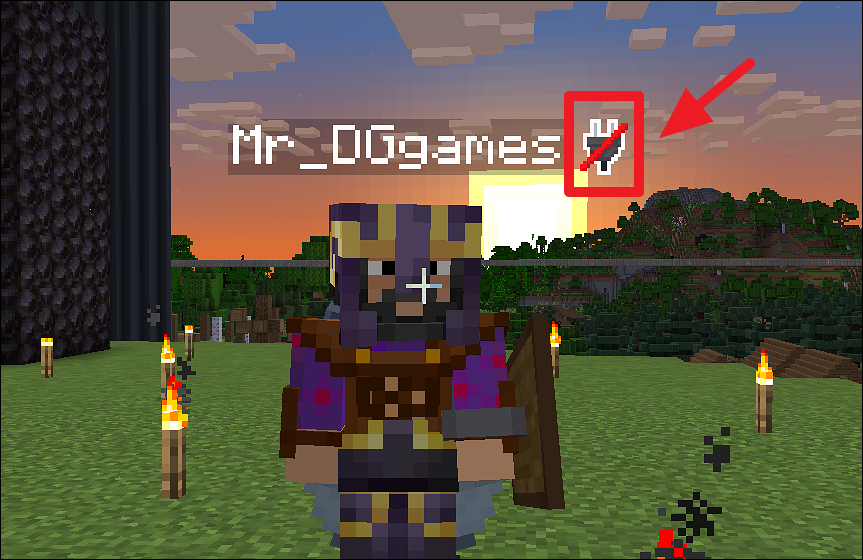
Here are the most common reasons this problem occurs:
- Simple Voice Chat uses a separate UDP port for voice communication, different from the regular Minecraft server port.
- The game may not detect your microphone, or the wrong input/output device is selected. This includes muted mics, low volume settings, or other apps (like Discord) locking the microphone.
- The Simple Voice Chat mod or plugin version on your client must exactly match the one running on the server. Even a small mismatch can prevent voice chat from connecting.
- Windows Firewall, antivirus software, or server-side DDoS protection often blocks the UDP port required for voice chat.
- Voice chat is sensitive to network issues. High ping, packet loss, mobile data, or VPN usage can cause constant disconnects or failure to connect.
Quick Preliminary Checks Before Deep Troubleshooting
Before diving into advanced fixes, try these simple preliminary checks. Most players solve the "Voice Chat Not Connected" issue in Minecraft with just these quick steps:
- Verify Your Internet Connection
Make sure you have a stable Wi-Fi or wired connection. Voice chat is very sensitive to packet loss. Test your internet speed and try disabling any VPN you're using.
- Restart Minecraft and Your Device
Close Minecraft completely, restart your computer or console, and relaunch the game. This fixes temporary glitches in over 30% of cases.
- Check If Voice Chat Is Enabled in Minecraft
Press V (default key) to open the voice chat menu. Ensure the voice chat toggle is turned on. Also, check that your activation mode (Voice Activity or Push to Talk) is correctly set.
- Test Your Microphone
Speak into your mic and watch for the green voice activity bar in the Minecraft voice chat overlay. If there's no response:
- 1. Go to Windows Sound Settings (or macOS Sound Settings) and test your microphone.
- 2. Make sure Minecraft has permission to access your microphone.
How to Fix Minecraft Voice Chat Not Connected
If the quick preliminary checks didn't solve the "Minecraft Voice Chat Not Connected" issue, follow these client-side and server-side fixes. We've ordered them from the easiest and most effective to the more advanced steps.
🔍 Client-Side Fixes
Check and Select Correct Microphone & Speaker
The most common reason for voice chat not connecting is using the wrong audio device.
Step 1. Press V to open the Simple Voice Chat menu.
Step 2. Under Microphone, select the correct input device you're currently using (e.g., headset mic, built-in mic).
Step 3. Under Speaker, choose the correct output device (headphones or speakers).
Step 4. Speak into your microphone and look for the green voice activity bar. If it doesn't move, your mic isn't being detected.
Tip: Go to Windows Sound Settings (or macOS Sound Settings), test your microphone there first, then return to Minecraft and re-select the device.
Restart Everything
A full restart often clears temporary connection glitches:
- 1️⃣Completely close Minecraft and the launcher.
- 2️⃣Restart your computer.
- 3️⃣Restart your router (unplug it for 30 seconds).
- 4️⃣If you're on a server, ask the server owner to restart it as well.
- 5️⃣Relaunch Minecraft and test voice chat again.
Update Minecraft, Mods, and Voice Chat
Outdated files are a frequent cause of connection failures.
- Update Minecraft to the latest version through the launcher.
- Make sure the Simple Voice Chat mod (client) and plugin (server) are the exact same version.
- Update your Forge, Fabric, or Quilt loader if needed.
- Update your audio drivers (especially Realtek or NVIDIA sound drivers) from the manufacturer's website.
🔍 Server-Side Fixes
Open the Voice Chat UDP Port
This is one of the most common fixes for "Voice Chat Not Connected" on dedicated servers. Simple Voice Chat uses a separate UDP port (default is 24454).
Step 1. On the server, open the file voicechat-server.properties and confirm the voice chat port.
Step 2. Forward port 24454 UDP in your router settings (in addition to the usual Minecraft port 25565 TCP).
Step 3. Add exceptions for both ports in your Windows Firewall or antivirus software.
Step 4. Test with the in-game command: /voicechat test to check connection status.
Check Hosting Provider Settings
Many hosting services need extra configuration for voice chat to work.
Step 1. Log in to your hosting panel (Aternos, Minehut, Apex Hosting, etc.).
Step 2. Look for voice chat or additional port settings and make sure the UDP port is enabled or allocated.
Step 3. If using a proxy (Velocity / BungeeCord), ensure UDP port forwarding is properly configured for the proxy.
Step 4. Some hosts require a "Dedicated IP" or paid add-on for full voice chat support. Check their documentation or support ticket.
Troubleshooting Table
| Issue | Quick Check | Fix |
| Red icon persists | Server logs | Change port |
| Aternos-specific | Network tab | Enable UDP |
| No audio detection | System settings | Grant access |
Bonus: Want to Sound Like a Minecraft Villager in Voice Chat?
Once the "Voice Chat Not Connected" issue is fixed, many players love using voice chat for pranks and laughs with friends. One of the most popular and hilarious things to do is to sound like the classic Minecraft villager. A real-time voice changer can make it incredibly easy and fun. One of the simplest tools for this is EaseUS VoiceWave — a lightweight AI voice changer that works perfectly with Minecraft voice chat.
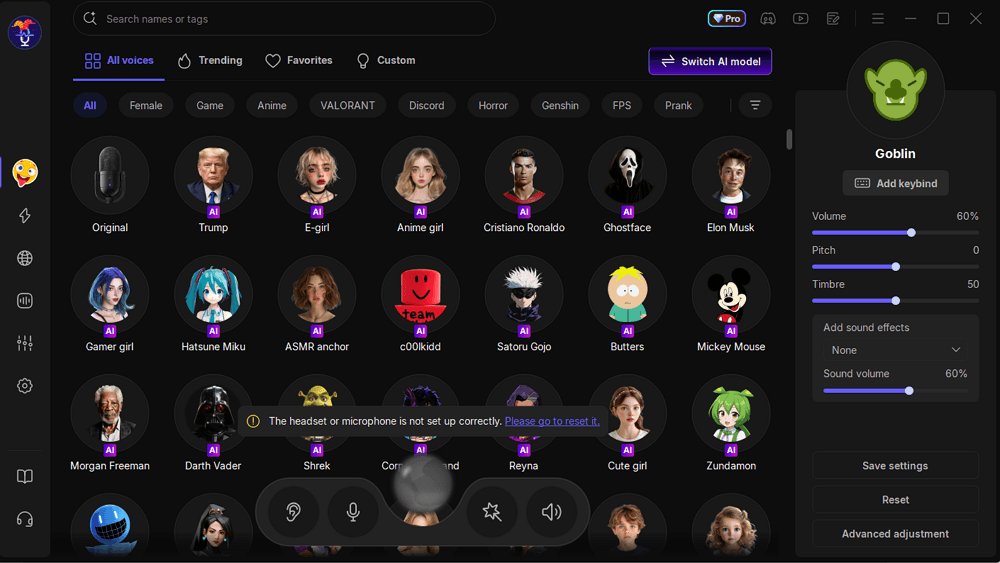
Why EaseUS VoiceWave is Great for Minecraft Pranks:
- Realistic Minecraft Villager voice effect that sounds very close to the original NPC
- Real-time voice changing with low latency (no annoying delay in voice chat)
- Easy to set up with Minecraft, Discord, WhatsApp, and other online chatting software
- Comprehensive voice library covering celebrities, e-girl voice, and robot voice
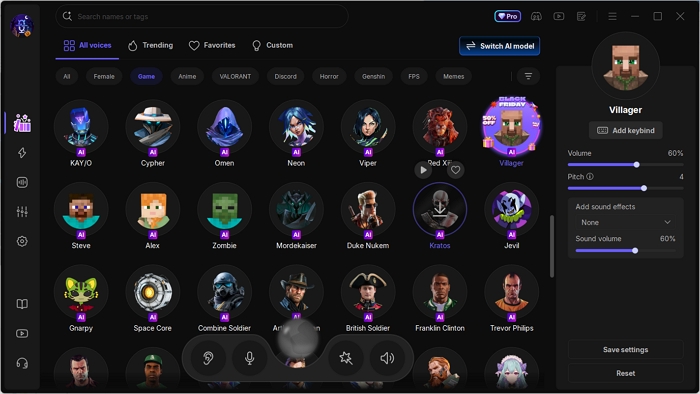
Quick Tip: After fixing your voice chat connection, set EaseUS VoiceWave as your microphone device in the game settings, then select the Villager voice. Whether you want to prank your friends or just add some silly vibes to your server, this is a fun way to make the most of your now-working voice chat.
Conclusion
That's it! By following the steps above, you should be able to fix the Minecraft simple voice chat not connected issue quickly.
Once your voice chat is working again, you can enjoy smooth communication with your friends. If the problem still persists, try checking the official Simple Voice Chat documentation or submit a support ticket to your hosting provider for further help.
And when everything is fixed, don't forget to check the bonus tip and prank your friends with the Minecraft villager voice!
Thanks for reading and happy mining! ⛏️
FAQs
1. Does Minecraft have built-in voice chat?
No, Minecraft Java Edition does not have official built-in voice chat. You need to install a mod like Simple Voice Chat (or alternatives such as Plasmo Voice) on both the client and server to enable proximity voice chat.
Minecraft Bedrock Edition has basic voice chat through Microsoft/Xbox Live, but it is limited and often requires specific privacy settings.
2. Why does my voice chat show "Not Connected" even with good internet?
The most common cause is that the voice chat UDP port (default 24454) is not properly forwarded or opened. Regular Minecraft uses TCP port 25565, but voice chat requires a separate UDP port. Check your router, firewall, and hosting provider settings.
3. Why do others hear me but I can't hear them (or vice versa)?
This usually means your microphone or speaker device is not correctly selected. Press V to open the voice chat menu, choose the right Microphone input and Speaker output, and test the green voice activity bar. Also, ensure Minecraft has microphone permission in your system settings.
4. How do I fix voice chat on a hosted server like Aternos or Minehut?
Many hosts require extra steps. Make sure the voice chat port (24454 UDP) is allocated in the hosting panel, update the port in the voicechat-server.properties file, and restart the server. Some hosts need a dedicated IP add-on or special voice chat configuration.
5. Does voice chat work on Minecraft Realms?
Yes, but only the built-in Bedrock voice chat works on Realms. For Java Realms, you still need to use a mod like Simple Voice Chat.