-
![]()
Joey Albert
Joey has been involved with tech ever since she joined the EaseUS editor team in March 2011 and now she is a senior website editor. She is good at solving various issues, such as video downloading and recording.…Read full bio -
![]()
Alin
Alin is a sophisticated editor for EaseUS in tech blog writing. She is proficient in writing articles related to screen recording, voice changing, and PDF file editing. She also wrote blogs about data recovery, disk partitioning, data backup, etc.…Read full bio -
![]()
Gorilla
Gorilla joined EaseUS in 2022. As a smartphone lover, she stays on top of Android unlocking skills and iOS troubleshooting tips. In addition, she also devotes herself to data recovery and transfer issues.…Read full bio -
![]()
Rel
Rel has always maintained a strong curiosity about the computer field and is committed to the research of the most efficient and practical computer problem solutions.…Read full bio -
![]()
Dawn Tang
Dawn Tang is a seasoned professional with a year-long record of crafting informative Backup & Recovery articles. Currently, she's channeling her expertise into the world of video editing software, embodying adaptability and a passion for mastering new digital domains.…Read full bio -
![]()
Sasha
Sasha is a girl who enjoys researching various electronic products and is dedicated to helping readers solve a wide range of technology-related issues. On EaseUS, she excels at providing readers with concise solutions in audio and video editing.…Read full bio
Page Table of Contents

Myra
Updated on Jun 16, 2026
0 Views |
0 min read
Sea of Thieves voice chat not working on PC? If your microphone isn't working, push-to-talk isn't responding, or you can't hear other players, you're not alone. These issues on PC are often caused by incorrect microphone settings, Windows permissions, or audio device conflicts. This guide will show you how to fix them step by step.
Why Is Sea of Thieves Voice Chat Not Working on PC?
Sea of Thieves voice chat not working on PC is usually caused by a few common configuration or permission issues rather than a game bug. Below are the most frequent reasons:
- Incorrect audio defaults. Windows may be using the wrong input device, so the game cannot detect your voice even if your mic is working elsewhere.
- Privacy blocks or disabled mic access. If microphone permissions are turned off, Sea of Thieves will not be allowed to use your audio input at all.
- Xbox Game Bar or app conflicts. Xbox Game Bar or background apps like Discord or Steam can override or interfere with voice chat input.
- Outdated or corrupted audio drivers. Audio driver issues can prevent proper microphone detection in-game while still working in other applications.
- Push-to-talk misconfiguration. Incorrect keybinds or conflicting hotkeys may make it seem like voice chat is not working.
Now that you know the common causes, here's how to fix them step by step.
How to Fix Sea of Thieves Voice Chat Not Working
If Sea of Thieves voice chat is not working on your PC, try the following solutions step by step. These fixes cover the most common causes related to Windows settings, audio devices, and in-game configuration.
Allow Sea of Thieves to Access Your Microphone
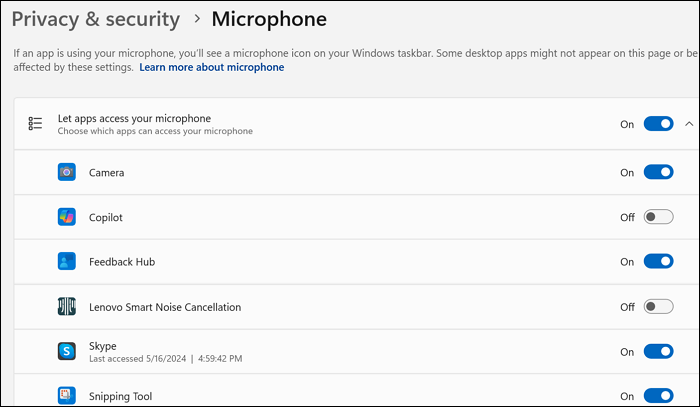
Sea of Thieves cannot detect your voice if Windows microphone permissions are disabled. To fix this, go to Windows Settings > Privacy & Security > Microphone, and make sure microphone access is turned on for desktop apps. Once enabled, restart the game and test your voice chat again.
Set Your Headset as the Default Communication Device
If Windows is using the wrong input device, your voice will not be detected in-game. Right-click the speaker icon in the taskbar > open Sound Settings > choose your headset as the default input device.
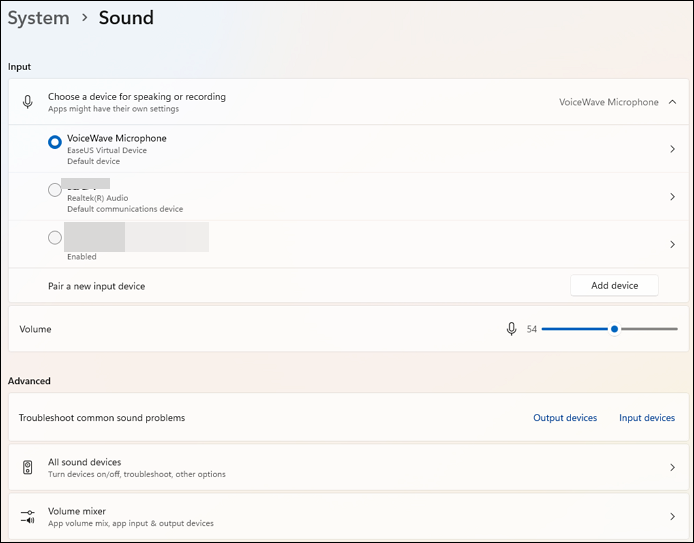
Then, open Control Panel > Sound > Recording tab, right-click your headset, and set it as Default Communication Device.
Verify Sea of Thieves Audio Settings
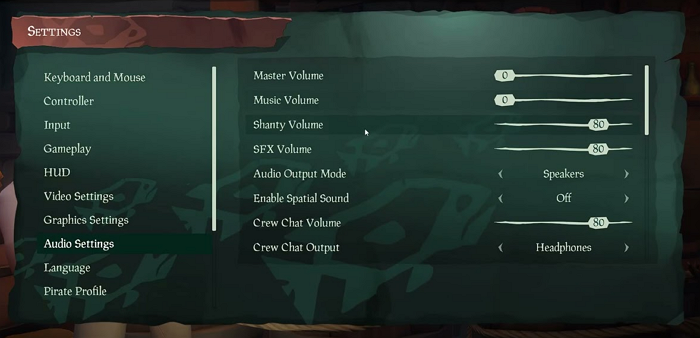
Incorrect in-game settings can block voice chat completely. Open Sea of Thieves settings > Audio Settings, ensure the correct input and output devices are selected. Also, make sure voice chat is enabled and not set to push-to-talk only if you are using an open mic.
Fix Xbox Game Bar Audio Settings
Xbox Game Bar may override your microphone settings on PC.
Press Win + G, open audio settings, and check if the correct microphone is selected. If issues persist, temporarily disable Xbox Game Bar to test whether it is causing the conflict.
Disable Unused Audio Devices
Multiple audio devices can confuse Windows and the game. Open Sound settings and disable unused microphones, virtual audio devices, or extra headsets. Keep only your main headset enabled for both input and output.
Update or Reinstall Audio Drivers
Outdated or corrupted audio drivers can prevent your microphone from being detected in Sea of Thieves.
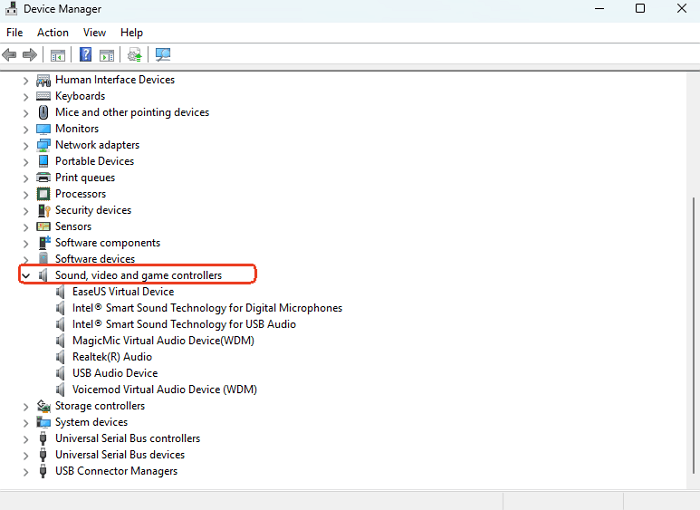
To open Device Manager, press Win + X on your keyboard and select Device Manager from the menu. Then expand Sound, video, and game controllers, right-click your audio device, and choose Update driver.
If the issue is not fixed, right-click the same device again, select Uninstall device, then restart your PC. Windows will automatically reinstall the correct driver.
Verify Sea of Thieves Game Files
Corrupted game files can break voice chat functionality.
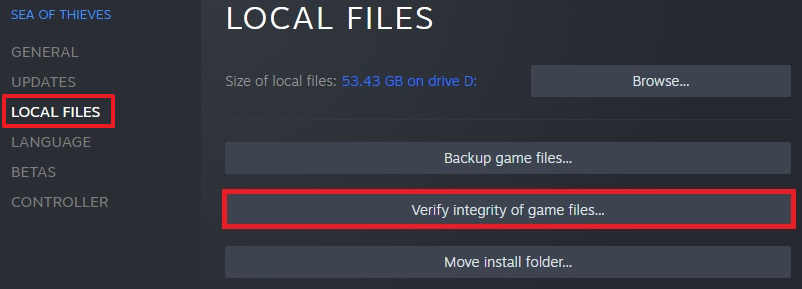
If you are using Steam, right-click Sea of Thieves > Properties > Local Files > Verify integrity of game files. Wait for the process to complete and relaunch the game.
Restart Windows Audio Services
Temporary system glitches can stop voice input from working.
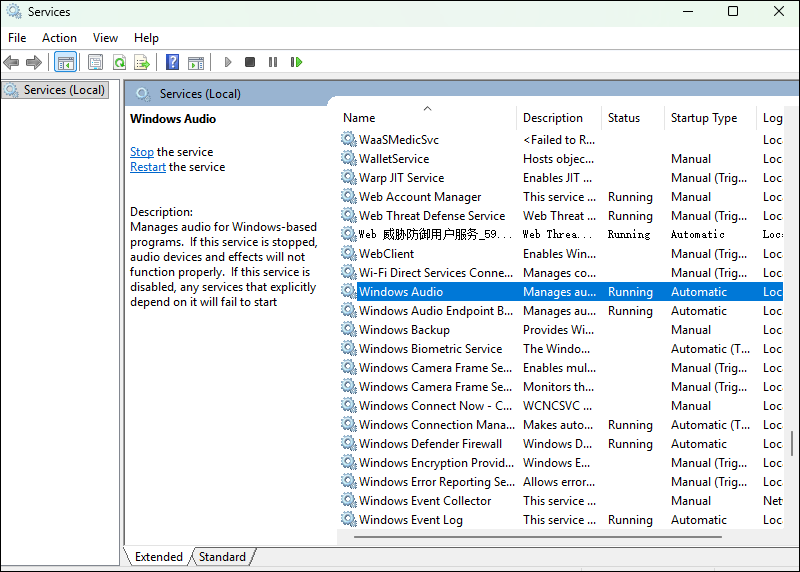
Press Win + R, type "services.msc", and find Windows Audio. Right-click it and select Restart. Then relaunch Sea of Thieves and test voice chat again.
Enhance Your Sea of Thieves Voice Chat with VoiceWave
If your Sea of Thieves voice chat is now working properly after trying the fixes above, you can take your in-game communication a step further by adding more fun to it.
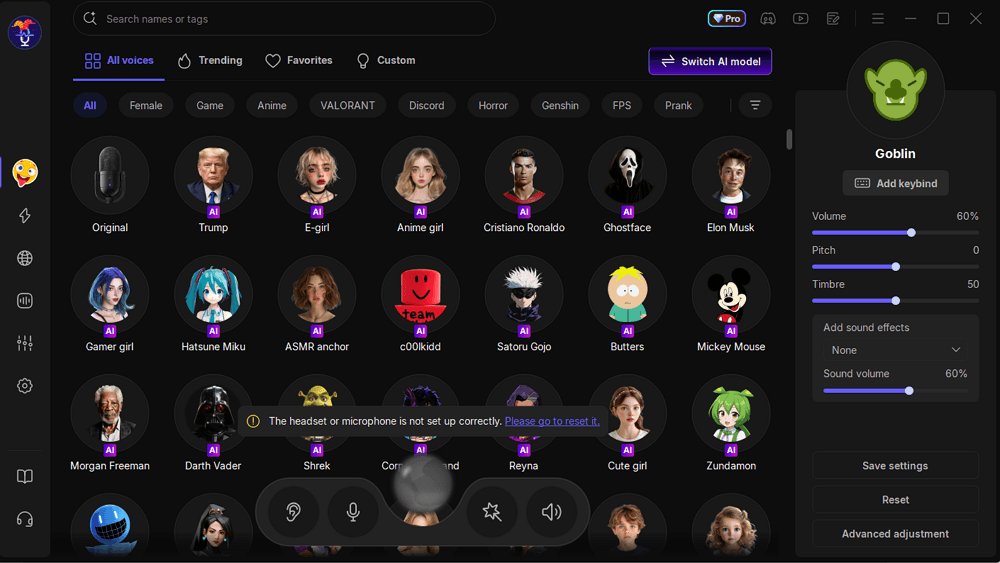
Tools like EaseUS VoiceWave let you change and enhance your voice in real time, allowing you to experiment with different voice effects while playing with your crew. Whether you want to sound funny, creative, or just add more personality to your gameplay, it can make in-game communication more entertaining.
Key features include:
- Real-time voice changing without delay during gameplay.
- A variety of voice effects for different styles and characters, including Luffy, Tony Tony Chopper, etc.
- Background noise reduction for clearer communication while playing multiplayer sandbox games.
- Easy integration with most PC games and voice platforms, including Discord, Valorant, Apex, etc.
Conclusion
Sea of Thieves voice chat not working on PC is usually caused by simple issues like incorrect microphone settings, disabled permissions, or audio device conflicts. In most cases, you can fix the problem by adjusting your Windows settings, verifying in-game audio options, or updating your audio drivers.
Once your voice chat is working again, communication with your crew should feel smooth and stable during gameplay. If you want to go a step further and make your in-game interactions more fun, tools like EaseUS VoiceWave can help enhance your voice experience with real-time effects and clearer audio during sessions.
FAQ
Why can't I hear other players in Sea of Thieves on PC?
This usually happens when your output device is set incorrectly or when voice chat settings are misconfigured. Make sure your speakers or headset are set as the default communication device in Windows, and check that the correct audio output is selected in Sea of Thieves settings.
How do I enable voice chat in Sea of Thieves on PC?
To enable voice chat, go to the in-game audio settings and make sure voice chat is turned on. Also, check your Windows microphone privacy settings and ensure Sea of Thieves has permission to access your microphone.
Why is the voice chat icon not showing in Sea of Thieves?
If the voice chat icon is missing, it may be due to disabled voice chat settings, microphone permission issues, or incorrect input device selection. Verify that your microphone is properly connected and selected as the default input device on your PC.
How do I change my microphone in Sea of Thieves?
You can change your microphone by adjusting your Windows sound settings. Open Sound settings, select the correct input device, and set your headset as the default communication device. Then restart the game to apply the changes.