-
![]()
Joey Albert
Joey has been involved with tech ever since she joined the EaseUS editor team in March 2011 and now she is a senior website editor. She is good at solving various issues, such as video downloading and recording.…Read full bio -
![]()
Alin
Alin is a sophisticated editor for EaseUS in tech blog writing. She is proficient in writing articles related to screen recording, voice changing, and PDF file editing. She also wrote blogs about data recovery, disk partitioning, data backup, etc.…Read full bio -
![]()
Gorilla
Gorilla joined EaseUS in 2022. As a smartphone lover, she stays on top of Android unlocking skills and iOS troubleshooting tips. In addition, she also devotes herself to data recovery and transfer issues.…Read full bio -
![]()
Rel
Rel has always maintained a strong curiosity about the computer field and is committed to the research of the most efficient and practical computer problem solutions.…Read full bio -
![]()
Dawn Tang
Dawn Tang is a seasoned professional with a year-long record of crafting informative Backup & Recovery articles. Currently, she's channeling her expertise into the world of video editing software, embodying adaptability and a passion for mastering new digital domains.…Read full bio -
![]()
Sasha
Sasha is a girl who enjoys researching various electronic products and is dedicated to helping readers solve a wide range of technology-related issues. On EaseUS, she excels at providing readers with concise solutions in audio and video editing.…Read full bio
Page Table of Contents

Jane Zhou
Updated on Jun 17, 2026
0 Views |
0 min read
VB Audio Virtual Cable not working on Windows 10 or Windows 11 is a common issue for users who rely on Discord, OBS Studio, or other streaming and voice applications. Typical problems include no sound output, the virtual device not appearing in system settings, or audio working in Windows but failing inside specific apps. In most cases, this is not caused by a single failure point. It usually comes down to incorrect audio routing, driver installation issues, or Windows system updates resetting device configurations. In this guide, we'll walk through the most effective fixes step by step to help you restore normal audio quickly.
Common VB Audio Virtual Cable Issues
Before jumping into fixes, it helps to quickly identify what exactly is going wrong. VB Audio Virtual Cable problems usually fall into a few clear categories. Check the list below and match it with your current issue:
- VB-Cable not showing in Windows: You open your system sound settings or Device Manager, but "CABLE Input" or "CABLE Output" is completely missing from the device list.
- No sound in Discord or OBS: The audio meters in Windows show that sound is passing through the cable, but target apps like Discord, OBS Studio, or Zoom receive absolutely zero audio.
- Works in system but not in apps: You can hear system sounds fine when routing, but as soon as a game or a voice changer tries to hook into the driver, the line goes dead.
- Crackling or distorted audio: Audio passes through the virtual cable but sounds like heavy static, popping noises, or a highly distorted, robotic voice.
If your issue matches one of the above, you can directly move to the corresponding fix section below.
How to Fix VB Audio Virtual Cable NOT Working
Fix 1. Enable Microphone Privacy Settings in Windows
One of the most overlooked reasons for a virtual audio cable failure is Windows security. Following recent Windows 11 updates, the operating system frequently blocks third-party virtual drivers from accessing audio inputs to protect user privacy. If your driver is installed but you are getting no audio input, check your system permissions.
- Open the Windows Settings menu by pressing Win + I on your keyboard.
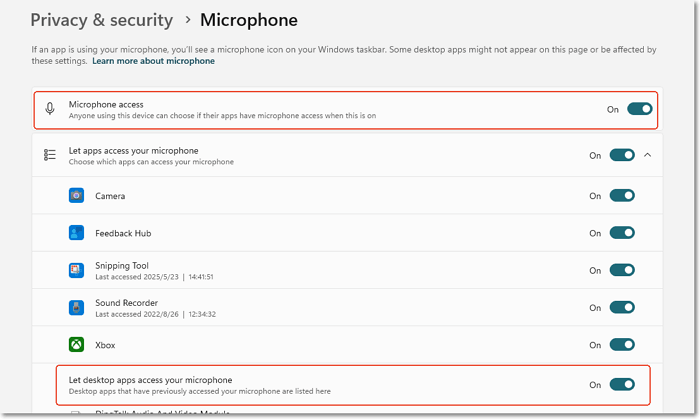
- Navigate to Privacy & Security in the left sidebar, then scroll down and click on Microphone under App Permissions.
- Locate the toggle next to Microphone access and ensure it is turned ON.
- Scroll down to Let desktop apps access your microphone and toggle it ON.
After enabling these settings, restart Discord or OBS and test your audio routing again. In many cases, this alone restores VB-Cable functionality without further changes.
Fix 2. Set VB-Cable as Default Audio Device
If VB Audio Virtual Cable is not set as the correct default device, Windows and your applications may continue using the wrong audio input or output, causing no sound or missing audio in Discord and OBS.
Follow these steps to configure it properly:
- Press Win + R, type mmsys.cpl, and press Enter
- Go to the Playback tab
- Right-click CABLE Input and select Set as Default Device
- Switch to the Recording tab
- Right-click CABLE Output and ensure it is enabled and correctly assigned
After making these changes, test audio playback again. This ensures that system audio is routed correctly through VB-Cable rather than to your physical speakers or microphone.
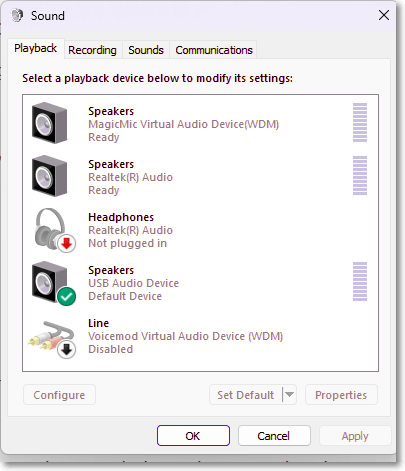
Fix 3. Match Sample Rates to Fix No Sound or Crackling
A very common cause of VB Audio Virtual Cable issues is a mismatch in sample rates between devices. When your microphone, system audio, and VB-Cable are running at different formats, it can result in no sound, distorted audio, or crackling.
To fix this, make sure all devices use the same settings:
- Open the Sound Control Panel again (Press Win + R, type mmsys.cpl, and hit Enter)
- Go to the Playback tab > right-click CABLE Input > Properties
- Open the Advanced tab, then set the Default Format to 48000 Hz (DVD Quality), or match your microphone setting
- Repeat the same steps for CABLE Output in the Recording tab
- Also, check your physical microphone and ensure it uses the same sample rate
After applying consistent sample rates across all devices, restart your audio apps and test again.
Fix 4. Restart Windows Audio Services
If VB Audio Virtual Cable was working before but suddenly stops producing sound, the issue may come from Windows audio services becoming stuck or failing to restart properly after a system change.
Restarting these services can quickly restore normal audio routing:
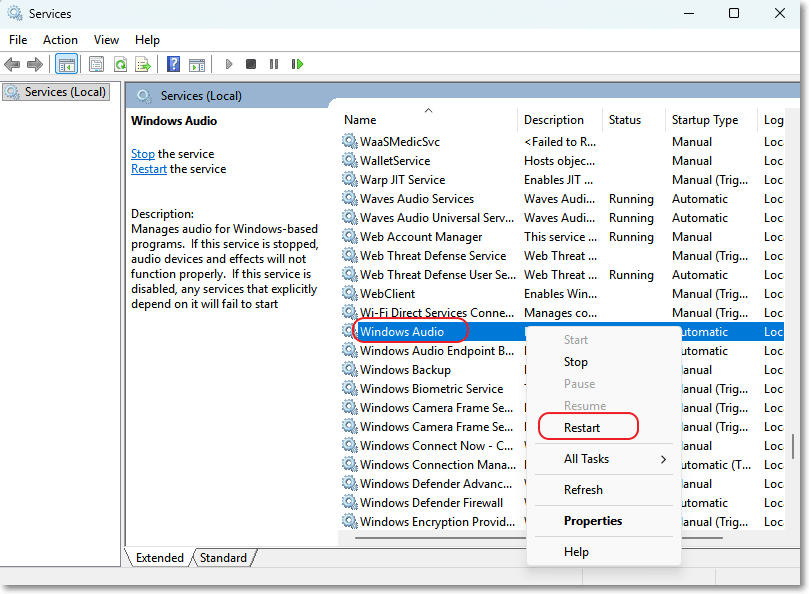
- Press Win + R, type services.msc, and press Enter
- Scroll down and find Windows Audio
- Right-click it and select Restart
- Then locate Windows Audio Endpoint Builder
- Right-click it and select Restart as well
After restarting both services, reopen Discord or OBS and test VB-Cable again. In many cases, this resolves temporary system-level audio glitches without needing further changes.
Fix 5. Fix VB-Cable Not Working in Discord Settings
Even if VB Audio Virtual Cable is working correctly in Windows, Discord may still fail to receive audio if the wrong input device is selected or voice processing settings interfere with routing.
- Open Discord > User Settings, then go to Voice & Video
- Set the Input Device to CABLE Output (VB-Audio Virtual Cable), and set the Output Device to your actual headphones or speakers
- Scroll down and disable the following (if enabled): Echo Cancellation / Noise Suppression (Krisp) / Automatic Gain Control
After adjusting these settings, restart Discord and test your microphone input. This ensures Discord is correctly reading audio from VB-Cable instead of your physical microphone.
Fix 6. Fix VB-Cable Audio Missing in OBS Studio
If OBS Studio isn't picking up your audio, the virtual cable mapping has likely disconnected. You can quickly re-bind the driver with these steps:
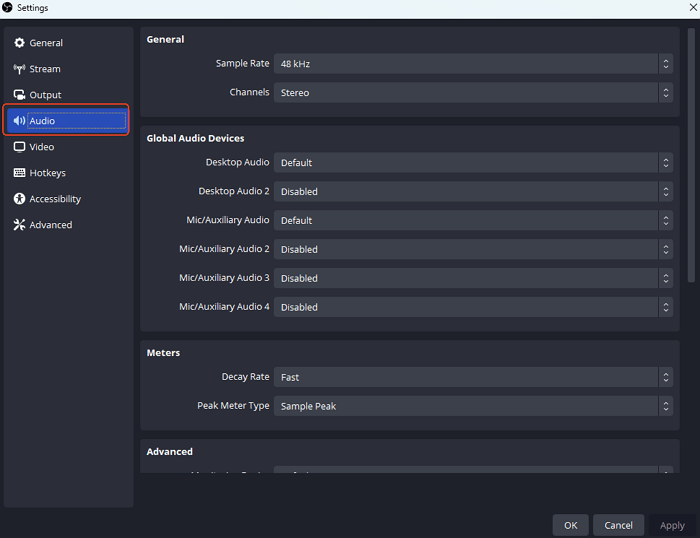
- Open OBS Studio and click Settings (bottom-right corner).
- Click the Audio tab on the left menu.
- Under Global Audio Devices, find Mic/Auxiliary Audio and select CABLE Output (VB-Audio Virtual Cable) from the drop-down menu.
- Click Apply and OK.
- Test your audio source and make sure the green/yellow bars in the Audio Mixer are actively moving.
Note: If the bars move but Stream hears nothing, right-click the Audio Mixer > Advanced Audio Properties > ensure Track 1 is checked for your virtual cable.
Fix 7. Clean Reinstall VB-Cable via Administrator Mode
If nothing else works, your driver files are likely corrupted. A standard reinstall won't fix this; you need a clean wipe running with full system permissions to clear out old registry conflicts.
- Type Control Panel in the Windows search bar, go to Programs and Features, right-click VB-Audio Virtual Cable, and click Uninstall.
- Restart your PC immediately. This step is mandatory to clear locked driver cache files.
- Download the official, latest driver setup file from the VB-Audio website.
- Extract the downloaded ZIP file. Right-click VBCABLE_Setup_x64.exe and select Run as administrator.
- Click Install Driver, then restart your computer one final time.
A Simpler Way to Handle Audio Routing (Without VB-Cable)
VB Audio Virtual Cable is a powerful tool for routing audio between apps, but it can feel technical to set up and troubleshoot, especially when multiple devices or apps are involved.
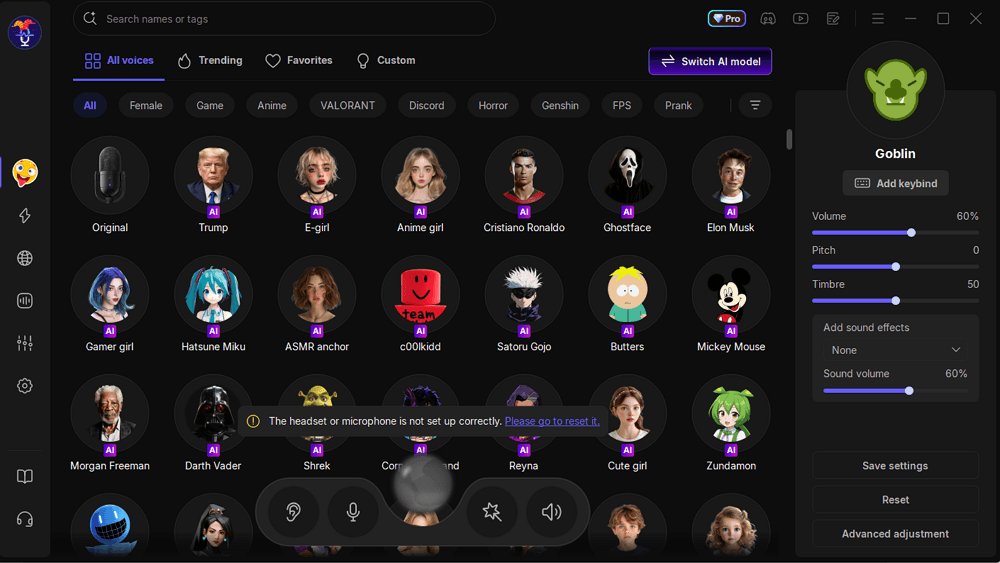
If you mainly use virtual audio routing for Discord calls, OBS streaming, or voice effects, you may also consider an all-in-one tool like EaseUS VoiceWave. Unlike manual driver-based setups, VoiceWave is designed to simplify the process by combining voice effects and virtual audio routing in a more straightforward interface. This can reduce the need to manually configure devices or deal with driver conflicts in some cases.
FAQs About VB-Audio Virtual Cable Troubleshooting
1. Why is VB Audio Virtual Cable not working after a Windows update?
Windows updates can reset audio devices and routing settings, which may cause VB-Cable to stop working or disappear from sound settings. In most cases, reselecting the default devices or reinstalling the driver fixes the issue.
2. Why does VB-Cable work in Windows but not in Discord?
This usually happens when Discord is using the wrong input device. Make sure CABLE Output is selected in Discord's Voice & Video settings instead of the default microphone.
3. Why is there no sound even though VB-Cable is selected?
This is often caused by incorrect routing or muted device settings. Check that VB-Cable is set as the correct playback/recording device and that volume levels are not muted or set to zero.
4. Why does VB Audio Virtual Cable cause crackling or distorted audio?
Crackling is usually caused by mismatched sample rates between devices. Setting all audio devices to the same format (e.g., 48000 Hz) typically resolves this issue.
5. Can VB Audio Virtual Cable stop working randomly?
Yes, it can happen after system updates, driver conflicts, or when multiple audio tools (like OBS or Voicemeeter) change routing settings. Restarting Windows audio services or reinstalling the driver usually restores it.