-
![]()
Joey Albert
Joey has been involved with tech ever since she joined the EaseUS editor team in March 2011 and now she is a senior website editor. She is good at solving various issues, such as video downloading and recording.…Read full bio -
![]()
Alin
Alin is a sophisticated editor for EaseUS in tech blog writing. She is proficient in writing articles related to screen recording, voice changing, and PDF file editing. She also wrote blogs about data recovery, disk partitioning, data backup, etc.…Read full bio -
![]()
Gorilla
Gorilla joined EaseUS in 2022. As a smartphone lover, she stays on top of Android unlocking skills and iOS troubleshooting tips. In addition, she also devotes herself to data recovery and transfer issues.…Read full bio -
![]()
Rel
Rel has always maintained a strong curiosity about the computer field and is committed to the research of the most efficient and practical computer problem solutions.…Read full bio -
![]()
Dawn Tang
Dawn Tang is a seasoned professional with a year-long record of crafting informative Backup & Recovery articles. Currently, she's channeling her expertise into the world of video editing software, embodying adaptability and a passion for mastering new digital domains.…Read full bio -
![]()
Sasha
Sasha is a girl who enjoys researching various electronic products and is dedicated to helping readers solve a wide range of technology-related issues. On EaseUS, she excels at providing readers with concise solutions in audio and video editing.…Read full bio
Page Table of Contents

Myra
Updated on Jun 08, 2026
0 Views |
0 min read
If your microphone is not working in Microsoft Teams, this is a common issue that can prevent others from hearing you during meetings or calls. In most cases, the problem is caused by incorrect device settings, missing permissions, or system configuration issues. In this guide, you'll learn quick and effective fixes to get your microphone working again in Microsoft Teams on Windows, Mac, and web browsers.
Why Your Microphone Is Not Working in Microsoft Teams
Microphone issues in Microsoft Teams are usually caused by simple configuration or permission problems rather than hardware failure. Common reasons include:
- Incorrect input device selection
- Blocked microphone permissions
- Outdated audio drivers
- System settings overriding Teams
- The microphone is muted
- Teams configuration glitch
In some cases, other apps may also be using the microphone, or Bluetooth/headset connections may not be properly established, preventing Teams from detecting your audio input correctly.
Quick Checks Before You Start Troubleshooting
Before diving into advanced fixes, try these quick checks to rule out simple issues:
- Check if your microphone works in other apps — test it in Voice Recorder, Zoom, or another app
- Make sure your mic is not muted — check physical mute buttons or headset controls
- Reconnect your device — unplug and plug back in USB or audio jack headsets
- Restart Microsoft Teams — close and reopen the app to refresh settings
- Restart your device — fixes temporary system or driver glitches
Fix Microsoft Teams Microphone Not Working
Check Microphone Settings in Microsoft Teams
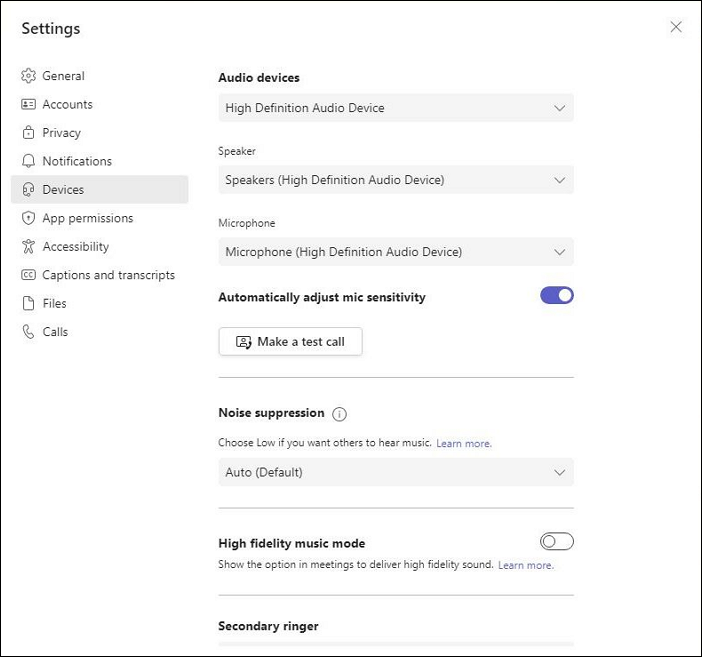
Microsoft Teams may be using the wrong microphone, especially if you have multiple audio devices connected. Verifying the selected input device is often the quickest way to restore microphone functionality.
Step 1. Open Microsoft Teams and click the three-dot menu in the top-right corner.
Step 2. Select Settings > Devices and locate the Microphone section.
Step 3. Choose the correct microphone from the drop-down menu and use Make A Test Call to confirm that your voice is being detected.
Enable Microphone Permissions
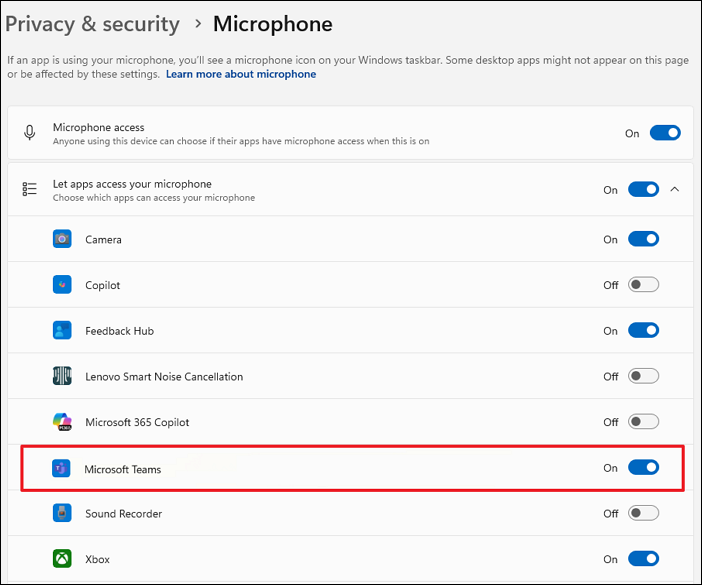
Even if your microphone works in other applications, Teams cannot access it without the proper system permissions. Checking these settings can quickly resolve microphone detection issues.
Step 1. Open your device's privacy settings and navigate to the microphone permissions section.
Step 2. Ensure microphone access is enabled for desktop applications.
Step 3. Verify that Microsoft Teams is allowed to use the microphone, then restart the app and test your audio.
Check Browser Permissions (If Using Teams Web)
If you are using Microsoft Teams in a browser, microphone access may be blocked by site permissions. Allowing microphone access for Teams can immediately restore audio input.
Step 1. Open Teams in your browser and click the lock icon next to the address bar.
Step 2. Locate the Microphone permission settings.
Step 3. Change the permission to Allow, refresh the page, and rejoin your meeting.
Update or Reinstall Audio Drivers
Audio drivers help Windows communicate with your microphone. If the drivers are outdated or corrupted, Teams may fail to detect your device properly.
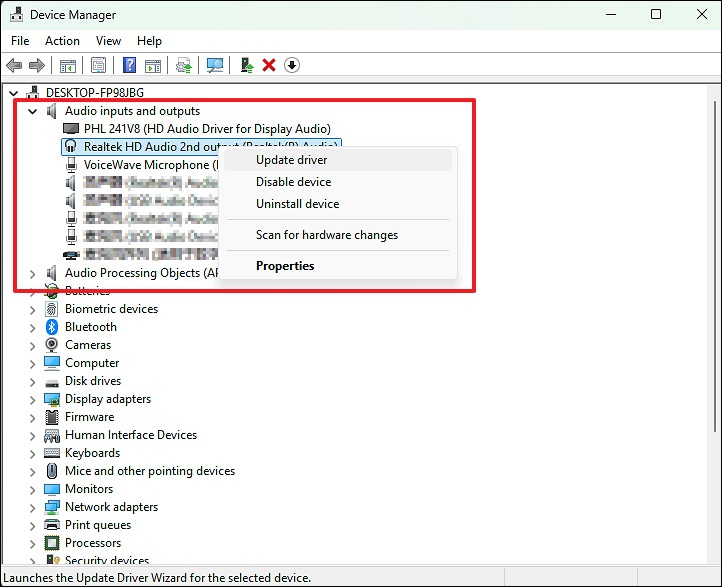
Step 1. Open Device Manager and expand Audio Inputs and Outputs.
Step 2. Right-click your microphone and select Update Driver.
Step 3. If the issue persists, uninstall the device and restart your computer to reinstall the driver automatically.
Clear Microsoft Teams Cache
Damaged cache files can interfere with Teams features, including microphone detection. Clearing the cache forces Teams to create fresh configuration files.
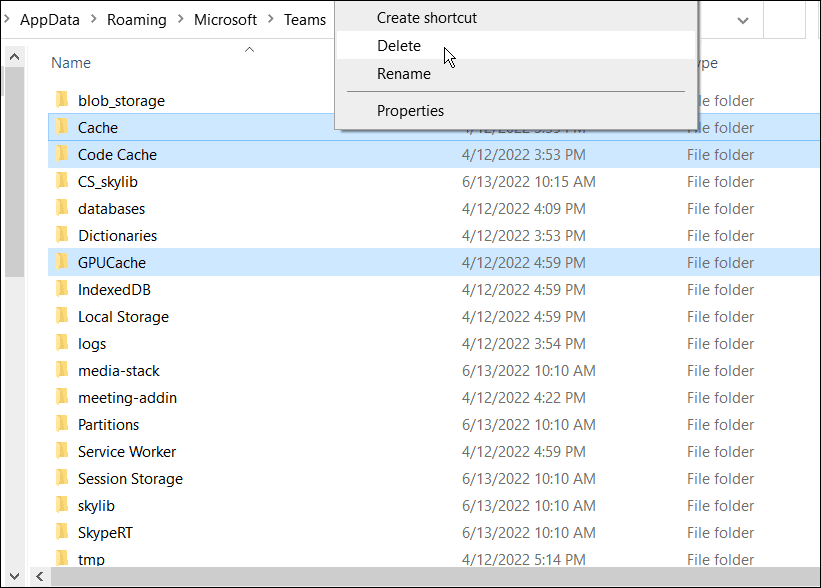
Step 1. Completely close Microsoft Teams and end all Teams-related processes.
Step 2. Navigate to the Teams cache folder on your device.
Step 3. Delete the cache files, relaunch Teams, and check whether your microphone is working.
Reinstall Microsoft Teams
If configuration files or application components have become corrupted, reinstalling Teams can provide a clean environment and resolve persistent microphone issues.
Step 1. Uninstall Microsoft Teams from your device.
Step 2. Download the latest version from Microsoft's official website.
Step 3. Install the application, sign in to your account, and test your microphone in a meeting or test call.
Microsoft Teams Microphone Troubleshooting Reference
If you're still experiencing microphone issues after trying the solutions above, use this table to quickly identify the most likely cause and revisit the recommended fix.
| Symotom | Likely Cause | Fix |
| Microphone doesn't work in any app | Hardware, driver, or system issue | Check connections, restart your device, and update audio driver |
| Microphone works in Zoom or Discord but not Teams | Teams settings or cache issue | Verify Teams microphone settings and clear the Teams cache |
| Teams cannot detect your microphone | Permission or driver problem | Enable microphone permissions and update audio drivers |
| Teams is using the wrong microphone | Incorrect input device selected | Choose the correct microphone in Teams settings |
| Bluetooth headset is connected but the mic doesn't work | Bluetooth profile or device conflict | Reconnect the headset and select it as the input device |
| Others cannot hear your duing meetings | Muted microphone or low input volume | Check mute status and adjust microphone volume |
Bonus: Add More Fun to Your Microsoft Teams Calls
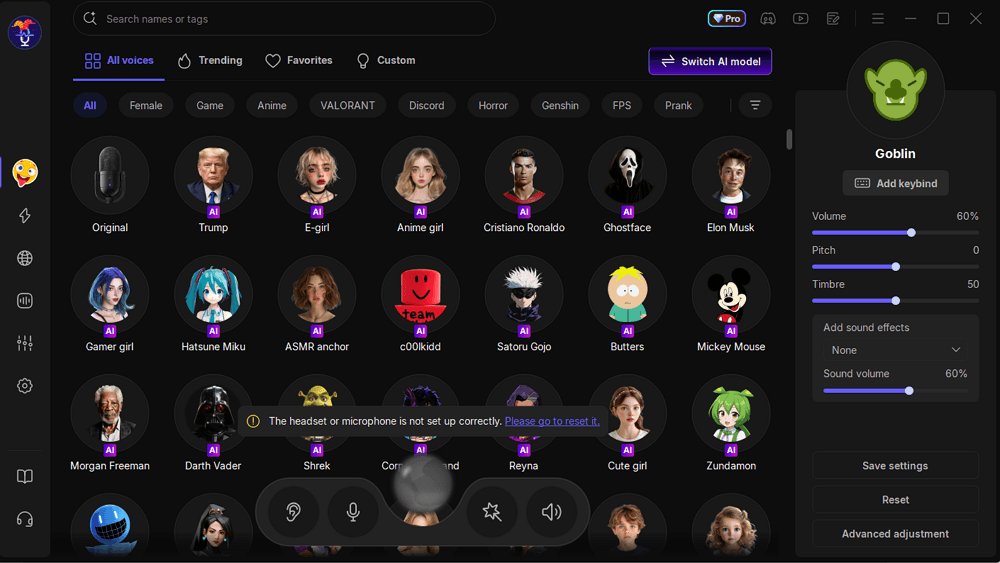
If your microphone is already properly set up in Microsoft Teams and you're looking for a way to make your online communication more engaging, you can try EaseUS VoiceWave. It is a real-time AI voice changer that works as a virtual microphone, allowing you to modify your voice with different effects during calls, meetings, or live conversations.
- Apply voice effects instantly during Teams calls with low-latency processing.
- Switch between different voice styles for meetings, presentations, or casual conversations.
- Designed to work smoothly with Microsoft Teams, Discord, Zoom, and other voice chat platforms.
- Quickly toggle between your original voice and voice effects without complex configuration.
Conclusion
Microphone issues in Microsoft Teams are often caused by incorrect settings, missing permissions, outdated drivers, or temporary software glitches. In most cases, you can resolve the problem by checking your microphone settings in Teams, granting the necessary permissions, clearing the Teams cache, or updating your audio drivers.
If the issue persists, test your microphone in another application to determine whether the problem is related to Teams or your device. By following the troubleshooting steps in this guide, you should be able to restore microphone functionality and get back to your meetings without interruptions.
Frequently Asked Questions (FAQ)
1. Why does my microphone work in Zoom but not in Microsoft Teams?
If your microphone works in other apps but not in Teams, the issue is often related to Teams-specific settings, permissions, or corrupted cache files. Verify that Teams is using the correct input device and try clearing the application cache.
2. How do I test my microphone in Microsoft Teams?
Open Microsoft Teams and go to Settings > Devices. Under the microphone section, use the Make A Test Call feature to check whether Teams can detect and record your voice correctly.
3. Why can't Microsoft Teams detect my Bluetooth headset microphone?
This can happen if Teams selects the wrong input device or if the Bluetooth headset is connected in audio-only mode. Reconnect the headset, verify the Bluetooth connection, and manually select the headset microphone in Teams settings.
4. Why can others hear me intermittently during Teams meetings?
Intermittent microphone issues can be caused by unstable Bluetooth connections, low microphone input levels, background applications using the microphone, or temporary network and software issues. Restarting Teams and reconnecting your audio device may help resolve the problem.