-
![]()
Joey Albert
Joey has been involved with tech ever since she joined the EaseUS editor team in March 2011 and now she is a senior website editor. She is good at solving various issues, such as video downloading and recording.…Read full bio -
![]()
Alin
Alin is a sophisticated editor for EaseUS in tech blog writing. She is proficient in writing articles related to screen recording, voice changing, and PDF file editing. She also wrote blogs about data recovery, disk partitioning, data backup, etc.…Read full bio -
![]()
Gorilla
Gorilla joined EaseUS in 2022. As a smartphone lover, she stays on top of Android unlocking skills and iOS troubleshooting tips. In addition, she also devotes herself to data recovery and transfer issues.…Read full bio -
![]()
Rel
Rel has always maintained a strong curiosity about the computer field and is committed to the research of the most efficient and practical computer problem solutions.…Read full bio -
![]()
Dawn Tang
Dawn Tang is a seasoned professional with a year-long record of crafting informative Backup & Recovery articles. Currently, she's channeling her expertise into the world of video editing software, embodying adaptability and a passion for mastering new digital domains.…Read full bio -
![]()
Sasha
Sasha is a girl who enjoys researching various electronic products and is dedicated to helping readers solve a wide range of technology-related issues. On EaseUS, she excels at providing readers with concise solutions in audio and video editing.…Read full bio
Page Table of Contents

Myra
Updated on Jun 16, 2026
0 Views |
0 min read
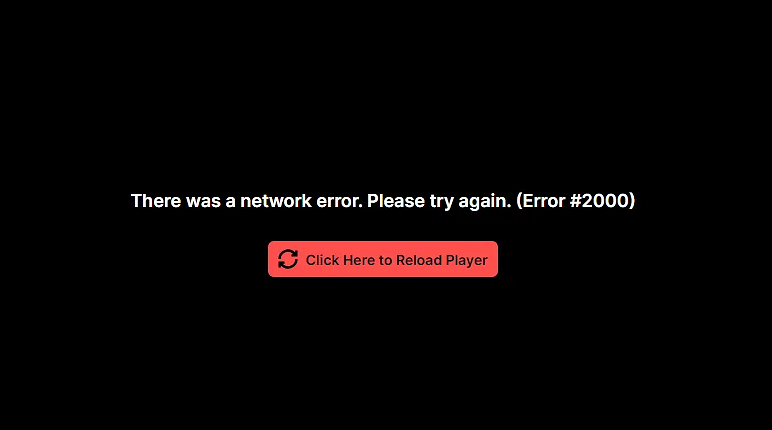
You are right in the middle of a massive clutch play or a hyped-up tournament stream, and suddenly, the screen goes black. In place of your favorite streamer, you are greeted with a frustrating message: "There was a network error. Please try again. (Error #2000)".
Twitch Error 2000 is one of the most common issues that plagues viewers worldwide, completely halting your live stream. The good news is that this problem is rarely on Twitch's end, meaning you can fix it yourself in just a few minutes. Whether you are using Google Chrome, Firefox, or Microsoft Edge, this step-by-step troubleshooting guide will show you exactly how to get rid of this annoying bug and get back to seamless streaming.
What is Twitch Error 2000?
Twitch Error 2000 is a localized browser and network connection error. It occurs when your web browser fails to establish a secure, continuous connection with Twitch's video delivery servers. When this handshake fails, the Twitch media player cannot decode the live broadcast, resulting in a sudden stream freeze or a black screen.
While the error message often reads "Network Error," it does not necessarily mean your home internet is down. Instead, it usually points to a data roadblock happening right inside your browser.
The most common causes behind Twitch Error 2000 include:
- Corrupted Browser Cache: Outdated or broken temporary files blocking incoming video data streams.
- Aggressive Ad Blockers: Extensions like uBlock Origin or AdBlock interfering with Twitch's mandatory ad-delivery scripts.
- VPN IP Blocking: Twitch flagging and blocking specific server IP addresses used by popular VPN services.
- Antivirus Conflicts: Real-time web protection modules mistaking the Twitch stream for a security threat.
5 Ways to Fix Twitch Error 2000
If you are stuck on a black screen, use these five proven solutions to restore your Twitch stream immediately. Start with the first method and work your way down.
Refresh the Stream and Restart Your Browser
The fastest way to fix Twitch Error 2000 is to force your browser to reload the stream from scratch. A standard click on the refresh icon often just reloads cached data, which won't fix the bug. Instead, you need to perform a hard refresh to clear the temporary glitch.
- On Windows: Press Ctrl + F5 simultaneously.
- On Mac: Press Cmd + Shift + R simultaneously.
If the error persists, completely close your browser, wait five seconds, relaunch it, and open the Twitch channel again.
BONUS TIP: Level Up Your Twitch Stream & Chat
If you are getting back into your favorite stream or planning to go live yourself, don't settle for boring, default audio. Enhance your Twitch experience with EaseUS VoiceWave, the ultimate real-time AI voice changer.
- Instant Voice Morphing: Transform your voice into 400+ different avatars, robots, or game characters instantly.
- Perfect Twitch Integration: Works seamlessly with your favorite streaming software (OBS, Streamlabs) and Discord.
- Crystal-Clear Audio: Built-in AI noise reduction ensures your viewers hear you perfectly without background distractions.
👉 [Download EaseUS VoiceWave for Free Today] and surprise your chat with an entirely new sound!
Disable Ad Blockers and Extensions
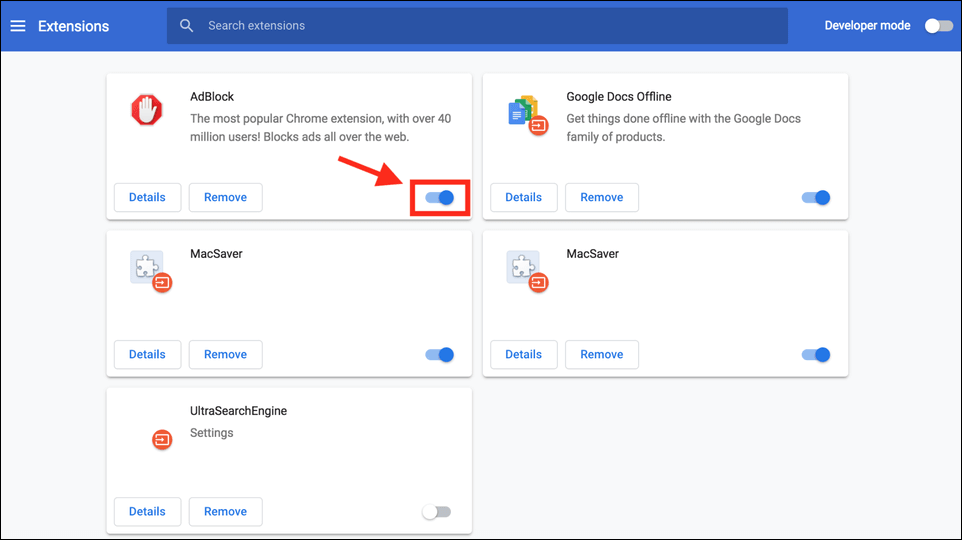
Twitch constantly updates its anti-ad scripts to prevent users from bypassing advertisements. Aggressive ad-blocking extensions like uBlock Origin, AdBlock, or AdGuard frequently clash with these scripts, triggering Error 2000.
Step 1. Click the Extensions (puzzle piece) icon in your browser toolbar.
Step 2. Select your ad blocker.
Step 3. Click the power button icon to turn off or pause the Twitch blocker.
Step 4. Alternatively, add twitch.tv to the extension's Whitelist or Exceptions list.
Step 5. Refresh the stream.
Clear Browser Cache and Cookies
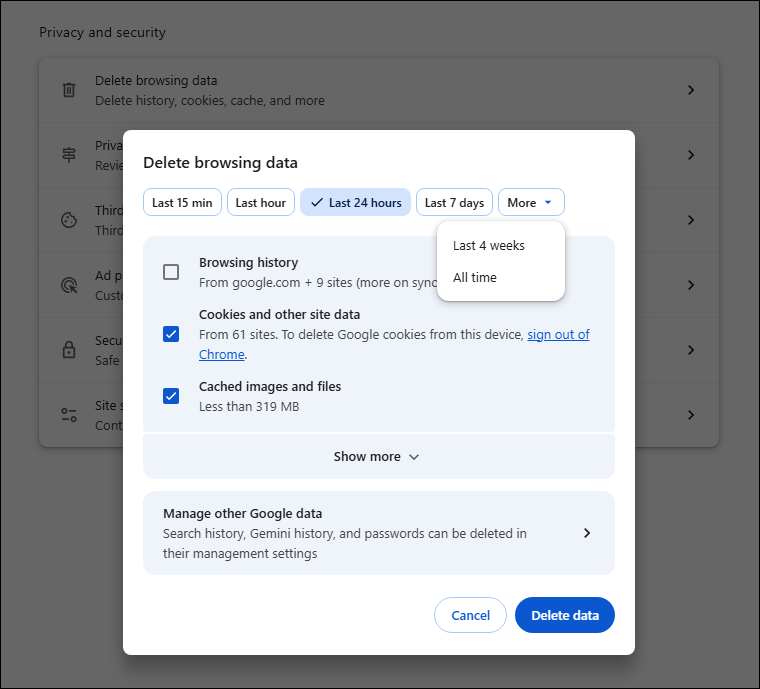
Corrupted temporary files and outdated cookies can block your browser from establishing a secure connection with Twitch's video player. Clearing this data forces your browser to download clean, updated files.
Step 1. Open Google Chrome and press Ctrl + Shift + Delete (or Cmd + Shift + Delete on Mac).
Step 2. Set the Time Range to All time.
Step 3. Check the boxes next to Cookies and other site data and Cached images and files.
Step 4. Click the Clear data button. Log back into Twitch and test the live stream.
Switch to Incognito Mode or Another Browser
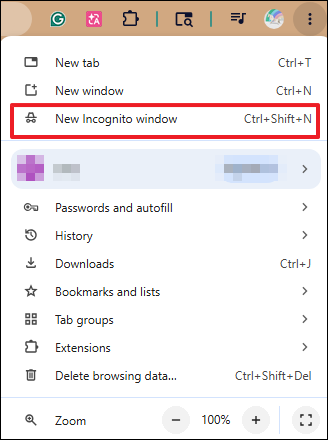
If you do not want to clear all your data right away, use Incognito Mode to isolate the issue. Incognito mode runs a clean browser session without your standard active extensions, cookies, or cache.
- Open Incognito: Press Ctrl + Shift + N (Chrome) or Ctrl + Shift + P (Firefox).
- Go to Twitch and try watching the stream.
If the stream works perfectly in Incognito, a broken extension or corrupted cache from Method 2 or 3 is definitely causing your Error 2000. If it still fails, try switching to a completely different browser like Brave, Firefox, or Microsoft Edge.
Turn Off or Disconnect Your VPN
Twitch actively tracks and flags IP addresses associated with Virtual Private Networks (VPNs) to prevent automated botting and region-locking bypasses. If your VPN connects to a flagged server, Twitch will drop your connection, resulting in a network error.
Step 1. Open your VPN desktop app or browser extension.
Step 2. Click Disconnect or turn off the secure connection.
Step 3. Refresh your Twitch page.
Optional: If you must use a VPN, change your server location to a different city or country, or enable Split Tunneling to exclude Twitch traffic from the VPN tunnel.
Advanced Troubleshooting for Twitch Error 2000
If the basic browser fixes did not work, the issue lies deeper within your system's security settings or network routing. Use these two advanced technical steps to clear the roadblock.
Disable Web Protection in Antivirus Software
Third-party antivirus programs (such as Avast, AVG, or Bitdefender) feature real-time web protection modules. These modules scan incoming data streams for malicious scripts. Unfortunately, they frequently misidentify Twitch's dynamic video decryption streams as a threat and block the data, triggering Error 2000.
Step 1. Open your antivirus software dashboard.
Step 2. Navigate to Settings or Protection.
Step 3. Locate Web Shield, Real-Time Protection, or HTTPS Scanning.
Step 4. Temporarily Toggle Off the feature for 10 minutes.
Step 5. Refresh Twitch to see if the stream loads.
Note: If this fixes the issue, add https://*.twitch.tv to your antivirus software's Exclusions or Exceptions list so you can turn your protection back on safely.
Flush Your DNS Cache
Your computer stores a directory of IP addresses for websites you visit, known as the Domain Name System (DNS) cache. If Twitch updates its server routing but your computer is still relying on an outdated, corrupted DNS entry, your connection will fail with a persistent network error. Flushing the cache forces a clean look-up.
On Windows:
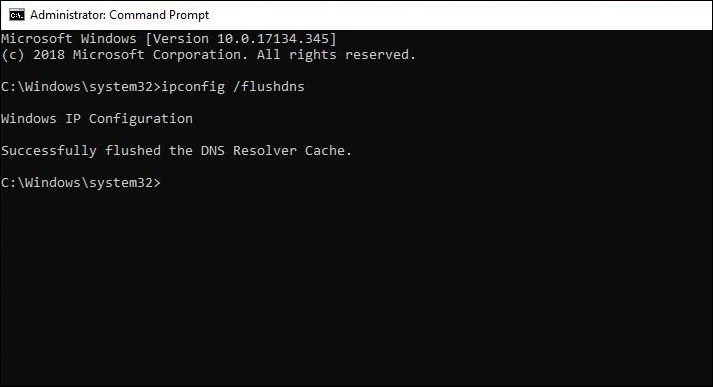
- Press the Windows Key, type cmd, and select Run as administrator.
- Type ipconfig /flushdns and press Enter.
- You will see a confirmation message: "Successfully flushed the DNS Resolver Cache."
On Mac:
- Press Cmd + Space, type Terminal, and press Enter.
- Type sudo dscacheutil -flushcache; sudo killall -HUP mDNSResponder and press Enter.
- Type your Mac user password to authorize the command.
- Once cleared, restart your web browser and open the Twitch stream.
Conclusion
Encountering a Twitch Error 2000 network issue can instantly ruin a hyped live stream event. Fortunately, you do not need advanced technical skills to get things running smoothly again.
In 90% of cases, simply performing a hard refresh, updating your ad blocker settings, or clearing your browser's cluttered data cache will fix the problem immediately. For deeper issues, a quick DNS flush or a brief antivirus adjustment will clear the path for Twitch's video players.
Try these steps in order, and you will be back to chatting and cheering for your favorite streamers in no time.
Frequently Asked Questions
1. Why does Twitch Error 2000 only happen on some channels?
This error usually targets channels running specific, aggressive ad campaigns. If your ad blocker struggles to intercept a particular ad script on one channel but works fine on another, it will cause a selective Twitch Error 2000 black screen.
2. Can I get Twitch Error 2000 on the Twitch Mobile App?
It is very rare on the mobile app because mobile platforms do not use desktop browser extensions. If you see it on iOS or Android, it is a pure network drop. Try toggling your device's Wi-Fi off and back on, or switch over to cellular data.
3. Will clearing my browser cache delete my Twitch account?
No. Clearing your cache and cookies only logs you out of websites and removes temporary files. Your Twitch account data, follows, and subscriptions remain perfectly safe. You will just need to log back into your account.
4. Why does Twitch Error 2000 keep coming back?
If the error returns frequently, your ad blocker or VPN is likely updating its filters automatically and clashing with Twitch's live platform updates again. Whitelisting Twitch in these apps is the best way to stop the loop.