-
![]()
Joey Albert
Joey has been involved with tech ever since she joined the EaseUS editor team in March 2011 and now she is a senior website editor. She is good at solving various issues, such as video downloading and recording.…Read full bio -
![]()
Alin
Alin is a sophisticated editor for EaseUS in tech blog writing. She is proficient in writing articles related to screen recording, voice changing, and PDF file editing. She also wrote blogs about data recovery, disk partitioning, data backup, etc.…Read full bio -
![]()
Gorilla
Gorilla joined EaseUS in 2022. As a smartphone lover, she stays on top of Android unlocking skills and iOS troubleshooting tips. In addition, she also devotes herself to data recovery and transfer issues.…Read full bio -
![]()
Rel
Rel has always maintained a strong curiosity about the computer field and is committed to the research of the most efficient and practical computer problem solutions.…Read full bio -
![]()
Dawn Tang
Dawn Tang is a seasoned professional with a year-long record of crafting informative Backup & Recovery articles. Currently, she's channeling her expertise into the world of video editing software, embodying adaptability and a passion for mastering new digital domains.…Read full bio -
![]()
Sasha
Sasha is a girl who enjoys researching various electronic products and is dedicated to helping readers solve a wide range of technology-related issues. On EaseUS, she excels at providing readers with concise solutions in audio and video editing.…Read full bio
Page Table of Contents

Myra
Updated on Jul 10, 2026
0 Views |
0 min read
Missing a legendary play or a hilarious punchline during a live stream can be incredibly frustrating. Unlike YouTube, Twitch doesn't always make it obvious how to jump back a few seconds to see what just happened. If you are looking for a quick way to skip back on a live broadcast, you are in the right place.
Whether you are watching on a PC, Mac, iPhone, or Android device, this comprehensive guide will show you exactly how to rewind any Twitch stream in real-time so you never miss a moment of the action.
Method 1. Use Twitch's Native "Stream Rewind" Feature — Official Way
Twitch has officially introduced a native Stream Rewind feature that allows viewers to pause, rewind, and rewatch live streams directly within the main player interface.
Step 1. Hover your mouse over the live Twitch video player to reveal the control bar.
Step 2. Look for the Seek Bar (progress timeline) at the bottom of the video window.
Step 3. Click and drag the slider backward to your desired timestamp, or use the "Rewind 2 Minutes" button if available.
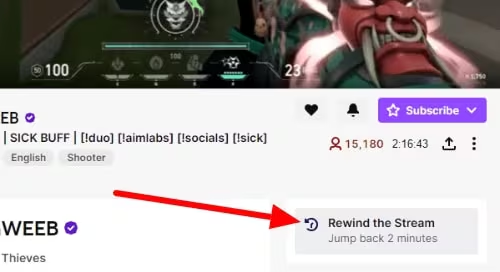
Step 4. To return to the live action, simply click the Live button next to the volume control.
Important Limitations (Why You Cannot See the Rewind Button)
Unlike YouTube, Twitch's rewind button is not universal. If you cannot see the seek bar, it is usually due to these official platform restrictions:
- Creator Status: The feature is only active if the streamer is a Twitch Affiliate or Partner who has explicitly enabled VOD storage in their dashboard.
- Channel Category: Certain categories, such as live music DJ channels, often have this feature restricted due to DMCA copyright laws.
- Subscription Status: Twitch frequently tests or restricts ad-free scrubbing to Channel Subscribers and Twitch Turbo members to manage live ad delivery algorithms.
Method 2. The VOD (Video on Demand) Trick
If the native rewind button is missing, the VOD trick is another workaround. When a creator streams, Twitch records and updates their video archive in real-time. You can exploit this to view the live recording.
Step 1. Go to the live stream of the creator you are watching.
Step 2. Click on the streamer's Profile Picture or Channel Name to open their main page.
Step 3. Click on the Videos tab located in the top menu bar.
Step 4. Filter by Recent Broadcasts. The very first video will have a red "LIVE" or "Recording" badge on it.
Step 5. Click this video. It is a real-time copy of the stream. You can now drag the progress bar freely, rewind to any point, or even play it at 1.5x or 2.0x speed to catch up to the live broadcast.
Limitations of the VOD Trick
The VOD trick will not work on every channel. This method only works if the streamer meets these three basic conditions:
- Saved Streams: The creator must run on "Store Past Broadcasts" in their dashboard settings.
- Public Videos: The streamer must allow live recordings to be public ("Always Publish VODs" should be turned on.)
- No Copyright Music: The broadcast must not use copyrighted audio, or Twitch will instantly mute the playback.
Method 3. Use Chrome/Firefox Extensions
If you watch Twitch on a computer, browser extensions are the easiest way to add a permanent reward timeline. They force a YouTube-style progress bar onto any live stream.
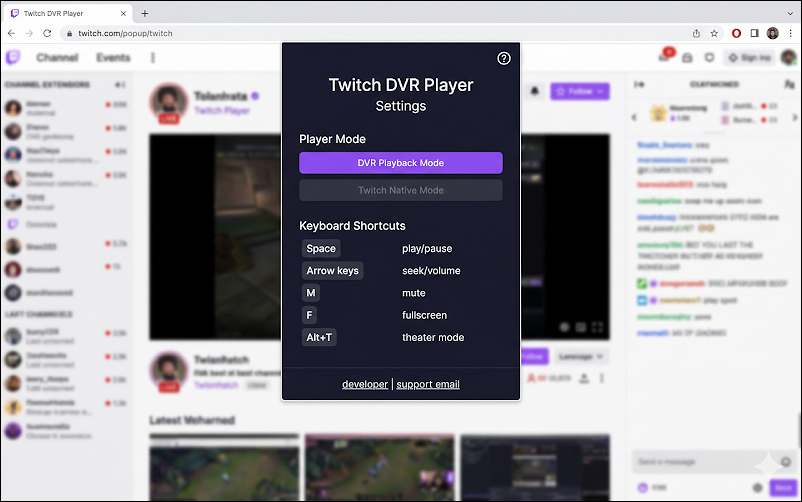
Twitch DVR Player: This tool replaces the default player with a custom timeline. Once installed, simply drag the view progress bar at the bottom of the stream to pause, rewind, or skip forward.
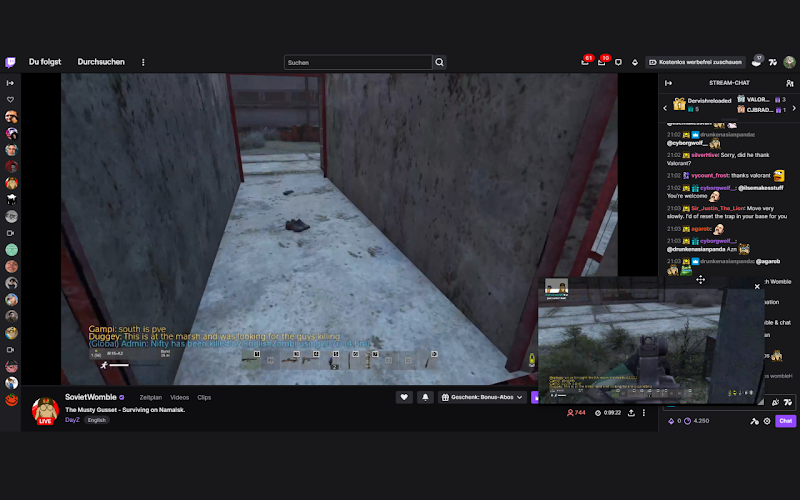
Instant Twitch Replay: This adds a simple overlay button next to your chat window. Clicking it pops up a small picture-in-picture window showing the last 30 seconds of action.
Method 4. Clip Creation for Quick 30-Second Rewind
If you only need to look back at something that happened a few seconds ago, like an amazing play or a funny fail, you can use Twitch's built-in Clip tool. This creates a quick, loopable replay page instantly.
Step 1. Hover your mouse over the live video player. Click the Clip icon (a movie clapperboard) in the bottom right corner, or press Alt + X.
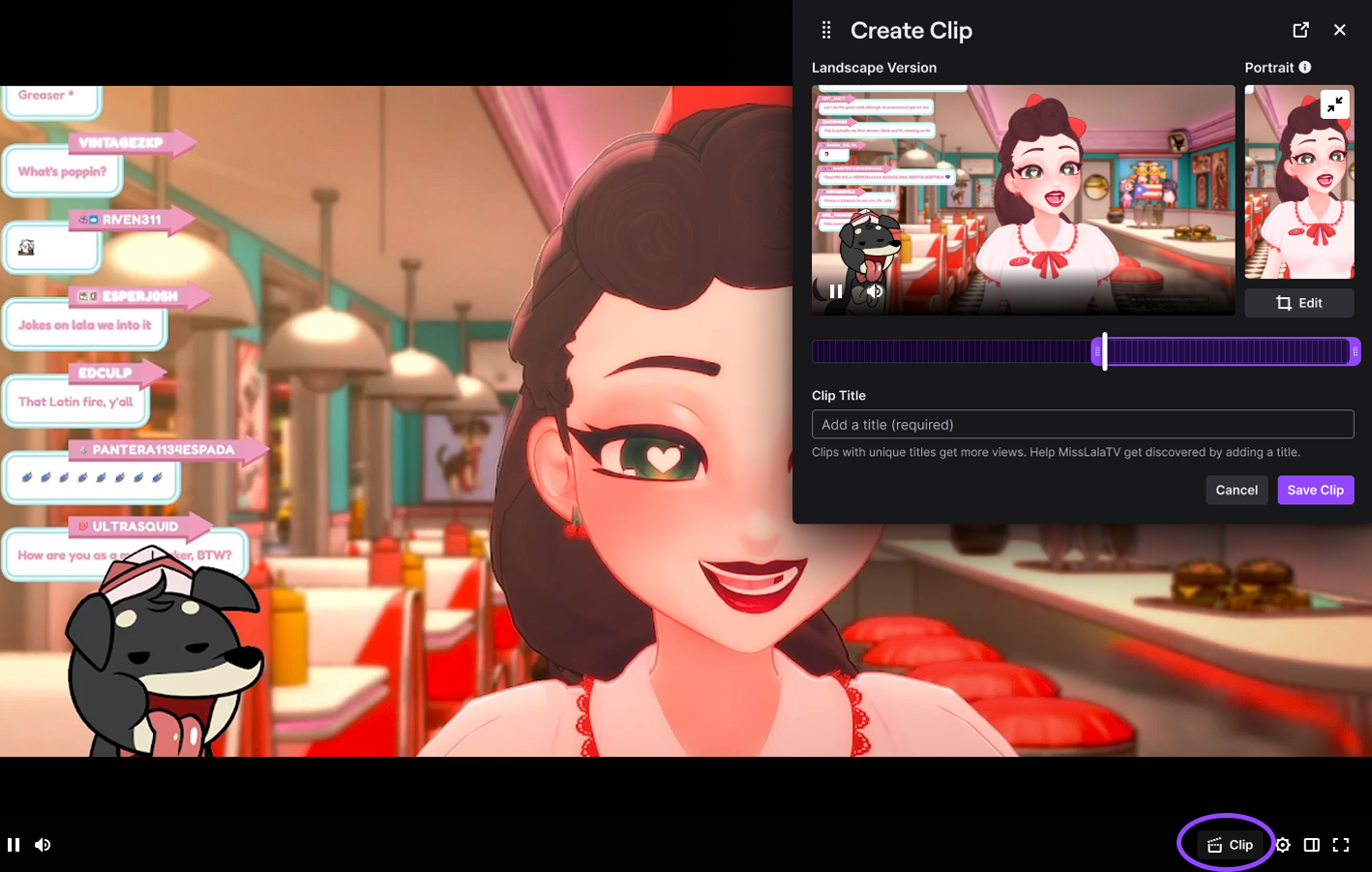
Step 2. A new browser tab will immediately open, automatically playing a video loop of the last 30 to 90 seconds of the stream.
Step 3. Watch the moment you missed, and then simply close the tab.
Requirements for the Clip Trick to Work:
- The channel owner has clips turned on in their safety settings.
- The streamer has to allow your user level to make clips (some channels lock clips behind follower or subscriber status).
- You should use a desktop browser or the official Twitch mobile app, as mobile web browsers do not support the clip button.
Bonus for Streamers: How to Boost Viewer Engagement & Retention
How to Enable Stream Rewind on Your Channel
If you want to keep your viewers hooked and let them catch up on moments they missed, you must enable the native rewind feature.
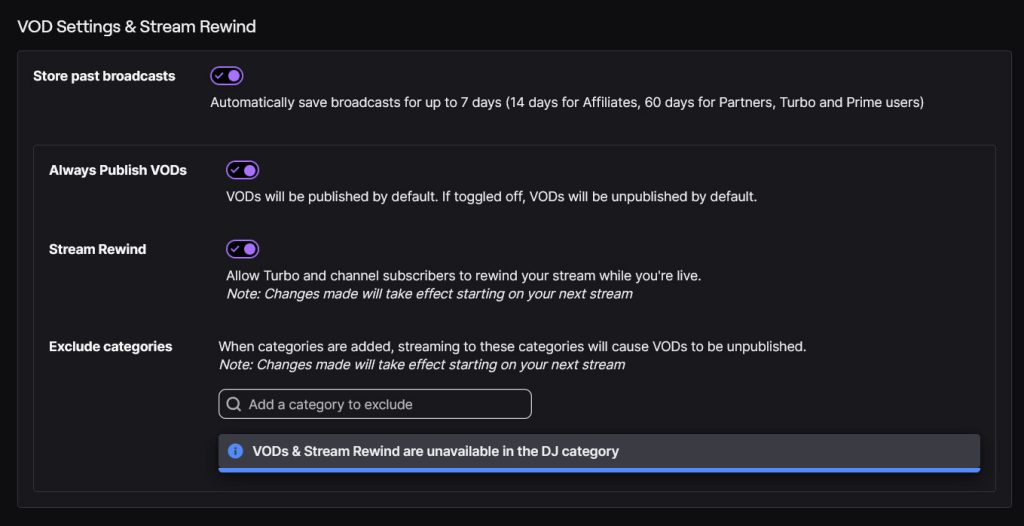
Step 1. Go to your Twitch Creator Dashboard. Navigate to Settings > Stream.
Step 2. Under VOD Settings, toggle "Store past broadcasts" to ON.
Step 3. Scroll down to Stream Rewind and switch it on.
Upgrade Your Stream's Entertainment Value with EaseUS VoiceWave
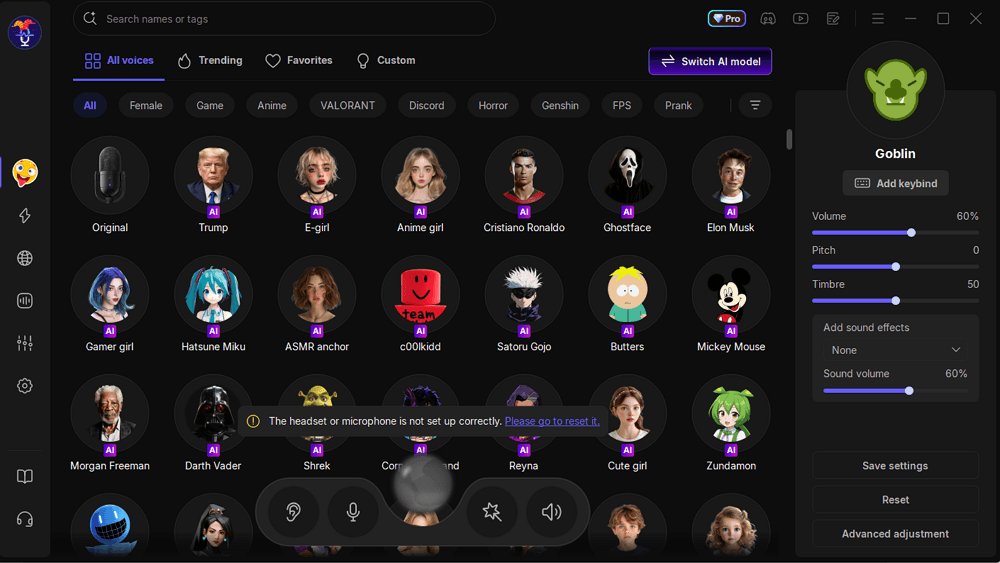
Allowing viewers to rewind helps them catch your best moments, but how do you create those unforgettable, clip-worthy moments in the first place? One of the easiest ways to boost stream engagement and make your clips go viral is by using a professional AI voice changer. EaseUS VoiceWave is a real-time AI voice changer that integrates seamlessly with OBS Studio, Streamlabs, and Twitch.
- Why Streamers Love It: It offers 400+ voice filters (from gaming characters and robots to celebrity voices) and built-in soundboards with minimal latency, so your voice changes instantly while you speak.
- How it works with Twitch: Simply set VoiceWave Microphone as your virtual audio input device. With a single click, you can switch characters during an intense gaming session or a funny chat segment.
- The Engagement Benefit: When viewers rewind your stream, they will be re-watching hilarious, voice-modulated moments that are highly shareable, directly driving more followers to your channel.
Conclusion
Missing a clutch gaming play or an epic punchline on Twitch is a thing of the past. If a channel doesn't support Twitch's native Stream Rewind seek bar, you can always rely on the VOD trick, install a custom browser extension, or use the built-in Clip feature to catch up. Pick the method that best fits your device, and you will never miss a live moment again.
FAQs
1. Why is there no rewind button on my Twitch stream?
Twitch's native rewind button only appears if the streamer is an Affiliate or Partner and has turned on VOD storage. It is also frequently restricted to channel subscribers or Twitch Turbo users.
2. Does rewinding a Twitch stream mute the audio?
No. However, if you use the VOD trick and the streamer plays copyrighted music, Twitch's automated system might instantly mute sections of the recording, causing you to lose audio during playback.
3. Do you lose live chat if you rewind a Twitch stream?
If you use the VOD trick or an extension like Twitch DVR Player, the chat will automatically sync to the exact timestamp you are watching. You will see the reactions exactly as they happened.