-
![]()
Joey Albert
Joey has been involved with tech ever since she joined the EaseUS editor team in March 2011 and now she is a senior website editor. She is good at solving various issues, such as video downloading and recording.…Read full bio -
![]()
Alin
Alin is a sophisticated editor for EaseUS in tech blog writing. She is proficient in writing articles related to screen recording, voice changing, and PDF file editing. She also wrote blogs about data recovery, disk partitioning, data backup, etc.…Read full bio -
![]()
Gorilla
Gorilla joined EaseUS in 2022. As a smartphone lover, she stays on top of Android unlocking skills and iOS troubleshooting tips. In addition, she also devotes herself to data recovery and transfer issues.…Read full bio -
![]()
Rel
Rel has always maintained a strong curiosity about the computer field and is committed to the research of the most efficient and practical computer problem solutions.…Read full bio -
![]()
Dawn Tang
Dawn Tang is a seasoned professional with a year-long record of crafting informative Backup & Recovery articles. Currently, she's channeling her expertise into the world of video editing software, embodying adaptability and a passion for mastering new digital domains.…Read full bio -
![]()
Sasha
Sasha is a girl who enjoys researching various electronic products and is dedicated to helping readers solve a wide range of technology-related issues. On EaseUS, she excels at providing readers with concise solutions in audio and video editing.…Read full bio
Page Table of Contents

Jane Zhou
Updated on Jun 16, 2026
0 Views |
0 min read
If your Siege voice chat is not working on PC, you're not alone. Many Rainbow Six Siege players run into issues where the mic isn't detected, push-to-talk fails, or R6 voice chat doesn't work properly. In most cases, the problem is caused by incorrect microphone settings, disabled Windows permissions, or wrong in-game audio options. The good news is that the siege mic not working issue is usually easy to fix with a few quick adjustments. Below are the most effective solutions to restore your voice chat fast.
Why Is Siege Voice Chat Not Working?
If your Siege voice chat isn't working, it's usually due to a few common issues rather than hardware failure. Most Rainbow Six Siege players experience problems due to incorrect settings or system conflicts.
Here are the most common reasons:
- Wrong microphone selected: The game may be using the wrong input device
- Windows microphone permissions disabled: Blocking the game from accessing your mic
- In-game audio settings misconfigured: Incorrect voice chat or input settings
- Push-to-talk not working: Key binding or input conflicts
In short, most R6 voice chat not working issues stem from settings, not your headset.
How to Fix Rainbow Six Siege Voice Chat Issues on PC
Here are the 5 proven fixes to get your voice chat working in Rainbow Six Siege on PC. These steps address the most common causes, from mic settings to system permissions, and help resolve the Siege mic not working issue quickly.
Fix 1. Set Your Microphone as the Default Device
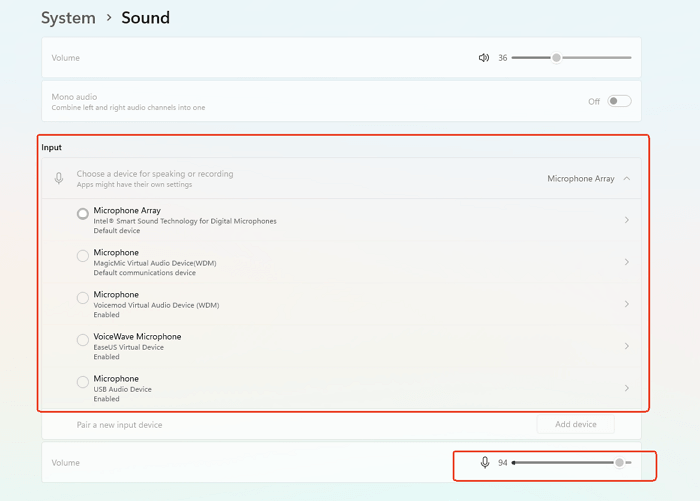
Many players experience Siege voice chat not working because the FPS game is using the wrong input device. Ensuring that Windows and Siege both use the correct miR6 mic is not working.
Here are the steps:
- Press Win + I > System > Sound > Input, and select your headset or microphone as the input device.
- Test your mic using the Test your microphone bar to ensure Windows detects it.
- Open Siege and choose the same microphone in Options > Audio > Voice Chat Input Device.
Fix 2. Enable Microphone Access in Windows
Even if your hardware is fine, Windows can block the game from accessing your mic, causing the Siege mic not to work. Enabling microphone access for apps usually fixes most R6 voice chat not working
Here's how to make it:
- Click Settings > Privacy > Microphone
- Make sure Allow apps to access your microphone is turned on
- Scroll down to the list of desktop apps and ensure Siege or Ubisoft Connect has permission
Share this page to help more users!

Fix 3. Check In-Game Audio Settings
Incorrect in-game settings are another common cause of R6 voice chat not working on PC. Confirming the input device, volume, and voice.
- Launch Rainbow Six Siege, and go to Options > Audio
- Make sure Voice Chat Input Device is set to your microphone
- Adjust Voice Chat Volume and Voice Threshold to ensure your mic is detected
Fix 4. Fix Push-to-Talk Not Working
If your push-to-talk key is misconfigured or conflicts with other software, you might find Siege Voice Chat not working, but you can hear others. Checking the key bindings usually resolves the issue.
- In-game, go to Options > Controls > Voice Chat
- Verify that the Push-to-Talk key is correctly assigned
- Change the key if it conflicts with other apps, or close background programs that might interfere
Fix 5. Update or Reinstall Audio Drivers
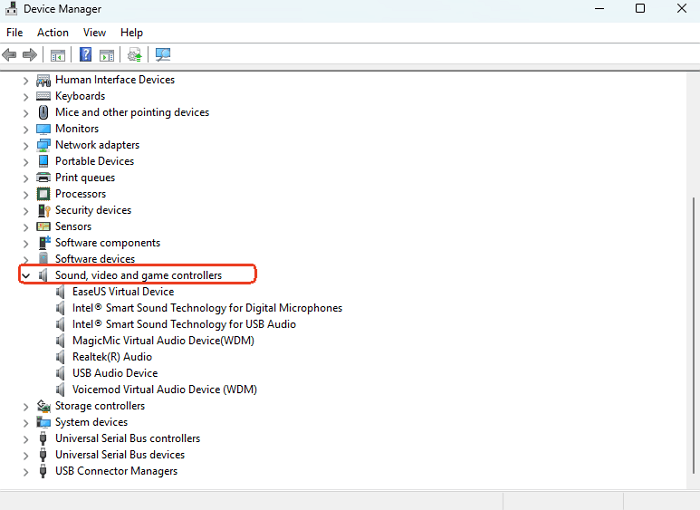
Outdated or corrupted audio drivers can cause the R6 mic not to work on PC or make your microphone unstable. Updating or reinstalling drivers ensures your system and the game properly detect your mic.
- Open Device Manager > Sound, video, and game controllers
- Locate your audio device, right-click on it, then choose Update driver
- If updating doesn't work, choose Uninstall device and restart your PC; Windows will reinstall the driver automatically
After following these five fixes, your Siege voice chat should be working properly, and you can jump back into Rainbow Six Siege with your team. If you want to further enhance your R6 voice chat experience, you can try a tool like EaseUS VoiceWave, which lets you:
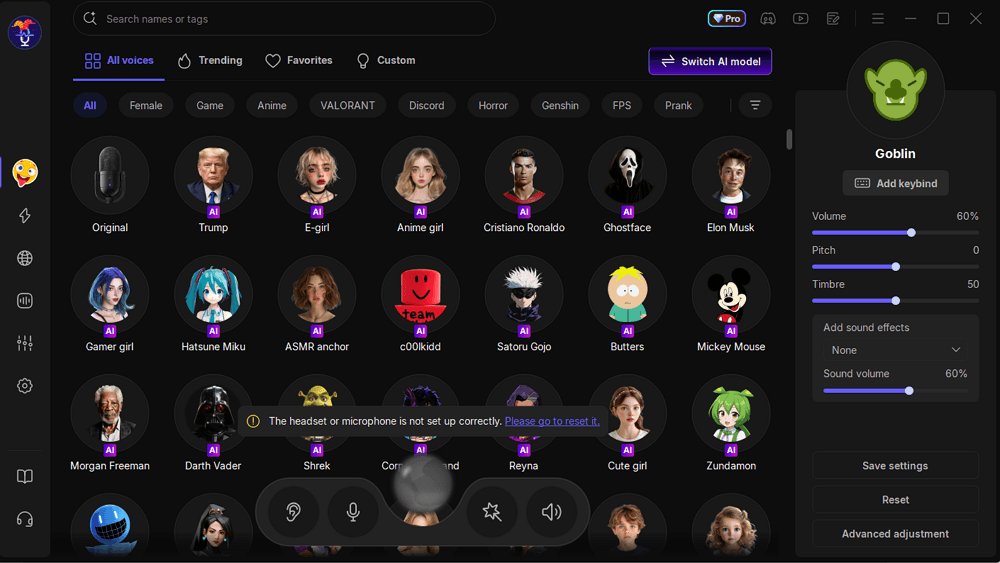
- Switch between different voice tones and styles, from deep to high-pitched or fun character voices
- Use built-in soundboards to add effects during gameplay
- Stabilize the mic input and reduce background noise for clearer team communication
These features make voice chat more immersive and entertaining, letting you personalize your communication style without affecting your gameplay.
How to Fix Voice Chat Issues in Rainbow 6 Siege on Xbox & PS5
While most siege voice chat not working issues happen on PC, console players may occasionally run into problems on Xbox or PS5. Common causes include incorrect privacy settings, NAT type restrictions, or headset configuration errors.
1. For Xbox
- Go to Settings > Account > Privacy & Online Safety and ensure voice chat is allowed
- Check your NAT type under Network Settings; an open NAT helps reduce connection issues
- Make sure your headset is properly connected and selected as the input device
2. For PS5
- Open Settings > Sound > Microphone to select your headset
- Verify that Voice Chat is enabled in Party Settings
- Check that the controller microphone is functioning properly
These quick adjustments can resolve most console-related R6 voice chat problems, allowing you to communicate smoothly with your team.
Spread out this page to help more users fix Siege voice chat issues!
Final Thoughts
Most siege voice chat not working on PC issues can be fixed by checking your microphone settings, Windows permissions, and in-game audio options. Console players on Xbox or PS5 can usually solve voice chat problems by adjusting privacy settings, NAT type, or headset selection.
If you want to further enhance your R6 voice chat experience, tools like EaseUS VoiceWave can stabilize your mic, reduce background noise, and add fun voice effects. With these tips, your voice chat should be clear and reliable, ready for both competitive and casual play.
FAQs
1. How do I enable voice chat in Rainbow Six Siege?
You can enable voice chat in Options > Audio. Make sure your Voice Chat is turned on, the correct input device is selected, and the volume is set high enough to be heard by teammates.
2. Why is my R6 voice chat muted?
Your mic may be muted either in-game, on Windows, or on your headset. Check the Push-to-Talk key, ensure Windows microphone access is enabled, and confirm your headset isn't physically muted.
3. Why can't I talk in Siege game chat on Xbox?
Xbox users should verify privacy settings under Settings > Account > Privacy & Online Safety, ensure voice chat is allowed, and check that the NAT type is open. Also, confirm the correct headset is selected.
4. Why can't I hear voice chat on R6 PS5?
On PS5, make sure your headset is selected as the input/output device in Settings > Sound > Microphone and that Voice Chat is enabled in Party Settings. Also, check that the controller mic is functioning properly.
5. Why is my R6 voice chat not working on PC even though my mic is fine?
Even with a working mic, R6 voice chat not working can be caused by incorrect in-game audio settings, wrong input device selection, or conflicts with background apps like Discord. Using a tool like EaseUS VoiceWave can help stabilize input and improve clarity.