-
![]()
Joey Albert
Joey has been involved with tech ever since she joined the EaseUS editor team in March 2011 and now she is a senior website editor. She is good at solving various issues, such as video downloading and recording.…Read full bio -
![]()
Alin
Alin is a sophisticated editor for EaseUS in tech blog writing. She is proficient in writing articles related to screen recording, voice changing, and PDF file editing. She also wrote blogs about data recovery, disk partitioning, data backup, etc.…Read full bio -
![]()
Gorilla
Gorilla joined EaseUS in 2022. As a smartphone lover, she stays on top of Android unlocking skills and iOS troubleshooting tips. In addition, she also devotes herself to data recovery and transfer issues.…Read full bio -
![]()
Rel
Rel has always maintained a strong curiosity about the computer field and is committed to the research of the most efficient and practical computer problem solutions.…Read full bio -
![]()
Dawn Tang
Dawn Tang is a seasoned professional with a year-long record of crafting informative Backup & Recovery articles. Currently, she's channeling her expertise into the world of video editing software, embodying adaptability and a passion for mastering new digital domains.…Read full bio -
![]()
Sasha
Sasha is a girl who enjoys researching various electronic products and is dedicated to helping readers solve a wide range of technology-related issues. On EaseUS, she excels at providing readers with concise solutions in audio and video editing.…Read full bio
Page Table of Contents

Jane Zhou
Updated on Apr 28, 2026
0 Views |
0 min read
Facing Rust voice chat not working can ruin your survival experience. This common issue prevents players from communicating during raids or negotiations, often caused by incorrect Windows privacy settings, Steam configuration errors, or hardware driver conflicts.
In this guide, we provide a comprehensive walkthrough to fix your Rust microphone issues. We will cover essential troubleshooting steps, from checking in-game audio menus to a powerful ultimate rust voice changer - EaseUS VoiceWave. Now, let's get started!
Standard Fixes to Resolve Rust Voice Chat Issues
Before diving into complex technical changes, let's start with the standard system-level fixes that resolve 80% of Rust microphone issues.
Fix 1: Verify In-Game Audio Settings
The most common reason for Rust voice chat not working is a simple misconfiguration in the game menu.
- 🔔Push-to-Talk (PTT): Ensure you are holding the correct key (default is V). Check your keybindings under Options > Controls.
- 🔔Audio Menu: Navigate to Options > Audio. Ensure Voice Chat is set to On.
- 🔔Volume Sliders: Double-check that Voice Chat Volume and Microphone Volume are turned up to 100%.

Fix 2: Check Windows Privacy Permissions
Windows often blocks desktop apps from accessing your microphone for security reasons.
Step 1. Go to Windows Settings > Privacy & Security > Microphone.
Step 2. Toggle Microphone access to On.
Step 3. Scroll down to "Allow apps access your microphone" and ensure Steam and Rust are allowed.

Fix 3: Sync Steam Voice Engine
Since Rust relies on the Steam backend for audio, your Steam settings must be correct.
Step 1. Open Steam and go to Settings > Voice.
Step 2. Ensure your Input Device matches the microphone you are using.
Step 3. Click "Start Microphone Test". If Steam doesn't detect your voice here, the issue is with your hardware or Windows, not Rust itself.
Fix 4: Advanced Sound Control Panel Adjustments
Rust's audio engine can struggle with high-end studio frequencies or exclusive software control.
- 🔔Sample Rate: Go to Sound Control Panel > Recording. Right-click your mic > Properties > Advanced. Set the format to 2-channel, 16-bit, 48000 Hz (DVD Quality).
- 🔔Exclusive Mode: In the same tab, uncheck "Allow applications to take exclusive control of this device" to prevent other apps from "stealing" your mic.
Fix 5: Use F1 Console Commands for Self-Testing
You can use Rust's built-in developer console to diagnose the problem in real-time.
Step 1. Press F1 while in-game.
Step 2. Type voice.loopback true and press Enter.
Step 3. Speak into your mic. If you hear your own voice, your microphone is working, and the issue might be with the server or the other player's settings.
Step 4. Type voice.loopback false to turn it off.
Fix 6: Update or Reinstall Audio Drivers
Sometimes, the culprit is an outdated or corrupted driver that prevents Rust from communicating with your hardware.
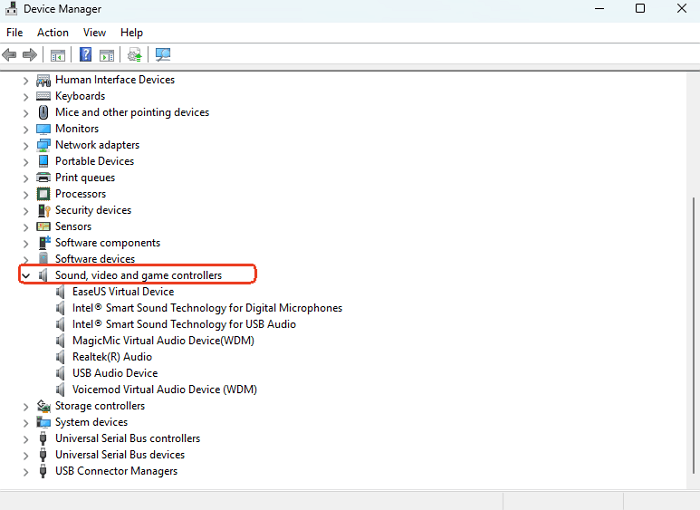
Step 1. Right-click the Start button and select Device Manager.
Step 2. Expand Audio inputs and outputs.
Step 3. Right-click your microphone and select Update driver.
Step 4. Choose "Search automatically for drivers." If that fails, visit your motherboard or headset manufacturer's website for the latest version.
Tips: How to Enhance Your Rust Experience with EaseUS VoiceWave
Once your microphone is back online, you can further enhance your gameplay with EaseUS VoiceWave. In a high-stakes survival game like Rust, clear and engaging communication can be a strategic advantage.
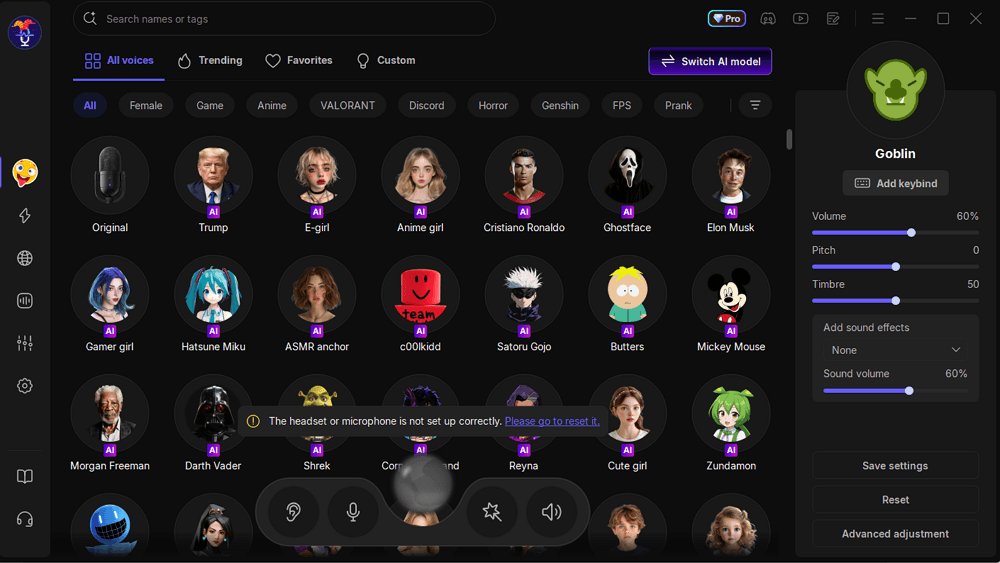
⭐AI Noise Reduction: Rust's in-game voice engine often picks up background distractions. VoiceWave filters out mechanical keyboard clicks and fan noise, ensuring your clan hears your tactical callouts without interference.
⭐Immersive Roleplay: Stand out in your server by using real-time voice filters. Whether you're negotiating a trade or intimidating a rival during a raid, adding a unique persona makes your social interactions more memorable and fun.
Just hit the button below to get this professional voice changer for sandbox gameplay!
Final Words
Resolving Rust voice chat not working is usually a matter of aligning your Windows privacy settings with Steam's voice engine. Once the technical hurdles are cleared, your voice becomes one of your most valuable tools for survival.
Whether you are using standard fixes or enhancing your social presence with EaseUS VoiceWave, clear communication can be the difference between a successful alliance and a failed raid. Double-check your settings, test your mic in the F1 console, and get back to dominating the island!
FAQs
1. Why can I hear others, but they can't hear me in Rust?
This typically happens when your microphone isn't set as the "Default Communication Device" in Windows. Check your Sound Control Panel and ensure your active mic is set as the default for both recording and communications.
2. Does Rust support Bluetooth headsets for voice chat?
Yes, but Bluetooth can be tricky. Ensure your headset is not stuck in "Hands-Free AG Audio" mode, which significantly lowers sound quality. For the best stability, a wired connection or a dedicated 2.4GHz wireless headset is recommended.
3. Is it safe to use a voice changer like EaseUS VoiceWave in Rust?
Absolutely. VoiceWave functions as a virtual audio driver and does not modify game files. It is safe to use and will not trigger Easy Anti-Cheat (EAC) bans.
4. What is the F1 console command to test my mic?
Use voice.loopback true in the F1 console to hear yourself. This confirms if the game is receiving your audio signal. Remember to type voice.loopback false to turn it off when you're finished.