-
![]()
Joey Albert
Joey has been involved with tech ever since she joined the EaseUS editor team in March 2011 and now she is a senior website editor. She is good at solving various issues, such as video downloading and recording.…Read full bio -
![]()
Alin
Alin is a sophisticated editor for EaseUS in tech blog writing. She is proficient in writing articles related to screen recording, voice changing, and PDF file editing. She also wrote blogs about data recovery, disk partitioning, data backup, etc.…Read full bio -
![]()
Gorilla
Gorilla joined EaseUS in 2022. As a smartphone lover, she stays on top of Android unlocking skills and iOS troubleshooting tips. In addition, she also devotes herself to data recovery and transfer issues.…Read full bio -
![]()
Rel
Rel has always maintained a strong curiosity about the computer field and is committed to the research of the most efficient and practical computer problem solutions.…Read full bio -
![]()
Dawn Tang
Dawn Tang is a seasoned professional with a year-long record of crafting informative Backup & Recovery articles. Currently, she's channeling her expertise into the world of video editing software, embodying adaptability and a passion for mastering new digital domains.…Read full bio -
![]()
Sasha
Sasha is a girl who enjoys researching various electronic products and is dedicated to helping readers solve a wide range of technology-related issues. On EaseUS, she excels at providing readers with concise solutions in audio and video editing.…Read full bio
Page Table of Contents

Gorilla
Updated on Mar 23, 2026
0 Views |
0 min read
Fortnite is one of the most popular online games in the world, but PC players frequently report stability issues. Many users complain that Fortnite keeps crashing on PC, especially after a new update, during startup, or right after launch. Some experience constant freezes, while others see the entire system reboot.
In this guide, we'll explain why Fortnite keeps crashing on your PC, how to fix the error to stop it from crashing, and how to make the game more fun once it's running smoothly.
Why Does Fortnite Keep Crashing on My PC
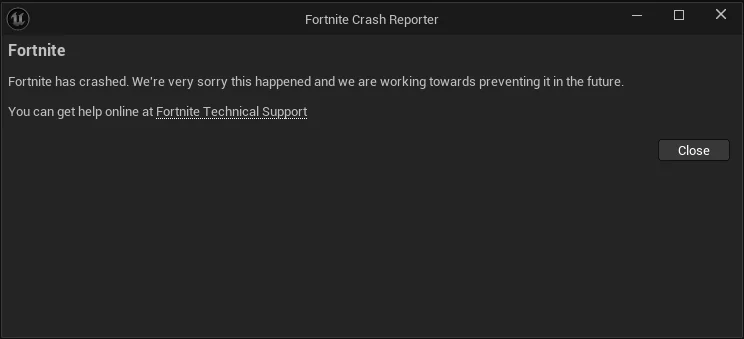
Based on Fortnite players' discussions and feedback, Fortnite crashes on PC for several common reasons:
Game Updates and Engine Changes: Many players report constant crashing after new updates. Fortnite runs on Unreal Engine, and updates can introduce temporary compatibility issues that cause crashes, freezes, or failed launches.
GPU Driver Conflicts: Reddit users frequently mention crashes after updating or upgrading GPUs. In some cases, new drivers cause Unreal-related errors, while rolling back to a stable version fixes the issue.
Startup and Launch Errors: Some PCs crash immediately during startup or launch, often due to corrupted files, shader cache issues, or conflicts with overlays and background software.
System Freezes or Reboot Loops: Several players report Fortnite freezing the whole PC or triggering reboot loops, which can indicate overheating, unstable overclocks, or power delivery issues.
Background Software Conflicts: Antivirus programs, RGB software, screen overlays, and performance tools can interfere with Fortnite and cause constant crashing on PC.
How to Fix Fortnite Crashing on PC
If you're trying to fix Fortnite crashing on PC, these solutions are repeatedly recommended by experienced players:
#1. Update or Roll Back GPU Drivers: While updating drivers can fix crashes, Reddit users often report better stability by rolling back to a previous driver after a problematic update.
#2. Verify Game Files: Corrupted or missing files can cause Fortnite to crash on launch. Verifying files through the launcher helps fix Unreal-related errors.
#3. Clear Cache and Shader Files: Deleting shader cache and temporary files has helped many users stop crashes that occur during startup or shortly after launch.
#4. Disable Overlays and Background Apps: Turn off overlays (Discord, Xbox Game Bar, GeForce Experience) and close unnecessary software to reduce conflicts.
#5. Lower Graphics and Cap Frame Rate: Reducing graphics settings and limiting FPS can help prevent freezes and constant crashing during gameplay.
#6. Reinstall Fortnite: If crashes continue after trying everything else, a clean reinstall often resolves persistent errors.
#7. Improve Server Connection Stability: If your connection to Fortnite servers is unstable due to regional routing problems (common in some areas like Russia or CIS), using LagoFast Game Booster can help stabilize the connection and reduce unexpected crashes.
✍️Tips to Prevent Future Crashes
To prevent Fortnite from continuing to keep crashing on PC, make sure you install updates carefully and monitor stability after each patch. Avoid updating GPU drivers immediately if the community reports issues, and keep your system cool to prevent freezes or shutdowns.
Running Fortnite with minimal background software, disabling unnecessary startup apps, and avoiding aggressive overclocks can significantly reduce constant crashing on PC and improve long-term stability.
Best Tips to Make Fortnite More Fun🎮
Once you manage to stop Fortnite from crashing, there are plenty of ways to enhance the experience beyond performance fixes. Trying new game modes, playing creative maps, and teaming up with friends can make each session feel fresh.
You can also add humor and immersion by using a voice changer in voice chat—whether you're roleplaying characters, using funny voices during squads, or just keeping the mood light.
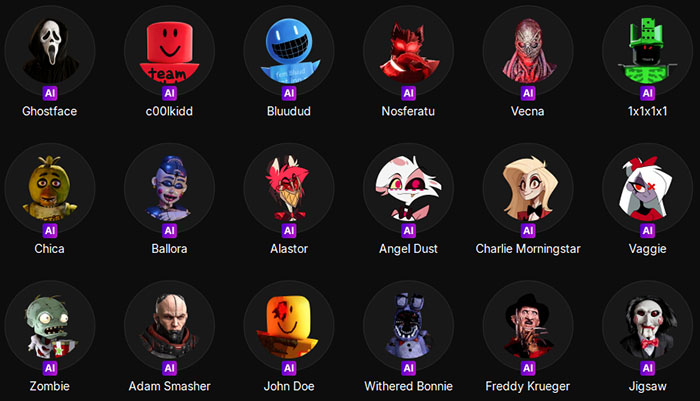
Tools like EaseUS VoiceWave offer real-time voice effects without impacting game performance, making Fortnite sessions more entertaining without introducing new stability issues.
Bluudud
C00lkidd
Click the play button below to listen to the Bluudud and C00lkidd sound effects embeded in EaseUS VoiceWave. You can also use other AI voices in this voice changer app in Fortnite or other PC games.⬇️
Conclusion
If Fortnite keeps crashing on PC, you're not alone. Most crashes are caused by updates, Unreal Engine conflicts, driver issues, or software running in the background. By updating or rolling back drivers, verifying game files, adjusting settings, and managing system stability, you can fix Fortnite crashing on PC and prevent constant freezes. Once the game runs smoothly, adding fun elements like voice chat effects can make every match more enjoyable.