-
![]()
Joey Albert
Joey has been involved with tech ever since she joined the EaseUS editor team in March 2011 and now she is a senior website editor. She is good at solving various issues, such as video downloading and recording.…Read full bio -
![]()
Alin
Alin is a sophisticated editor for EaseUS in tech blog writing. She is proficient in writing articles related to screen recording, voice changing, and PDF file editing. She also wrote blogs about data recovery, disk partitioning, data backup, etc.…Read full bio -
![]()
Gorilla
Gorilla joined EaseUS in 2022. As a smartphone lover, she stays on top of Android unlocking skills and iOS troubleshooting tips. In addition, she also devotes herself to data recovery and transfer issues.…Read full bio -
![]()
Rel
Rel has always maintained a strong curiosity about the computer field and is committed to the research of the most efficient and practical computer problem solutions.…Read full bio -
![]()
Dawn Tang
Dawn Tang is a seasoned professional with a year-long record of crafting informative Backup & Recovery articles. Currently, she's channeling her expertise into the world of video editing software, embodying adaptability and a passion for mastering new digital domains.…Read full bio -
![]()
Sasha
Sasha is a girl who enjoys researching various electronic products and is dedicated to helping readers solve a wide range of technology-related issues. On EaseUS, she excels at providing readers with concise solutions in audio and video editing.…Read full bio
Page Table of Contents

Myra
Updated on Jul 16, 2026
0 Views |
0 min read
Playing Palworld in multiplayer co-op is a blast, but nothing ruins a base-building session faster than Palworld voice chat not working. If you suddenly find your Palworld mic not working or realize you can't hear teammates, you are not alone; this frustrating audio bug regularly affects players on both Steam and Xbox Game Pass.
Whether the issue is caused by misconfigured settings or system permission conflicts, it is usually an easy fix. In this guide, we will break down exactly why Palworld voice chat stops working and provide the best step-by-step solutions to get your microphone back online immediately.
Why Is Palworld Voice Chat Not Working? (Common Reasons)
Before diving into the fixes, it helps to understand what is causing the silence. Since Palworld relies on a mix of game engines, platform overlays (Steam/Xbox), and Windows audio routing, a breakdown in any of these areas can cause Palworld voice chat to stop working. Here are the most common reasons behind the mic not working issue:
- In-Game Settings Reset: Version 1.0 updates often reset user audio preferences to the default (Disabled)
- Xbox/Steam Crossplay Limitations: Strict privacy and network settings affect voice communication across different platforms.
- Windows Audio Routing: The game is failing to recognize the active microphone or output device.
- Server-Side Restrictions: Dedicated server configurations that have proximity chat disabled by default.
Step-by-Step Guide to Fix Palworld Voice Chat Issues
If you are struggling with the Palworld voice chat not working bug, follow these step-by-step methods in order to pinpoint and fix the root cause.
Method 1. Toggle In-Game Voice Chat Settings
Major title updates and patches often override localized configuration files, reverting player preferences to factory defaults. In Palworld 1.0, this frequently causes the voice chat engine to turn off entirely without notifying the player.
Step 1. Press ESC on PC or the Menu button on Xbox to open the pause screen, then select the Options menu.
Step 2. Go to the Game Settings and scroll down to locate the Voice Chat option.
Step 3. If it reads Off, switch it back to On. If it is already On, toggle it Off, click Apply, and switch it back to On to force-refresh the audio engine.
Step 4. Save your changes and restart your multiplayer session to apply the settings.
Method 2. Verify Windows Default Communication Device
Palworld heavily relies on the Windows operating system settings to route audio capture devices. If you have multiple audio inputs connected (such as webcams, VR headsets, or standalone microphones), the game may accidentally pull audio from an inactive hardware source.
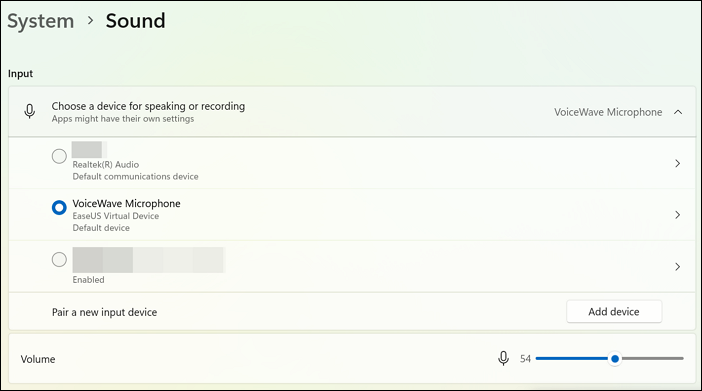
Step 1. Right-click the Speaker icon located on the bottom-right corner of your Windows taskbar and choose Sound Settings.
Step 2. Under the Input section, look at your active microphone device.
Step 3. Click on the device and ensure it is designated as both the Default Device and the Default Communication Device.
Step 4. Next, press Windows Key + I to open Windows Settings, navigate to Privacy & Security, and click on Microphone.
Step 5. Scroll down to verify that Allow desktop apps to access your microphone is toggled On, and make sure Palworld or Steam is allowed in the app list.
Method 3. Fix Xbox App Privacy and Teredo Settings
Console players and PC Game Pass users often deal with strict platform-level restrictions that block outbound chat traffic. Additionally, crossplay infrastructure requires specific network protocols to function correctly across Steam and Xbox ecosystems.
Step 1. Open your web browser, navigate to the official Microsoft Xbox Account Privacy dashboard, and log in.
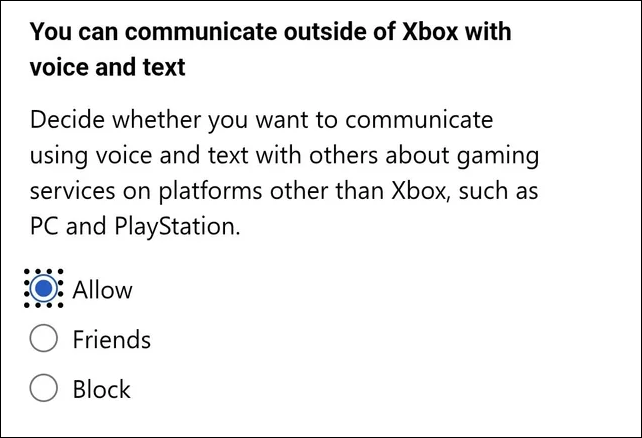
Step 2. Select your profile, click on the Privacy tab, and locate the option that says: "You can communicate outside of Xbox with voice & text".
Step 3. Change this setting to Allow or Everybody to grant crossplay chat authorization.
Step 4. For PC users, open the Xbox App, go to settings, and click on Network. Ensure your NAT type is listed as Open and that the Teredo network adapter is not blocked by your local Windows Firewall.
Method 4. Adjust Dedicated Server Config (For Server Hosts)
If you are hosting a community server and nobody on the map can use voice features, the problem lies in the primary host configuration file. Dedicated servers disable voice systems by default to conserve server bandwidth.
Step 1. Access your server host control panel or FTP client and go to the directory: /Pal/Saved/Config/LinuxServer/ (or WindowsServer/).
Step 2. Open the file named PalWorldSettings.ini using a raw text editor.
Step 3. Look for the massive single line of parameters inside the OptionSettings=(...) block.
Step 4. Search for the setting string: bEnableVoiceChat.
Step 5. Edit the text to read bEnableVoiceChat=True. Ensure this command stays within parentheses and does not break onto a new line. Save the file and restart your server.
Method 5. Clear Audio Cache and Verify Game Files
Upgrading old early-access Palworld installations directly to the 1.0 official full release can leave behind corrupted cache files or broken spatial audio directories, completely breaking the local voice chat engine modules.
- For Steam Players: Right-click Palworld in your library selection > Select Properties > Go to the Installed Files tab > Click on Verify integrity of game files.
- For Xbox App/PC Game Pass Players: Right-click Palworld in your left sidebar > Select Manage > Navigate to the Files tab > Click on the Verify and Repair action option.
Top Alternatives If Built-In Proximity Chat Continues to Fail
When Palworld's native audio engine refuses to cooperate, you do not have to resort to typing in the game chat. Utilizing external communication tools ensures uninterrupted communication with your guild, whether you prefer immersive, distance-based audio or a highly stable cross-platform connection.
Use Discord Proximity Bots (For Immersive PC Players)
If you want to keep the immersive feeling of hearing players get louder as they walk closer to your base, third-party Discord proximity bots are the best workaround. These tools connect your game's real-time character coordinates directly to a Discord voice channel, modulating volume levels based on your in-game distance.
Why it works: It completely bypasses Palworld's internal audio engine bugs while perfectly replicating the spatial proximity chat feature.
Step 1. Have your server host or guild leader invite a dedicated proximity chat bot (such as Mumble-link integrations or specific Palworld Discord bots) to your Discord server.
Step 2. All participating players must download the corresponding lightweight client-side mod or launcher plug-in from trusted modding platforms like Nexus Mods.
Step 3. Launch the client tool alongside Palworld 1.0, and join the designated Discord voice channel.
Step 4. The bot will automatically detect your character's position on the map and dynamically adjust your squadmates' audio volumes.
Use Xbox Party Chat (For Seamless Steam & Console Crossplay)
For players prioritizing connection stability and low-latency audio over positional immersion, the native Xbox ecosystem offers a bulletproof solution. Because Palworld 1.0 features crossplay, Xbox Party Chat bridges the gap perfectly between Xbox Series X/S console users and PC players on both Steam and the Xbox App.
Why it works: It runs entirely on Microsoft's dedicated gaming network servers, making it immune to Palworld's in-game client or dedicated server audio glitches.
How to set it up on PC (Steam & Game Pass):
Step 1. Press Windows Key + G at any time during gameplay to open the Xbox Game Bar overlay.
Step 2. Locate the Social widget and sign in using your Microsoft/Xbox account.
Step 3. Right-click your friend's name from your friends list and select Invite to Party, or click Start a Party.
Step 4. To communicate with console players, simply ensure your privacy settings allow communication outside of Xbox networks.
How to set it up on Xbox Consoles
Step 1. Press the Xbox button on your controller to open the guide.
Step 2. Navigate to Parties & chats and select Start a party.
Step 3. Choose Invite more to send a direct party notification to your friends' Xbox accounts or Windows PC overlays.
Bonus Tip: Level Up Your Palworld Audio Experience
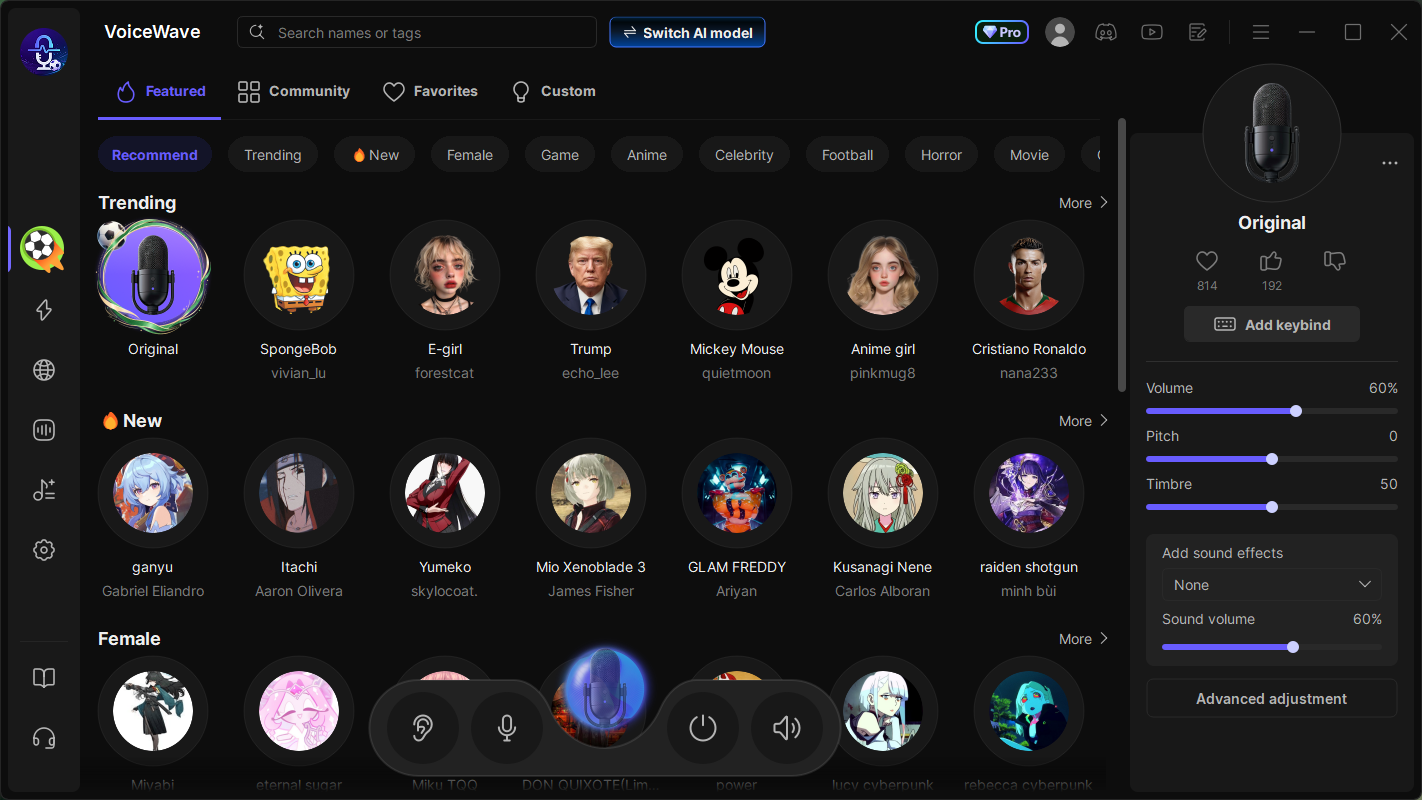
If you want to optimize your multiplayer audio setup, we recommend trying EaseUS VoiceWave. This versatile AI voice changer and audio tool acts as a powerful companion for Palworld. It lets you instantly morph your voice with high-quality sound filters, so you can sound like a giant robotic boss, a mythical creature, or a fantasy character during guild raids. It runs with low latency, making it an incredibly fun and seamless tool to prank your friends while exploring the Palpagos Islands together.
Conclusion
Resolving Palworld voice chat issues comes down to overriding faulty audio configurations. Toggling the in-game voice chat settings forces a refresh of the 1.0 engine, fixing most instances where communication goes silent after a patch. If local fixes fail, updating your Windows default communication hardware ensures that the application uses the correct microphone. For crossplay environments, clearing Xbox App network blockages and adjusting host files such as PalWorldSettings.ini can resolve systemic platform bugs.
If Palworld's native proximity chat remains uncooperative, external platforms offer powerful workarounds. Discord proximity bots preserve map-based spatial audio immersion, while Xbox Party Chat delivers low-latency, reliable cross-platform stability. Implementing these fixes ensures you can coordinate base building, plan boss raids, and trade Pals with your guild without technical interruptions.
FAQs
1. Does Palworld 1.0 have proximity voice chat?
Yes. Palworld 1.0 features built-in proximity voice chat for multiplayer sessions. However, the system is turned off by default upon fresh installations or after major patch updates. Players must manually navigate to the Game Settings menu to toggle it On.
2. Why can I hear my friends, but they can't hear me in Palworld?
This audio issue is almost always caused by an incorrect Windows input configuration or missing app permissions. Ensure your active headset microphone is set as the Default Communication Device in your Windows Sound Control Panel, and verify that Windows Privacy Settings allow desktop applications to access your microphone.
3. How do I push-to-talk (PTT) in Palworld?
Palworld 1.0 does not feature a native built-in Push-to-Talk option. In-game voice chat operates strictly via voice-activated, open-microphone communication. If you want a push-to-talk experience, you must use a hardware-level mute toggle switch on your headset or utilize third-party apps like Discord.
4. Why is voice chat not working during Steam and Xbox crossplay?
Crossplay voice communication usually fails due to Microsoft network blockages or strict account privacy settings. To fix this, PC and console players must log into their Xbox Account Privacy dashboard online and set the "You can communicate outside of Xbox with voice & text" permission to Allow.