There is nothing more frustrating than gathering your friends for a massive base-building session or a legendary Pal hunt, only to be stopped dead in your tracks by a spinning loading wheel and the "Connection Timed Out" error. While many players hoped that the highly anticipated Palworld 1.0 Full Release would solve these multiplayer headaches, the massive overhaul of the server architecture and cross-play systems has actually triggered a whole new wave of connection drops.
Whether you are running a dedicated server, attempting to join a public community realm, or just trying to host a co-op game on Steam, Xbox, or PS5, this error means your client cannot establish a stable handshake with the host. In this guide, we will dive into quick fixes.
Why Does Palworld Keep Saying "Connection Timed Out"?
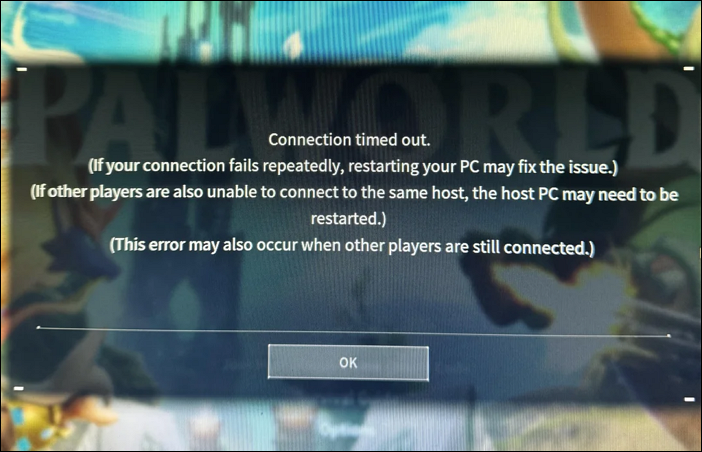
The 'Connection Timed Out' error occurs when your game client pings a server, but the server fails to respond within the allowed time limit. Following the Palworld 1.0 update, this communication failure is usually caused by one of these factors:
- Version Mismatch: Your game client updated automatically, but the server is still running an older patch version.
- Blocked UDP Ports: Windows Firewall or your router is blocking port 8211, which Palworld requires for multiplayer traffic.
- Broken Server History: The "Recent Servers" tab is trying to connect you to an outdated or cached server IP.
- Outdated Mods: Legacy mods, such as old UE4SS files, freeze the server thread during the 1.0 update loading screen.
- Strict NAT Type: Your network settings are blocking the peer-to-peer handshakes required for Steam, Xbox, and PS5 cross-play.
Palworld Connection Timed Out: Client-Side Fixes for Players
If other players are inside the server but you keep getting disconnected, the issue is on your end. Use these step-by-step fixes to clear the connection block.
Method 1. Stop Using the "Recent Servers" Tab
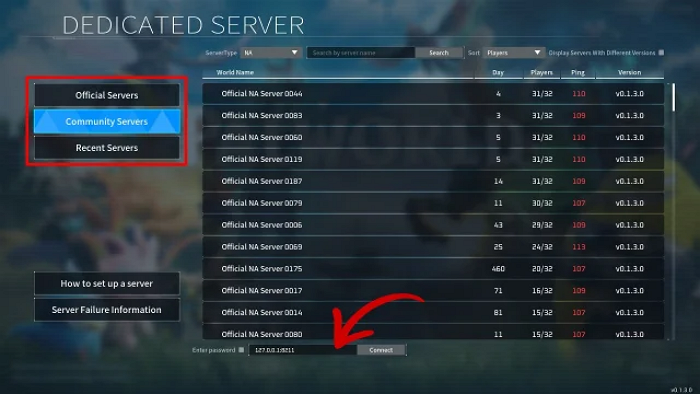
The most common cause of a sudden timeout error is Palworld's broken menu cache. When you click on the "Recent Servers" tab, the game attempts to connect using a saved historical snapshot. If the server host has updated the game version, changed providers, or even slightly modified their network routing, this snapshot becomes a dead link. Forcing a manual direct connection bypasses this broken interface entirely.
Step 1. Ask your server host for the exact IP address and Port Number.
Step 2. Open Palworld and click Join Multiplayer Game.
Step 3. Look at the bottom of the screen for the Direct Connect input box.
Step 4. Paste the IP:Port string there, then click Connect.
Method 2. Verify Game Files & Sync Windows Time
Major title updates like the 1.0 patch frequently leave behind fragmented or corrupted files that cause the game to freeze on loading screens. Furthermore, Palworld's multiplayer backend uses time-stamped security tokens to authenticate your profile. If your computer's system clock is even a few seconds out of sync with the server's time, the anti-cheat system will flag your connection as a security risk and drop it.
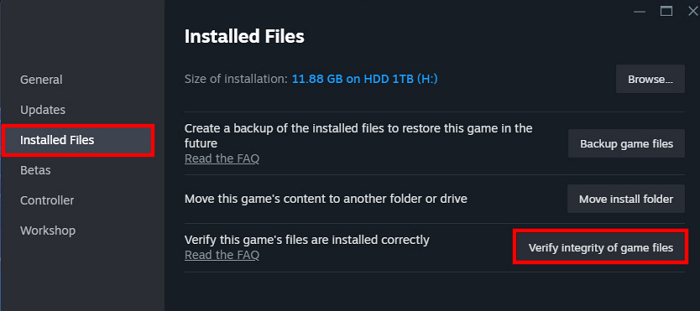
- For Steam Users: Right-click Palworld in your Library > Select Properties > Go to Installed Files > Click Verify integrity of game files.
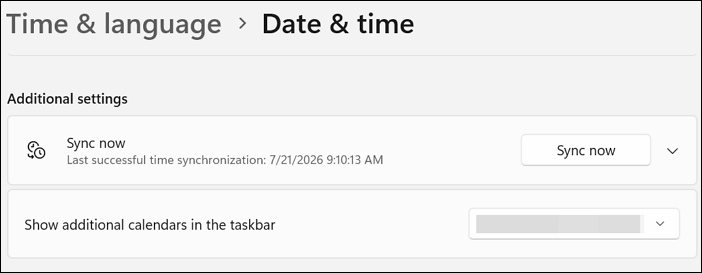
- For Windows Clock Sync: Press Win +I to open Settings > Click Time & Language > Select Date & Time > Click the Sync Now button under Additional Settings.
Method 3. Disable VPNs and Clear DNS Cache
While virtual private networks (VPNs) are great for privacy, they are notoriously unstable when handling Palworld's intensive peer-to-peer and UDP server handshakes. Most consumer VPNs dynamically route your traffic through crowded public nodes, which artificially inflates your ping and delays data packets.
Since the 1.0 update enforces stricter anti-cheat verification, a sluggish VPN route will cause the server to reject your client for taking too long to respond. Disabling your VPN and resetting your local domain name system (DNS) cache will clear these artificial bottlenecks.
Step 1. Completely close your VPN client (do not just minimize it) and ensure its background processes are terminated in the Windows Task Manager.
Step 2. Type cmd into your Windows Search Bar, right-click on the Command Prompt application, and select Run as Administrator.
Step 3. In the black console window, type ipconfig /flushdns and press Enter to clear out stale internet addresses and remove residual VPN routing paths.
Step 4. Type ipconfig /release and hit Enter.
Step 5. ipconfig /renew and press Enter to force your network card to request a clean, direct connection from your physical router.
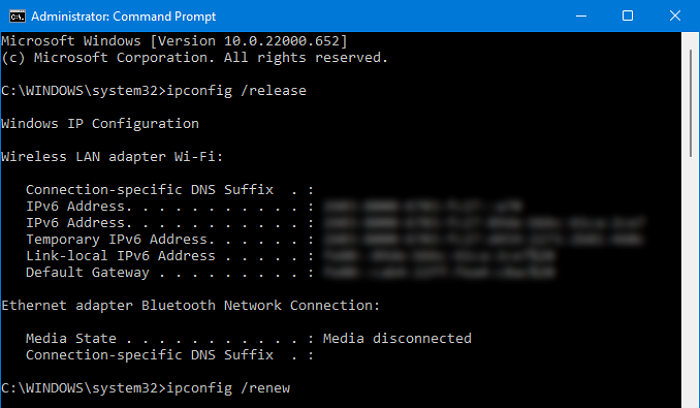
Step 6. Restart Palworld to test the connection.
Palworld Connection Timed Out: Advanced Server-Side Fixes for Server Hosts
If nobody can join the server, the problem lies entirely on the server side. Following major structural updates, server nodes frequently fail to authorize incoming client traffic. If you host via a dedicated server provider (like Nitrado or Shockbyte) or run a self-hosted server box on a spare PC, try the following fixes to restore access.
Method 1. Update Server to Match Client Build
A server version mismatch is the single most common cause of immediate connection timeouts. When Pocketpair deploys a client-side update, players automatically download it through Steam or their consoles. If your server is not configured to update automatically upon restarting, it will continue running the older version. The mismatched build hashes will force the server to instantly reject and time out the client handshake.
- For SteamCMD Self-Hosted Servers: Completely close your server console window. Open your SteamCMD directory, open the command line interface, and execute the update string: steamcmd +login anonymous +app_update 2394010 validate +quit
- For Third-Party Game Server Providers: Log into your provider's web control panel. Locate the Steam Update or Update Game button on your primary dashboard, click it to pull the latest 1.0 container files, and then perform a full server reboot.
Method 2. Match Port Config
If you use internal network tunneling tools or virtual port managers, such as Playit.gg, Ngrok, or AMP, the server architecture requires explicit internal-to-external port symmetry. If your tunnel manager assigns an external port like 25565 but the game files are still broadcasting internally on the default port 8211, data packets will loop endlessly inside your network firewall until the player's game client triggers a timeout.
Step 1. Access your server's primary file manager and open PalWorldSettings.ini configuration file.
Step 2. Locate the parameter labeled PublicPort=8211.
Step 3. Change the value of PublicPort to match the exact external port assigned to you by your port-tunneling program or network host.
Step 4. Save the file, make sure the tunneling client is actively running in the background, and reboot the server.
Method 3. Repair the Mangled PalWorldSettings.ini File
The PalWorldSettings.ini text file is highly sensitive to syntax changes. A single formatting mistake will corrupt the server initialization sequence, forcing it into a silent frozen state that ignores all incoming connection attempts. Common errors include splitting parameters into multiple lines, missing commas, or using incorrect capitalization on security triggers like ServerPassword.
Step 1. Navigate to your server folder directory path: Pal/Saved/Config/WindowsServer/ (or LinuxServer/ depending on your host operating system).
Step 2. Open PalWorldSettings.ini and verify that the massive configuration string starting with [/Script/Pal.PalGameSetting] is formatted as one continuous, unbroken line of text with no vertical line breaks.
Step 3. Check for case-sensitivity issues. If you assigned a password, ensure the tag reads exactly as ServerPassword="YourPassword" with proper quotation marks. If corrupted beyond recognition, delete the file and reboot the server to let PalWorld generate a fresh, factory-default template.
Method 4. Open UDP Ports 8211 & 8212 via PowerShell
If you are self-hosting a local server build on a Windows machine, the operating system's built-in firewall will aggressively intercept intensive UDP network packets to prevent unauthorized external access. Because Palworld relies entirely on the UDP protocol for real-time multiplayer updates, you must write an explicit inbound firewall rule to authorize incoming connections through ports 8211 and 8212.
Step 1. Right-click on the Windows Start menu icon and select Terminal (Admin) or Windows PowerShell (Admin).
Step 2. Copy the complete PowerShell network command string:
New-NetFirewallRule -DisplayName "Palworld Dedicated Server UDP" -Direction Inbound -Protocol UDP -LocalPort 8211,8212 -Action Allow
Step 3. Paste the command string directly into your administrator PowerShell console window and press Enter.
Step 4. You should receive a green or white success output summary indicating that the rule is active. This instantly eliminates local OS blocking without turning off your entire network firewall.
Bonus Tip: Elevate Your Palworld Co-op Experience with a Voice Changer
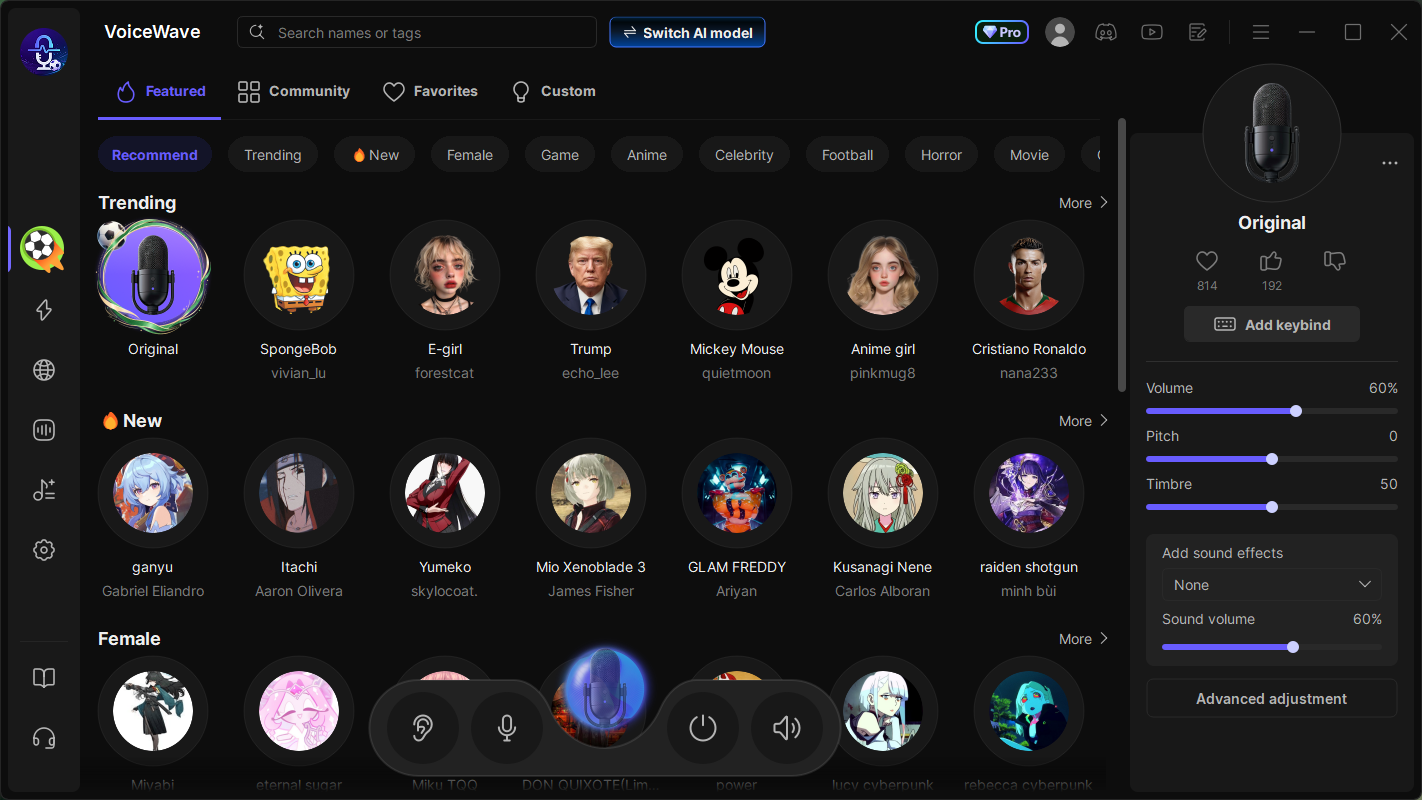
Once you have successfully patched your server connection and stabilized your ping, the next step to dominating Palworld multiplayer is establishing crystal-clear team communication. EaseUS VoiceWave is an advanced, AI-powered real-time voice changer software designed for gamers and streamers. Whether you want to immerse your friends by sounding like a robot, add comedic flair to a mining session, or simply safeguard your online privacy, this tool seamlessly integrates with your system mic without adding any noticeable lag or network overload.
- Instantly morph your voice into different characters like Pikachu with no noticeable processing delay.
- Built-in advanced noise reduction eliminates frustrating background sounds like mechanical keyboard clicks, ensuring your team hears only your voice commands.
- Work with Palworld's in-game voice system, as well as external communication apps like Discord, Steam Chat, and Xbox Party Chat.
- Play custom sound effects, victory themes, or comedic bites directly through your microphone channel to celebrate capturing rare Pals or surviving a base raid.
Conclusion
Resolving the "Connection Timed Out" error in Palworld ultimately comes down to systematic troubleshooting on both ends of the connection pipeline. By separating player-side glitches from server-side configurations, you can easily pinpoint the issue. Regular players can quickly bypass local network blocks by using Direct Connect and flushing their DNS, while server administrators can ensure seamless multiplayer access by keeping game versions aligned and opening UDP ports 8211 and 8212. Taking a few minutes to configure these settings properly will stabilize your network path and keep your sessions running smoothly.
Frequently Asked Questions
1. Can Xbox and PS5 players connect directly using IP?
No. Console players can only join via the in-game community server browser. Ensure your server has PublicIP configured correctly.
2. Why does my Palworld server crash or time out on startup?
It's usually caused by outdated RE-UE4SS mods after the 1.0 update. Try disabling mods to test.
3. Does restarting the router actually fix the Palworld timeout?
Only if your router has NAT loopback issues or a clogged routing table.