-
![]()
Joey Albert
Joey has been involved with tech ever since she joined the EaseUS editor team in March 2011 and now she is a senior website editor. She is good at solving various issues, such as video downloading and recording.…Read full bio -
![]()
Alin
Alin is a sophisticated editor for EaseUS in tech blog writing. She is proficient in writing articles related to screen recording, voice changing, and PDF file editing. She also wrote blogs about data recovery, disk partitioning, data backup, etc.…Read full bio -
![]()
Gorilla
Gorilla joined EaseUS in 2022. As a smartphone lover, she stays on top of Android unlocking skills and iOS troubleshooting tips. In addition, she also devotes herself to data recovery and transfer issues.…Read full bio -
![]()
Rel
Rel has always maintained a strong curiosity about the computer field and is committed to the research of the most efficient and practical computer problem solutions.…Read full bio -
![]()
Dawn Tang
Dawn Tang is a seasoned professional with a year-long record of crafting informative Backup & Recovery articles. Currently, she's channeling her expertise into the world of video editing software, embodying adaptability and a passion for mastering new digital domains.…Read full bio -
![]()
Sasha
Sasha is a girl who enjoys researching various electronic products and is dedicated to helping readers solve a wide range of technology-related issues. On EaseUS, she excels at providing readers with concise solutions in audio and video editing.…Read full bio
Page Table of Contents

Gorilla
Updated on Jun 16, 2026
0 Views |
0 min read
If your Rocket League voice chat is not working, you're not alone. Many players report issues like:
- Can't hear teammates
- Teammates can't hear you
- Voice chat option missing
- Microphone not detected
- Voice chat randomly stops mid-game
Since Rocket League reintroduced built-in voice chat in 2022, the system works well for most players — but configuration conflicts, platform settings, or parental controls can still break it. In this guide, we'll walk you through why Rocket League voice chat isn't working and how to fix it step by step.
Part 1: Quick Voice Chat Checklist (check now↗️)
Make sure in-game voice chat is ON, the correct microphone is selected, and system or console permissions allow communication. Restarting the game or checking input devices often fixes basic issues.
Part 2: Representative Reported Problems by Rocket League Gamers (check now↗️)
Common issues include voice chat stuck on "OFF," enabled chat not transmitting, post-update failures, conflicts with mods or audio software, and low-quality Bluetooth headset sound.
Bonus: Make More Fun in Rocket League via a Voice Changer (check now↗️)
Use a real-time voice changer to add personality to casual matches — fake coach voices, high-pitched reactions, or themed effects make games more entertaining.
Does Rocket League Have Voice Chat
Yes. Rocket League reintroduced official cross-platform voice chat in 2022.
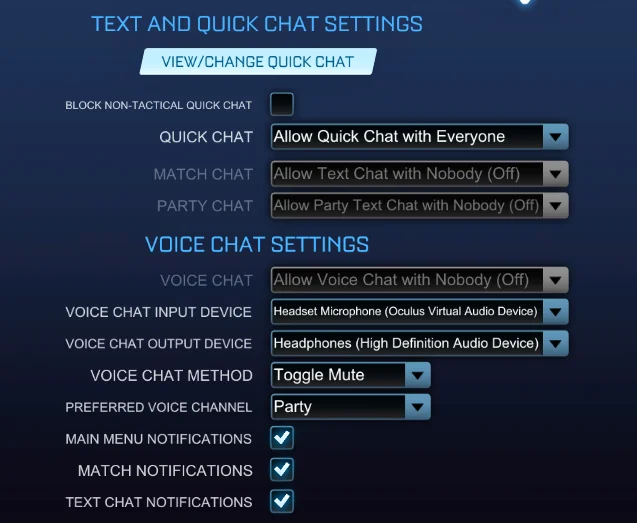
It supports:
- Team Voice Chat (in-match teammates)
- Party Voice Chat (pre-match party members)
- PC, Xbox, PlayStation, Switch crossplay
However, voice chat:
- Does not work with opponents
- Can be restricted by account age/privacy settings
- Can conflict with system-level audio routing
That's where most issues begin.
Quick Fixes to Rocket League Voice Chat Not Working
Part 1: Quick Voice Chat Checklist (Basic Layer)
Before diving into complex issues, verify these:
In-Game Settings
- Settings → Chat → Voice Chat = ON
- Voice Chat Method = Open Mic or Push-to-Talk
- Correct Input/Output device selected
Windows (PC)
- Set correct Default Input Device
- Enable "Let desktop apps access microphone"
- Disable unused virtual audio devices
Console Players
- Leave console party chat (it overrides in-game chat)
- Check privacy & communication permissions
- Ensure account isn't restricted
If voice chat still doesn't work after this, you're likely facing one of the more specific issues below.

Part 2: Representative Reported Problems by Rocket League Gamers
Issue #1. Voice Chat Is Stuck on "OFF" and Cannot Be Turned On
Some players report that the Voice Chat setting is permanently stuck on "OFF," with no option to switch to Team or Party Chat. The toggle appears locked, even when all visible permissions seem correctly configured. Based on community discussions, this issue is often linked to Epic account-level restrictions, parental control settings, or communication consent flags that fail to sync properly with the game client. In certain cases, the problem appears to persist even after permissions are manually approved, suggesting a backend account-related bug rather than a simple in-game setting error.
Several players report:
- Even when parents approve voice chat permissions, the in-game setting remains locked
- The system may fail to process communication consent settings properly
- Some suspect Terms acceptance not triggering correctly
- In some cases, Epic Support has acknowledged ongoing investigations into similar bugs.
What You Can Try
- Check Epic Games Account → Parental Controls
- Confirm communication permissions are enabled
- Log out and back into Epic account
- Reinstall the game (forces configuration refresh)
If it's a backend account flag issue, only Epic support can resolve it.
Issue #2. Voice Chat Is Enabled — But No One Can Hear You
Another common situation is when Voice Chat appears enabled and voice indicators show activity, yet teammates still cannot hear you — or you cannot hear them. This tends to be related to microphone routing conflicts, incorrect default input devices, or temporary voice detection glitches within the game. Community reports suggest that even when the correct microphone is selected, Rocket League may fail to properly bind to the active input device, especially after device changes or system updates.
Players often report:
- Switching Voice Chat permission to "Allow Everyone" temporarily fixes it
- Switching input device manually (even if it's already correct) triggers detection refresh
- Restarting the game restores functionality temporarily
This suggests device detection isn't always stable.
Fix Approach
- Manually reselect microphone in Rocket League
- Disable all unused input devices in Windows
- Restart game after changing system audio settings
Issue #3. Voice Chat Stops Working After an Update
Some players notice that voice chat works normally until a game update is installed, after which it suddenly stops functioning entirely. No voice indicators appear, and settings may look unchanged. In these cases, the issue is often tied to version-specific bugs or temporary backend service disruptions rather than user configuration mistakes. When multiple users report the same issue simultaneously, it usually indicates a patch-related problem rather than an isolated device failure.
Community reports show:
- Certain updates temporarily break voice systems
- Some platforms are affected more than others
- Restarting launcher sometimes helps
If many players report it simultaneously, it may be a server-side or patch issue.
Check:
- Epic Games status page
- Rocket League social channels
- Reddit threads for confirmation
Issue #4. Voice Chat Conflicts With Mods or Audio Software (PC)
PC players frequently encounter voice chat failures when using third-party software such as mods, streaming tools, or audio routing programs. Symptoms include microphones working in Discord but not in Rocket League, distorted audio, or the game disabling mic input in other applications. These problems typically stem from device control conflicts, especially when multiple programs attempt to access the microphone in exclusive mode. Rocket League may not always handle simultaneous audio routing gracefully, leading to intermittent communication breakdowns.
Common Conflicts Reported
- BakkesMod
- Virtual Audio Cables
- OBS filters
- Voice routing tools
- Third-party audio enhancers
Fix Approach
- Disable exclusive mode in Windows sound settings
- Temporarily remove BakkesMod
- Close background audio tools
- Reboot PC before testing again
Issue #5. Wireless or Bluetooth Headsets Sound "Underwater"
A more hardware-specific complaint involves wireless or Bluetooth headsets suddenly producing muffled, low-quality, or "underwater" audio once voice chat activates. This is commonly caused by Windows switching the headset to a Hands-Free telephony profile when the microphone is engaged, dramatically reducing sound quality. While it appears to be a Rocket League issue at first glance, it is usually a Bluetooth bandwidth limitation rather than a direct game malfunction.
Fix Options
- Use wired headset
- Disable headset microphone and use separate USB mic
- Disable Hands-Free Telephony in device settings
Make More Fun in Rocket League via a Voice Changer
Once your voice chat is working again, it doesn't have to be purely tactical. In casual matches or private lobbies, voice can become part of the fun.
Using a real-time voice changer like EaseUS VoiceWave adds a creative layer to Rocket League sessions — especially when you're not grinding ranked.
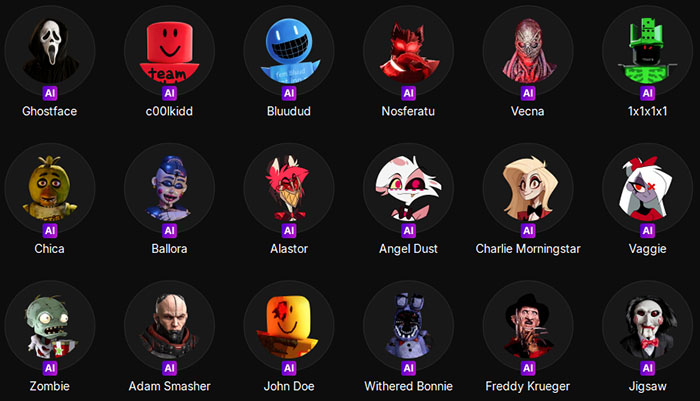
Here are a few simple ways players use it:
1️⃣ Fake " Esports Coach" Mode: Switch to a deep, serious voice and start calling plays like a professional analyst — even if the match is total chaos. The contrast alone makes it funny.
2️⃣ High-Pitched Clutch Reactions: Use a cartoonish or exaggerated voice during dramatic moments. A sudden "I GOT IT!" in a tiny voice instantly breaks the tension.
3️⃣ Themed Event Lobbies: For April Fools, Halloween, or custom matches, adding robot or monster effects turns voice chat into part of the theme.
4️⃣ Stream Persona Switch: If you create content, switching voice styles mid-match can add personality and make highlight clips more entertaining.
A tool like EaseUS VoiceWave works at the system microphone level, so Rocket League simply receives the modified input as your active mic. It's less about solving voice issues — and more about making the experience more dynamic.
Final Thought
Rocket League voice chat issues typically fall into five categories:
- Account or parental control restrictions
- Input device routing conflicts
- Version-specific bugs
- Third-party software interference
- Bluetooth hardware limitations
Most Rocket League voice chat not working issues fall into a few clear categories: account restrictions, device routing conflicts, patch-related bugs, third-party software interference, or Bluetooth hardware limitations. Identifying which type of problem you're facing makes troubleshooting far more efficient than blindly cycling through generic fixes.
FAQ on Rocket League Voice Chat Not Working
Q: Why is my Rocket League voice chat not working even though it's turned on?
If voice chat is enabled but still not working, the issue is usually related to microphone routing conflicts, incorrect default input devices, account-level restrictions, or patch-related bugs. On PC, Rocket League may bind to the wrong input device. On console, privacy or party chat settings may override in-game voice chat.
Q: Why is Rocket League voice chat stuck on "OFF"?
When the Voice Chat option cannot be switched from "OFF," it is often tied to Epic account parental controls or communication permissions. Even if permissions appear enabled, the account may still be restricted at a backend level. Logging out and back into your Epic account or checking parental control settings may help, but in some cases, support intervention is required.
Q: Why can I see the voice indicator but no one can hear me?
If the voice indicator appears but teammates cannot hear you, Rocket League may not be properly binding to your active microphone. Try manually reselecting your input device in-game and disabling unused microphones in your system settings. Restarting the game after adjusting audio devices can also refresh detection.
Q: Does Rocket League voice chat work cross-platform?
Yes. Rocket League supports cross-platform voice chat between PC, PlayStation, Xbox, and Nintendo Switch players. However, you can only communicate with teammates or party members — not the opposing team.
Q: Why does my Bluetooth headset sound bad when voice chat is on?
When using Bluetooth headsets, Windows often switches the device to a "Hands-Free" mode once the microphone activates. This significantly reduces audio quality and can create a muffled or "underwater" sound effect. Using a wired headset or disabling hands-free telephony may improve quality.
Q: Does Rocket League voice chat break after updates?
Occasionally, yes. Some players report voice chat issues immediately following game patches. If multiple users experience the same problem at the same time, it may be a temporary version or server-related issue rather than a configuration error.
Q: Can I use a voice changer in Rocket League?
Yes. Rocket League treats voice input as a standard system microphone source. If you use a real-time voice changer such as EaseUS VoiceWave and set it as your default input device, the game will receive the modified voice signal like a normal microphone.
Q: Is Rocket League voice chat better than Discord?
Rocket League's built-in voice chat is convenient for quick team communication, especially in cross-platform matches. However, some players prefer third-party tools like Discord for stability, additional controls, or group management features.