-
![]()
Joey Albert
Joey has been involved with tech ever since she joined the EaseUS editor team in March 2011 and now she is a senior website editor. She is good at solving various issues, such as video downloading and recording.…Read full bio -
![]()
Alin
Alin is a sophisticated editor for EaseUS in tech blog writing. She is proficient in writing articles related to screen recording, voice changing, and PDF file editing. She also wrote blogs about data recovery, disk partitioning, data backup, etc.…Read full bio -
![]()
Gorilla
Gorilla joined EaseUS in 2022. As a smartphone lover, she stays on top of Android unlocking skills and iOS troubleshooting tips. In addition, she also devotes herself to data recovery and transfer issues.…Read full bio -
![]()
Rel
Rel has always maintained a strong curiosity about the computer field and is committed to the research of the most efficient and practical computer problem solutions.…Read full bio -
![]()
Dawn Tang
Dawn Tang is a seasoned professional with a year-long record of crafting informative Backup & Recovery articles. Currently, she's channeling her expertise into the world of video editing software, embodying adaptability and a passion for mastering new digital domains.…Read full bio -
![]()
Sasha
Sasha is a girl who enjoys researching various electronic products and is dedicated to helping readers solve a wide range of technology-related issues. On EaseUS, she excels at providing readers with concise solutions in audio and video editing.…Read full bio
Page Table of Contents

Myra
Updated on Mar 19, 2026
0 Views |
0 min read
League of Legends Team Voice Chat & League Voice
League of Legends has two voice chat systems: the existing League Voice and the new Team Voice Chat. Here is a breakdown of both, including how they differ and their current status.
League Voice
League Voice is League of Legends' built-in voice chat system. It lets premade parties and friends talk seamlessly right in the client during matches, with no need for Discord or other apps. The setup focuses on low-latency audio for small groups to call plays and stay coordinated.
Team Voice Chat (Public Voice Chat)
Riot Games rolled out Team Voice Chat in early 2026. Your full five-player team can now communicate, even in solo queue or flex matches. This makes quick calls like "gank bot now" much clearer than relying on pings or text chat.
Team Voice Chat Highlights
- You can switch between voice activation to pick up speech automatically or push-to-talk for noisy environments.
- Per-player controls like mute sliders, volume tweaks, and abuse reporting with voice clip reviews, similar to Valorant.
- Communication stays team-only to block enemy distractions and keep the focus on strategy.
This evolution makes League more competitive with Dota 2 and other MOBAs, blending League Voice's reliability with broader team utility.
Quick Comparison
| Feature | League Voice | Team Voice Chat |
| Talk to | Only premade party | Full team (including randoms) |
| Opt-in required? | Yes (auto-join off by default) | Yes (completely by default) |
| Switch channels? | No | Yes (Party ↔ Team tabs) |
| Report abuse option | No | Yes |
| Status | Live for years | PBE now (Live March 2026) |
How to Turn on League of Legends Team Voice Chat
Team Voice Chat is off by default in League of Legends, so you'll need to enable it manually in the settings before your games light up with team talk. It's a quick process that works for solo queue, flex, or any mode, giving you full control over when and how you communicate.
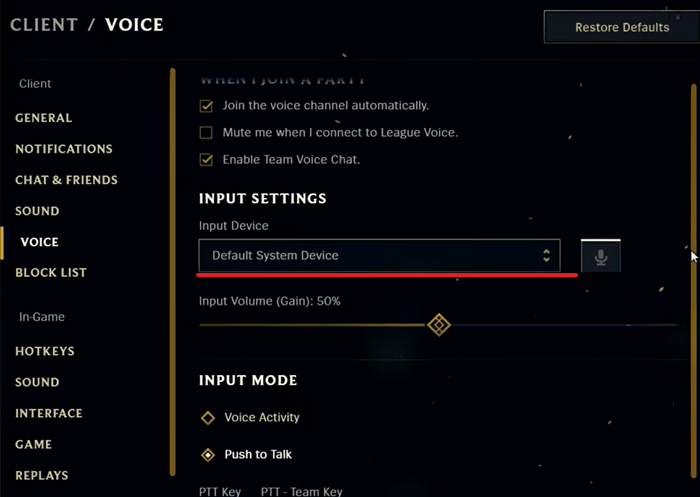
Step 1. Click the gear icon at the top right of the League of Legends client to open Settings.
Step 2. Select the Voice tab from the left-hand menu.
Step 3. Toggle the setting labeled "Enable Team Voice Chat."
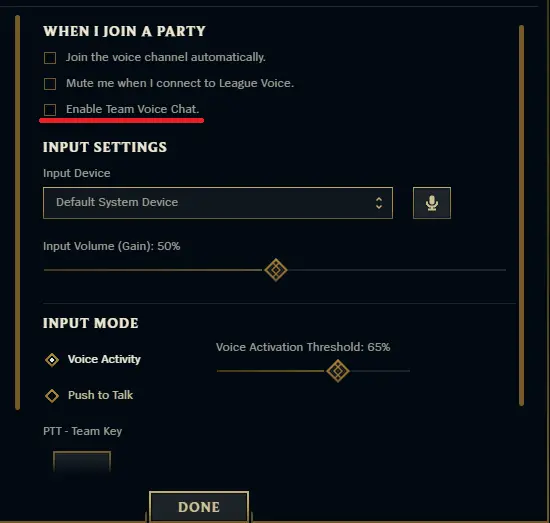
Step 4. You can also check "Join the voice channel automatically" to save clicks when entering a new lobby or game.
Basic usage in game:
- Voice is limited to your own team; enemies cannot hear you.
- You can switch between party voice (premade group) and team voice in the same voice menu.
- Team voice and auto‑join are disabled by default, so many solo‑queue games will still be text‑only unless players enable it.
How to Fix LOL Voice Chat Not Working
Running into voice chat issues in League of Legends? Whether it's no sound, the mic not picking up, or connections dropping, these glitches hit hard. Most fixes below are recommended by both Riot Games and the community, so let's get you talking again.
Client Settings Check
Open Settings and go to the Voice tab. Verify that Team Voice Chat is enabled, that Join Channel Automatically is on, and that your input/output devices are correct. Test the mic directly; if the bar does not move, switch devices or restart the client.
System Audio Fixes
In Windows sound settings, set your mic as the default and turn off Exclusive Mode in its properties tab. Raise input volume to 80-100%. For Mac, quit League, open Terminal, type sudo killall coreaudiod, then relaunch the game.
Drivers and Network Steps
Update audio drivers through Device Manager on Windows or Software Update on Mac. Check your router for SIP ALG and disable it if available. Run the Hextech Repair Tool from the client gear menu.
Last Resort Options
Restart your PC and router completely. Turn off overlays like Discord or NVIDIA. If issues persist, repair the full client or submit a support ticket with your system details at Riot's help site.
Sound Better, Safer, and More Fun While Playing LOL
Want to take your League of Legends voice chat to the next level? Tools like EaseUS VoiceWave step in here, offering real-time voice changing that works smoothly alongside the game's built-in voice chat.
Why does it fit better with League:
- The built-in AI noise reduction cleans up keyboard clicks, fan noise, and traffic so your calls come through crisp and professional. Teammates actually hear your pings and shotcalls clearly instead of static.
- Change your voice from male to female and vice versa. Many players use it in solo queue, so randoms can't recognize or harass them later. No need to stay silent anymore.
- Instantly sound like your favorite champion. Or throw in soundboard memes, robot effects, or silly voices when the game gets tense. It turns regular comms into something entertaining without interrupting gameplay.
Step 1. Download and install EaseUS VoiceWave.
Step 2. Open the app, pick your microphone, and choose any voice effect you like.
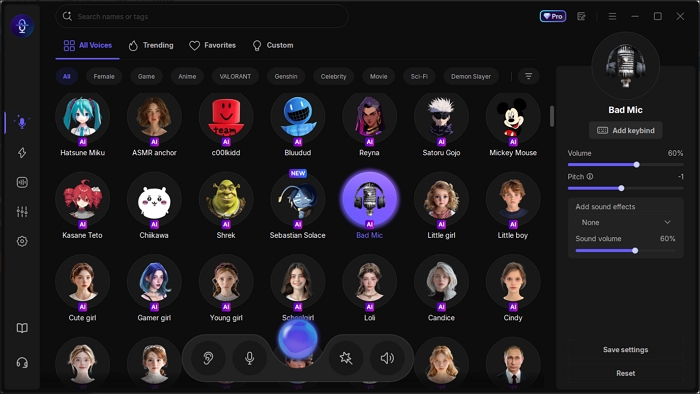
Step 3. In League Settings > Voice > Input Device, select "VoiceWave Microphone."
Conclusion
Team Voice Chat has transformed League of Legends communication, from premade parties with League Voice to full squad coordination in solo or flex. You now have clear steps to enable it, fixes for common glitches, and options like EaseUS VoiceWave to enhance clarity, privacy, and fun.
Mastering voice in LoL means better shot-calls, less tilt from misreads, and safer play overall. Toggle it on when you want the edge, mute when it turns toxic, and experiment with tools to match your style.
FAQ
1. Is Team Voice Chat available in solo queue?
Yes, it works in solo queue, flex, and all modes, connecting your full five-player team. Enemies cannot hear you, and it's opt-in only.
2. Why is my mic not detected in Team Voice Chat?
Check the client Voice settings for the correct input device, test levels, and ensure system sound settings have your mic as the default with Exclusive Mode off.
3. Can I use push-to-talk with Team Voice Chat?
Absolutely. Set it in Voice settings, assign a key like V, and it overrides voice activity for controlled transmission in noisy environments.
4. Is voice chat recorded or monitored?
Riot can review voice clips from abuse reports, similar to Valorant, to enforce toxicity rules. Mute players anytime for privacy.
5. How do I switch between party and team voice?
Use the in-game voice panel during matches to toggle channels, party for friends, and team for full squad coordination.