-
![]()
Joey Albert
Joey has been involved with tech ever since she joined the EaseUS editor team in March 2011 and now she is a senior website editor. She is good at solving various issues, such as video downloading and recording.…Read full bio -
![]()
Alin
Alin is a sophisticated editor for EaseUS in tech blog writing. She is proficient in writing articles related to screen recording, voice changing, and PDF file editing. She also wrote blogs about data recovery, disk partitioning, data backup, etc.…Read full bio -
![]()
Gorilla
Gorilla joined EaseUS in 2022. As a smartphone lover, she stays on top of Android unlocking skills and iOS troubleshooting tips. In addition, she also devotes herself to data recovery and transfer issues.…Read full bio -
![]()
Rel
Rel has always maintained a strong curiosity about the computer field and is committed to the research of the most efficient and practical computer problem solutions.…Read full bio -
![]()
Dawn Tang
Dawn Tang is a seasoned professional with a year-long record of crafting informative Backup & Recovery articles. Currently, she's channeling her expertise into the world of video editing software, embodying adaptability and a passion for mastering new digital domains.…Read full bio -
![]()
Sasha
Sasha is a girl who enjoys researching various electronic products and is dedicated to helping readers solve a wide range of technology-related issues. On EaseUS, she excels at providing readers with concise solutions in audio and video editing.…Read full bio
Page Table of Contents

Jane Zhou
Updated on Jun 16, 2026
0 Views |
0 min read
Deadlock is all about strategy and communication, but sometimes your natural voice doesn't fit the hero you're playing or the privacy you need. Whether you want to roleplay as Abrams, mask your identity in high-stakes ranked matches, or prank your team with a custom soundboard, finding a Deadlock voice changer that offers zero latency is crucial.
After testing numerous tools in the latest Valve builds, I've identified the top solutions that integrate perfectly with Deadlock's built-in voice chat without sacrificing FPS. Here is the definitive guide to the best voice changers for Deadlock.
Why Use a Voice Changer in Deadlock?
Most players looking for a deadlock voice changer have a simple goal: change their voice in real time without lag or setup issues.
Here's where it actually helps in-game:
- Hide your real voice: Useful if you don't want strangers in voice chat to recognize you.
- Make voice chat more fun: Light voice effects or soundboards can make long matches less tense.
- Roleplay without breaking comms: A good tool lets you change your voice while still staying clear to teammates.
👉 The key is low latency and stability — if your voice lags or sounds robotic, it quickly becomes unusable in Deadlock. That's why many players look for tools specifically built for real-time gaming voice change, rather than generic voice editors.
Check Out Best Deadlock Voice Changers
Not all voice changers can handle the fast-paced, 6v6 tactical chaos of Deadlock. To avoid "robotic" stuttering during a team fight, you need a tool that balances AI realism with system performance. Based on our real-time testing, here are the top 4 options.
#1. EaseUS VoiceWave
EaseUS VoiceWave is the most balanced solution for players who need real-time transformation without the technical headache. It's built on a low-latency framework that ensures your "Mid Boss" callouts happen in real-time, not three seconds late.
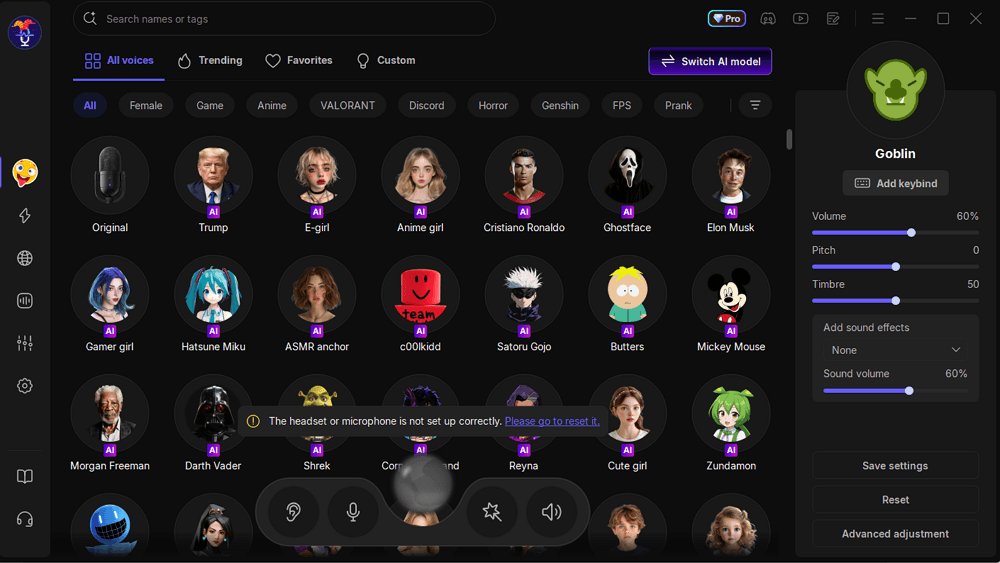
Performance: Features a modern, sleek interface with a dedicated "Game Mode" that prioritizes audio processing speed. It operates as a virtual audio driver, making it compatible with any Steam game.
Key Specs:
- CPU Usage: < 2% (Minimal impact on FPS).
- Latency: Ultra-low (Real-time).
- Sound Library: 400+ AI voices & soundboards.
Pros:
- Zero Complex Routing: No need for virtual cables; it's a true plug-and-play setup.
- Deadlock Ready: The noise reduction feature filters out mechanical keyboard clicks during intense laning.
- Customization: Includes a "Voice Lab" to fine-tune pitch and timbre for specific hero personas.
Cons:
- The most advanced AI voice cloning features require the Pro version.
#2. Voicemod
Voicemod is the go-to for players who care more about the soundboard and "trolling" than pure hero immersion. It has the largest community-generated sound library in the world.
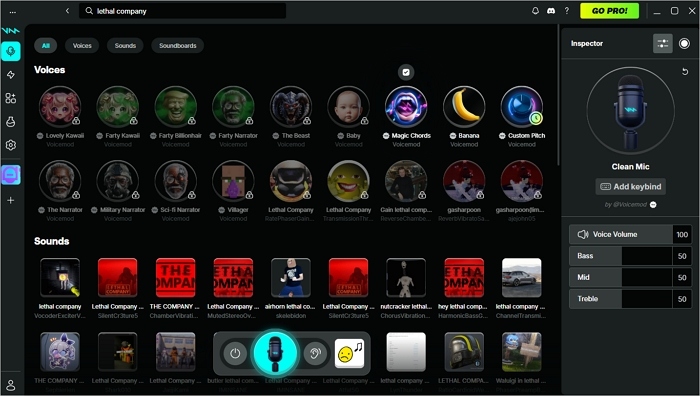
Performance: Reliable, but can be a bit "heavy" on mid-range PCs when multiple effects are active.
Pros:
- Massive soundboard library for instant memes.
- Frequent updates with trending pop-culture voices.
Cons:
- High CPU/RAM usage compared to VoiceWave.
- Setup can occasionally bug out with Steam's audio interface.
#3. MorphVox
If you are a hardcore roleplayer who wants to sound exactly like a specific character type, MorphVOX offers the most granular acoustic control.
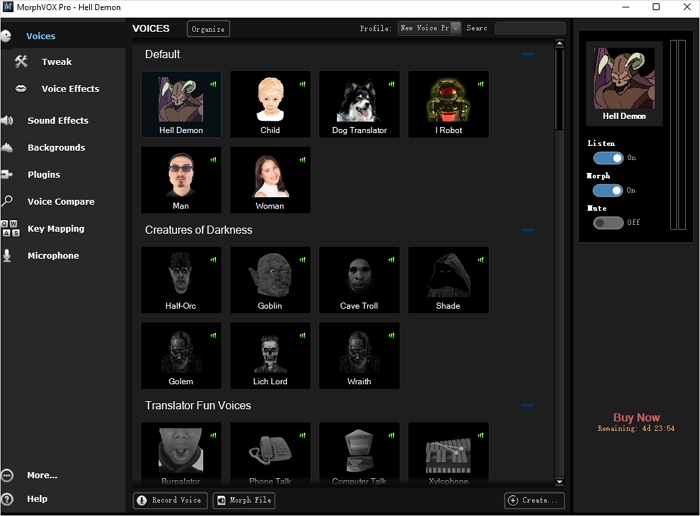
Performance: Extremely low CPU usage because it uses older, highly optimized processing tech.
Pros:
- Excellent background cancellation for noisy environments.
- "Voice Doctor" feature tunes the software to your specific mic quality.
Cons:
- The UI feels like it's from 2005; not very user-friendly.
- Requires manual "driver training" for the best results.
#4. Clownfish Voice Changer
For those who want zero frills and zero cost, Clownfish is a system-level tool that works across every app on your PC.
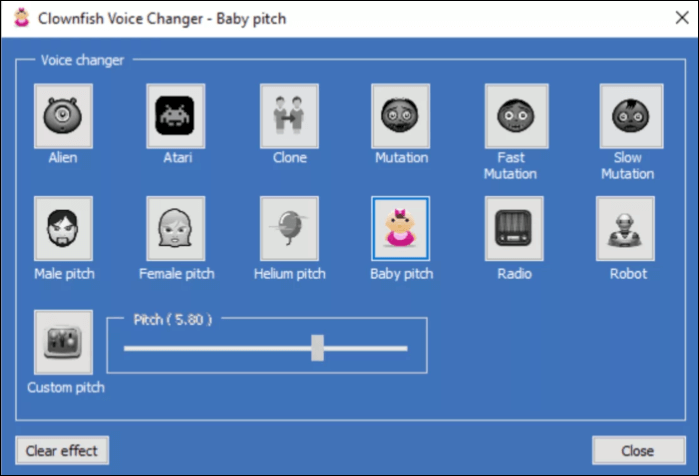
Performance: Virtually invisible to your system resources.
Pros:
- 100% Free with no hidden subscriptions.
- Works at the system level—no need to change settings in every game.
Cons:
- Very few voice options (only ~15 basic effects).
- No AI enhancement, so voices sound distinctly "robotic."
How to Use a Voice Changer in Deadlock
Getting a voice changer to work in Deadlock is straightforward, but it requires a quick adjustment in both your Windows settings and the game's audio menu. Follow these steps to ensure a lag-free experience:
Step 1: Set Up EaseUS VoiceWave
- Launch EaseUS VoiceWave on your PC.
- Select your preferred voice (e.g., "The Warden" ) and ensure the "Hear Myself" toggle is on initially to test the effect.
- Choose your real microphone as the Input Device within the VoiceWave app.
Step 2: Configure Windows Sound Settings
For Deadlock to recognize the transformed voice, you must use the virtual driver:
- Right-click the Sound icon in your Windows Taskbar and select Sound Settings.
- Under Input, set the "Default Device" to Microphone (VoiceWave Microphone). This tells your system to output the "changed" voice instead of your raw mic.
Step 3: Adjust Deadlock In-Game Audio
Valve's Deadlock allows you to select specific input devices, which is great for stability:
- Open Deadlock and click the Settings (Gear Icon) in the bottom left corner.
- Navigate to the Audio tab.
- Find Voice Input Device and change it from [Default] to Microphone (VoiceWave Microphone).
Choose the Right Voice Changer Now
In a game like Deadlock, where communication can decide the fate of a 45-minute match, your voice is a powerful tool. Whether you are looking for privacy, deeper hero immersion, or just some post-match fun, a reliable Deadlock voice changer makes all the difference.
For most players, EaseUS VoiceWave offers the best balance of simplicity, low CPU impact, and high-quality voice filters. It allows you to focus on securing souls and pushing lanes without worrying about technical glitches or audio lag. Ready to transform your Deadlock experience? Download EaseUS VoiceWave and sound like a legend in your next match!