-
![]()
Joey Albert
Joey has been involved with tech ever since she joined the EaseUS editor team in March 2011 and now she is a senior website editor. She is good at solving various issues, such as video downloading and recording.…Read full bio -
![]()
Alin
Alin is a sophisticated editor for EaseUS in tech blog writing. She is proficient in writing articles related to screen recording, voice changing, and PDF file editing. She also wrote blogs about data recovery, disk partitioning, data backup, etc.…Read full bio -
![]()
Gorilla
Gorilla joined EaseUS in 2022. As a smartphone lover, she stays on top of Android unlocking skills and iOS troubleshooting tips. In addition, she also devotes herself to data recovery and transfer issues.…Read full bio -
![]()
Rel
Rel has always maintained a strong curiosity about the computer field and is committed to the research of the most efficient and practical computer problem solutions.…Read full bio -
![]()
Dawn Tang
Dawn Tang is a seasoned professional with a year-long record of crafting informative Backup & Recovery articles. Currently, she's channeling her expertise into the world of video editing software, embodying adaptability and a passion for mastering new digital domains.…Read full bio -
![]()
Sasha
Sasha is a girl who enjoys researching various electronic products and is dedicated to helping readers solve a wide range of technology-related issues. On EaseUS, she excels at providing readers with concise solutions in audio and video editing.…Read full bio
Page Table of Contents

Myra
Updated on Apr 17, 2026
0 Views |
0 min read
Want real-time voice chat in Minecraft? Simple Voice Chat is a popular mod that enables proximity chat directly in-game. The sound gets clearer as players get closer, no Discord needed. This guide walks beginners through installation, server setup, mic testing, and troubleshooting. Get chatting in minutes!
What Is Simple Voice Chat in Minecraft?
Simple Voice Chat is a popular Minecraft mod and plugin that adds realistic proximity voice chat directly into the game. Instead of using Discord or other external programs, players can talk to each other in real time — the closer you are to someone, the louder and clearer their voice becomes.
It works smoothly with most modpacks and supports Fabric, Forge, NeoForge, Quilt, Paper, and Spigot servers. By bringing voice chat into Minecraft itself, Simple Voice Chat creates a much more immersive multiplayer experience, especially for survival servers, roleplay, and cooperative gameplay.
What You Need Before You Start
Before installing Simple Voice Chat in Minecraft, make sure you have the following:
- Minecraft Java Edition (Bedrock Edition is not supported).
- A compatible mod loader for client and server: Fabric, Forge, NeoForge, or Quilt.
- For plugin-based servers: Paper or Spigot with ProtocolLib installed.
- The correct version of Simple Voice Chat downloaded from Modrinth or CurseForge.
- An extra UDP port (default is 24454). This is required for voice chat to work, especially on self-hosted or some hosting servers.
- All players on the server must install the client-side mod.
Important Note: Both the client and the server need Simple Voice Chat installed for voice chat to function properly.
How to Install Simple Voice Chat in Minecraft
Installing Simple Voice Chat is straightforward. You need to install it on both your game client and the server for voice chat to work.
Install the Mod on Your Game Client
Step 1. Make sure you have a mod loader installed (Fabric, Forge, NeoForge, or Quit).
Step 2. Go to Modrinth or CurseForge to download the correct version of Simple Voice Chat for your Minecraft version.
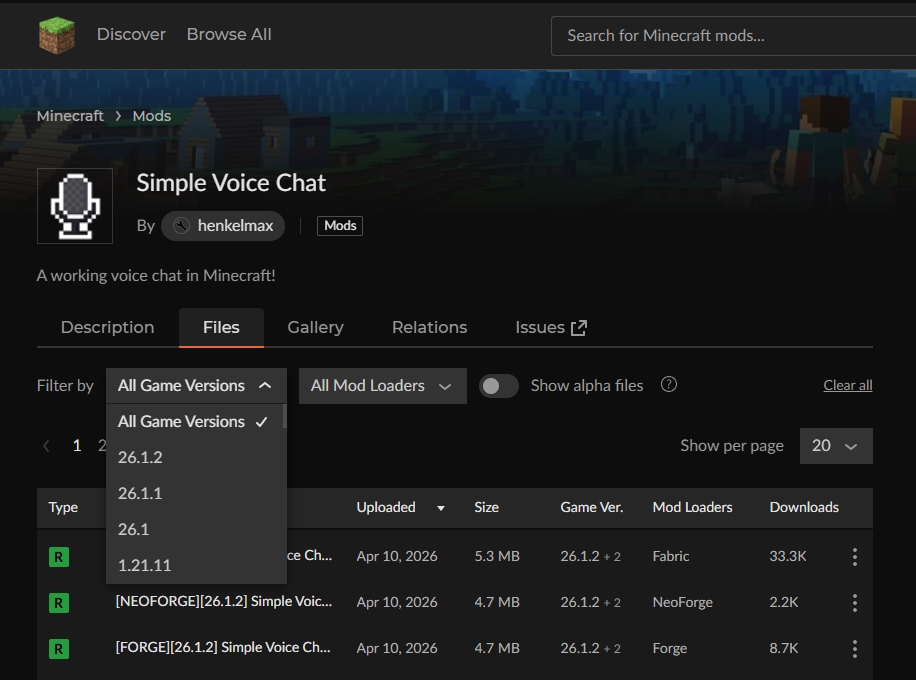
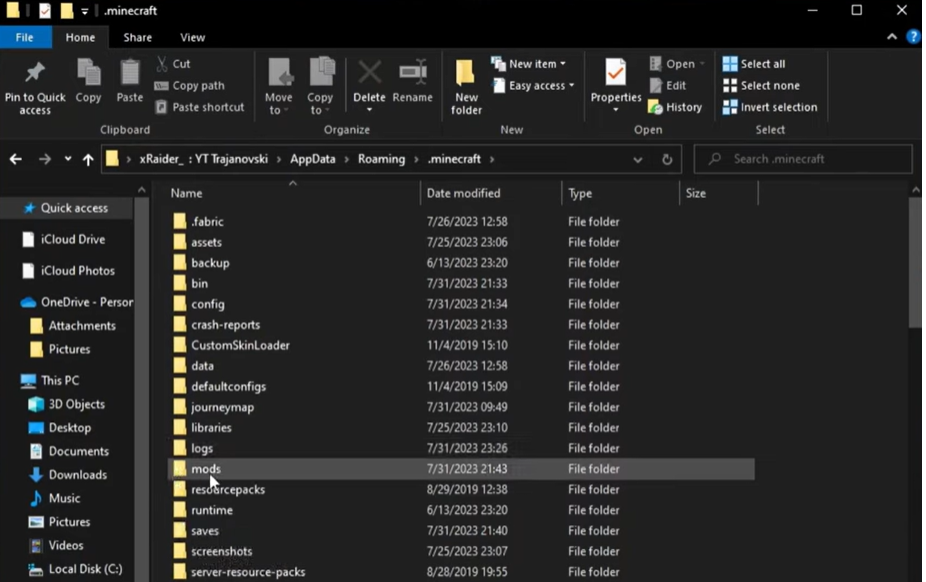
Step 3. Open your Minecraft installation folder and locate the mods folder.
Step 4. Place the downloaded .jar file into the mods folder.
Step 5. Launch Minecraft. On the first launch, a setup wizard may appear to help configure your microphone.
Install It on a Server
Step 1. Download the matching version of Simple Voice Chat for your server type (mod version for Fabric/Forge servers, or plugin version for Paper/Spigot).
Step 2.
- For modded servers: Upload the .jar file to the mods folder.
- For plugin servers: Upload it to the plugins folder (make sure ProtocolLib is also installed).
Step 3. Restart your server.
How to Set Up the Server in Minecraft
After installing Simple Voice Chat, you need to configure the server so that voice chat can connect properly. This mainly involves setting up the voice port and checking that everything is working.
Configure the Voice Chat Port
Step 1. After restarting the server, a config file named voicechat-server.properties (or .toml) will be generated in the config/voicechat folder (or plugins/voicechat for plugin servers).
Step 2. Open the config file with a text editor.
Step 3. Find the line port= and set it to a free UDP port. The default is 24454.
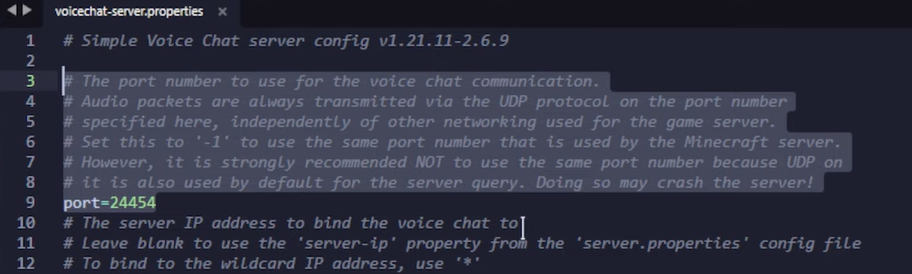
Step 4. For hosted servers (Aternos, Apex, etc.), you may also need to set voice_host= to your server's public IP or domain if required by the host.
Verify the Server Is Working
After restarting, check the server console or latest.log file. Look for a message similar to:
Voicechat Server started at port 24454
If you see this line, the voice server is running successfully. If not, double-check the port number and config settings.
How to Use Simple Voice Chat in Minecraft
Once Simple Voice Chat is installed and configured, using it in-game is simple and intuitive.
Open Voice Chat Settings
Press the V key to open the Voice Chat menu, where you can access all settings:
- Manage group chats.
- Mute yourself or others.
- Start/stop recording.
- Hide voice icons.
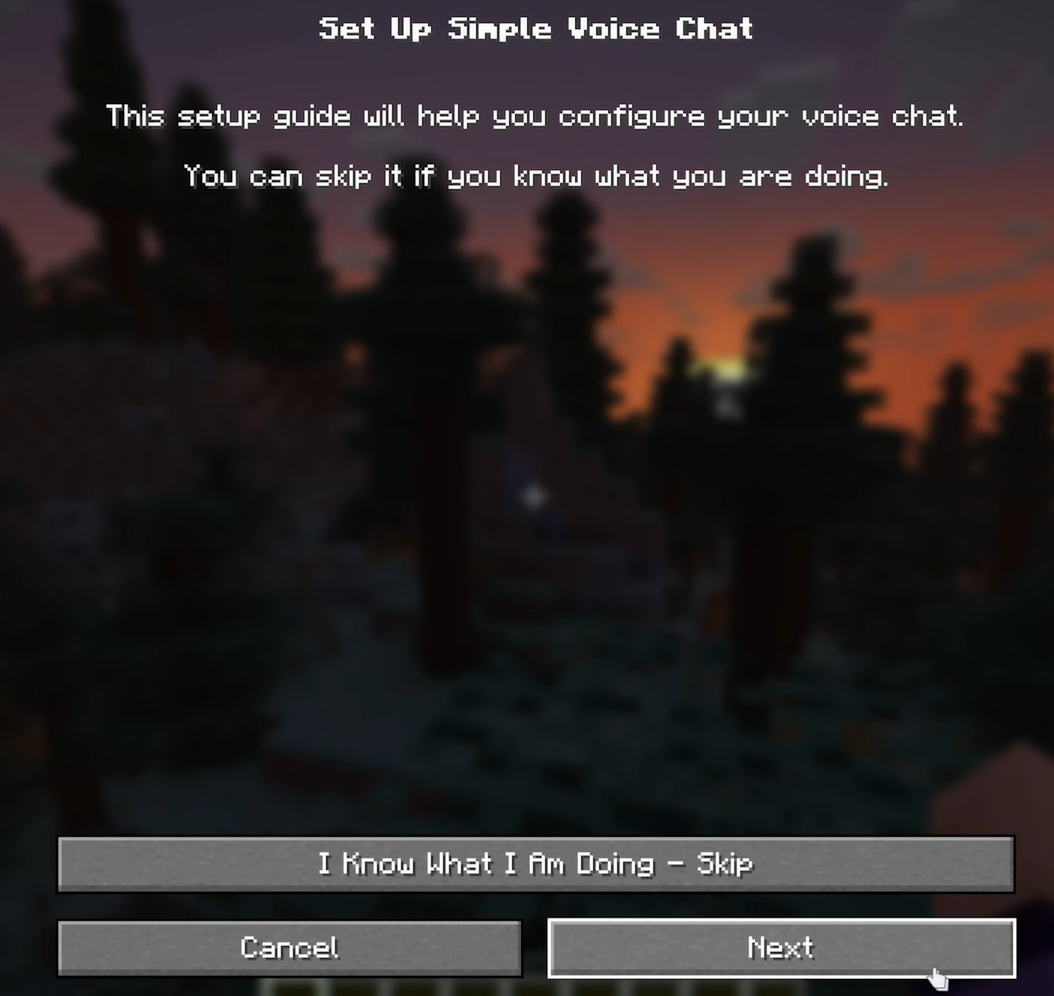
Test Your Microphone
In the Voice Chat menu, go to the settings and use the built-in microphone and speaker test tools.
Select your correct microphone and output device, then speak to check the volume and clarity. Adjust the activation mode here:
- Push-to-Talk (recommended for less background noise)
- Voice Activation (speak freely without holding a key)
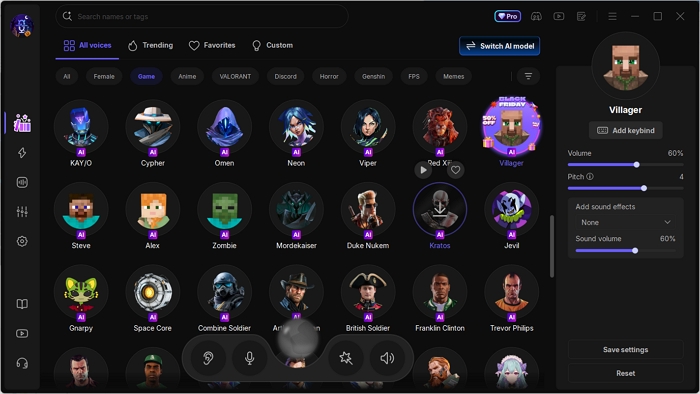
Optional fun upgrade: For voice effects (like sounding like a Minecraft villager or other characters), you can use a real-time voice changer such as EaseUS VoiceWave. Simply set "VoiceWave Microphone" as your input device in the Simple Voice Chat settings for seamless, low-latency integration.
Use Proximity Chat
Simple Voice Chat uses proximity-based audio. The closer you are to another player (within about 48 blocks by default), the louder and clearer their voice becomes. As you move farther away, the sound fades naturally, creating a realistic 3D experience.
Quick Default Keybinds:
- Caps Lock – Hold to speak (Push-to-Talk)
- M – Mute your microphone
- N – Toggle voice chat on/off
There is a video that guides you on how to use Simple Voice Chat in Minecraft:
Conclusion
By installing the mod on both your client and the server, configuring the voice port, and pressing V to open the menu, you can enjoy real-time proximity voice chat without needing Discord or any extra programs.
With clear voice, natural distance-based audio, and simple controls, Simple Voice Chat makes multiplayer gameplay far more immersive and fun — whether you're surviving with friends, exploring modpacks, or running a roleplay server.
FAQ
Is Simple Voice Chat compatible with modpacks?
Yes, in most cases. Just make sure the version of Simple Voice Chat matches your Minecraft and loader version. It works well with large modpacks on Fabric, Forge, NeoForge, or Quilt.
Why can't I hear other players (or they can't hear me)?
Check that you selected the correct output device in the Voice Chat settings. Also, verify that both client and server are using the exact same version of the mod/plugin. Restart the game and server after changes.
Does it work on hosted servers like Aternos?
Yes, but you usually need to allocate an extra UDP port in the host panel and update the config file with that port. Many hosts have specific guides for Simple Voice Chat.
Why is the Group Chat button grayed out or not working?
You need at least one other player nearby who also has Simple Voice Chat installed. Group chats require multiple participants. Try inviting someone to your voice chat.