-
![]()
Joey Albert
Joey has been involved with tech ever since she joined the EaseUS editor team in March 2011 and now she is a senior website editor. She is good at solving various issues, such as video downloading and recording.…Read full bio -
![]()
Alin
Alin is a sophisticated editor for EaseUS in tech blog writing. She is proficient in writing articles related to screen recording, voice changing, and PDF file editing. She also wrote blogs about data recovery, disk partitioning, data backup, etc.…Read full bio -
![]()
Gorilla
Gorilla joined EaseUS in 2022. As a smartphone lover, she stays on top of Android unlocking skills and iOS troubleshooting tips. In addition, she also devotes herself to data recovery and transfer issues.…Read full bio -
![]()
Rel
Rel has always maintained a strong curiosity about the computer field and is committed to the research of the most efficient and practical computer problem solutions.…Read full bio -
![]()
Dawn Tang
Dawn Tang is a seasoned professional with a year-long record of crafting informative Backup & Recovery articles. Currently, she's channeling her expertise into the world of video editing software, embodying adaptability and a passion for mastering new digital domains.…Read full bio -
![]()
Sasha
Sasha is a girl who enjoys researching various electronic products and is dedicated to helping readers solve a wide range of technology-related issues. On EaseUS, she excels at providing readers with concise solutions in audio and video editing.…Read full bio
Page Table of Contents

Jane Zhou
Updated on Jun 17, 2026
0 Views |
0 min read
Want to add funny voice effects or hide your real voice during a FaceTime call? A FaceTime voice changer can help you transform your voice in real time with different AI effects.
However, using a voice changer directly inside the FaceTime app on iPhone is not as simple as it sounds. Due to iOS limitations, most voice changer apps cannot modify your microphone input during a live FaceTime call. In this guide, we'll explore the best FaceTime voice changer solutions, including how Windows users can use real-time voice changers with FaceTime calls.
Can You Use a Voice Changer on FaceTime?
The short answer is yes, but it depends on your device:
- On iPhone/iPad: Most third-party voice changers cannot directly modify your voice during live FaceTime calls due to iOS limitations. Most apps are mainly designed for recording or editing voice clips.
- On Mac: Some desktop voice changers may work with FaceTime by using virtual audio devices, but compatibility can vary depending on the software.
- On Windows PC: Yes. You can join FaceTime calls through a FaceTime Link in a browser and use a desktop voice changer with a virtual microphone to apply real-time voice effects during the conversation.
Quick Comparison of the Best FaceTime Voice Changers
Before diving into the detailed reviews, here is a quick overview of how the top FaceTime voice changers compare in 2026 based on compatibility, real-time performance, and setup complexity.
| Voice Changer | Platform | Real-Time? | FaceTime Support | Best for |
| EaseUS VoiceWave | Win | ✅ | FaceTime Link (Browser) | Best overall choice for real-time voice effects |
| Voicemod | Win / MacOS | ✅ | FaceTime | Desktop users looking for more voice effects |
| VoiceWave | iOS / Android | ❌ | Voice messages only | Simple voice recording effects |
| External Voice Hardware | iOS / Android | ✅ | FaceTime App | Users who want hardware-based solutions |
Top 4 Voice Changers for FaceTime
Now that you know the available options, let's take a closer look at the best FaceTime voice changers. Whether you're looking for real-time voice effects, AI-powered voice transformations, or a simple way to prank your friends during FaceTime calls, there's a solution for every device and use case.
#1. EaseUS VoiceWave
If you are looking for flawless, real-time voice transformation without spending money on clunky hardware adapters, EaseUS VoiceWave, combined with Apple's web-based FaceTime Link, is the ultimate solution.
It acts as a professional virtual microphone on your Windows PC, allowing you to capture your browser's audio stream and instantly apply cutting-edge AI voice filters.
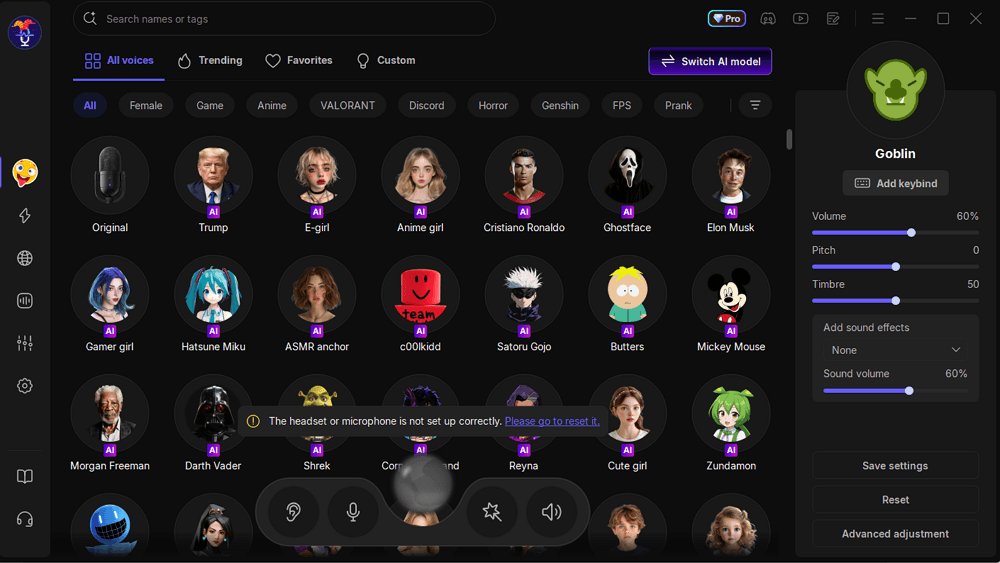
Key Features:
- True Real-Time AI Processing with ultra-low latency for lag-free, perfectly synced voice pranks
- Massive AI Voice Library offering popular filters like gender-swapping, robots, and cartoons
- Seamless Browser Integration for one-click setup with Chrome and Edge
Pros:
- Crystal-clear AI voice filters that sound highly natural
- No external hardware or messy cables needed
- Free-to-use version available with access to daily filters
Cons:
- Requires a Windows PC to host the voice changer
- Cannot alter your voice directly inside the native iPhone FaceTime app due to iOS restrictions
#2. Voicemod
Voicemod is a well-known desktop real-time voice changer that works through a virtual microphone driver. While it is highly popular among PC gamers, it is also a solid alternative for FaceTime calls, especially for Mac users who can route its effects directly into the native macOS FaceTime app.
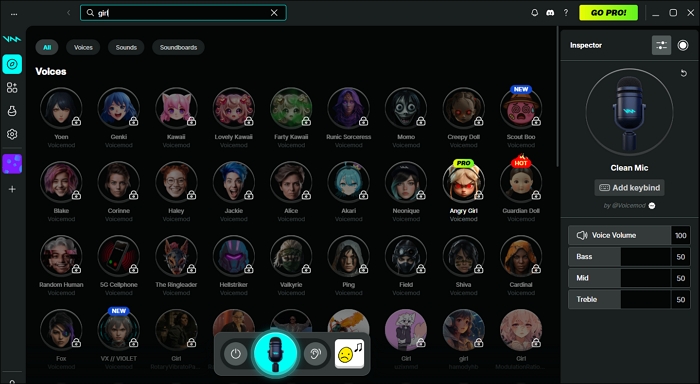
Key Features:
- Real-Time Audio Routing that integrates with communication apps and browsers via virtual audio drivers
- Massive Soundboard and Effects library built by a large community, offering tons of classic and funny voice filters
- Native Mac support allows Apple desktop users to change their voice without using web links
Pros:
- Supports both Windows and Mac operating systems
- Huge variety of background sound effects and custom voice creators
Cons:
- The advanced AI-powered voices require a paid premium subscription
- The interface can feel overwhelming and complicated for beginners to configure
#3. VoiceWave
While iOS system restrictions block live calling effects, EaseUS VoiceWave for iOS serves as a powerful multi-functional AI voice generator. It lets you create highly customized prank audio, record transformed videos, or turn text into speech to share with your friends later.
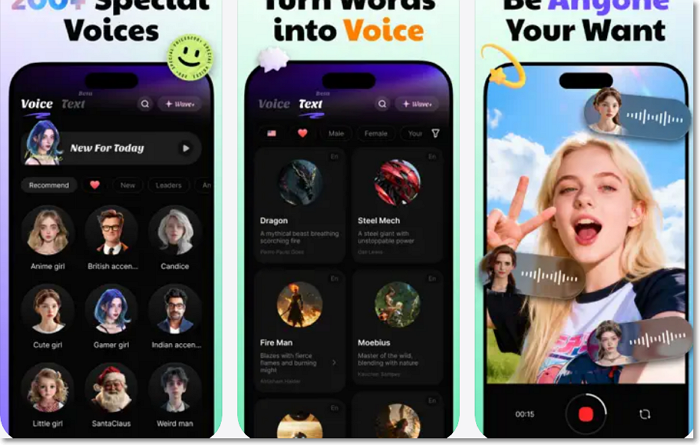
Key Features:
- Camera Video Voice Changer that allows you to shoot fun video clips while instantly swapping your vocal identity in real time
- Advanced Text-to-Speech (TTS) engine powered by over 180,000 voice styles to turn any typed text into professional character audio
- Audio & Video File Importing to upload existing media files and seamlessly mask the audio tracks with AI filters
Pros:
- Supports three tools in one: Audio transformation, video recording, and robust TTS
- Features a massive library of 400+ character and anime-inspired AI voices
Cons:
- Cannot morph your voice dynamically during a live, active FaceTime call
#4. External Voice Hardware
For users who refuse to use a computer and demand real-time voice changing directly inside the native iPhone FaceTime app, external hardware is the only viable option. Popular budget mixers like the V8 or V9 sound card bypass iOS software restrictions by processing your voice through a physical circuit board before sending it to your phone.
Key Features:
- Hardware DSP Audio Processing that modulates your pitch instantly with zero software lag
- Built-in Atmospheric Sound Effects offering fun preset triggers like laughter, applause, and cheers
- Multi-Device Analog Bridging to connect your microphone, headset, and smartphone simultaneously via 3.5mm auxiliary audio cables
Pros:
- Delivers true real-time voice transformation during live calls directly on an iPhone
- Works universally with any calling app, including FaceTime, WhatsApp, and phone calls
Cons:
- Requires purchasing extra hardware, specialized adapter cables, and a compatible headset
- The voice presets sound highly artificial and robotic compared to modern desktop AI tools
How to Use a Voice Changer on FaceTime with Windows
Since Apple does not provide a native FaceTime application for Windows, you must join calls using a web-based FaceTime Link generated by an Apple user. By routing your microphone through EaseUS VoiceWave, you can instantly apply AI voice effects in real time directly in your web browser.
Step 1. Launch EaseUS VoiceWave
Open EaseUS VoiceWave on your Windows PC, select your actual physical microphone as the input device, and pick your preferred AI voice filter (such as a funny cartoon character or a gender swap).
Step 2. Configure Windows Audio Settings
Right-click the speaker icon in your Windows taskbar, open "Sound settings", and ensure that "VoiceWave Microphone (EaseUS Virtual Device)" is set as your default system input/microphone.
Step 3. Open the FaceTime Link
Click the FaceTime invite link your friend sent to open it in a supported web browser, such as Google Chrome or Microsoft Edge, enter your name, then click "Continue".
Step 4. Set Browser Microphone Permissions
When the browser requests access to the camera and microphone, click "Allow". Click the camera/microphone settings icon in the browser address bar or video preview screen, then manually select "VoiceWave Microphone (EaseUS Virtual Device)" as your audio source.
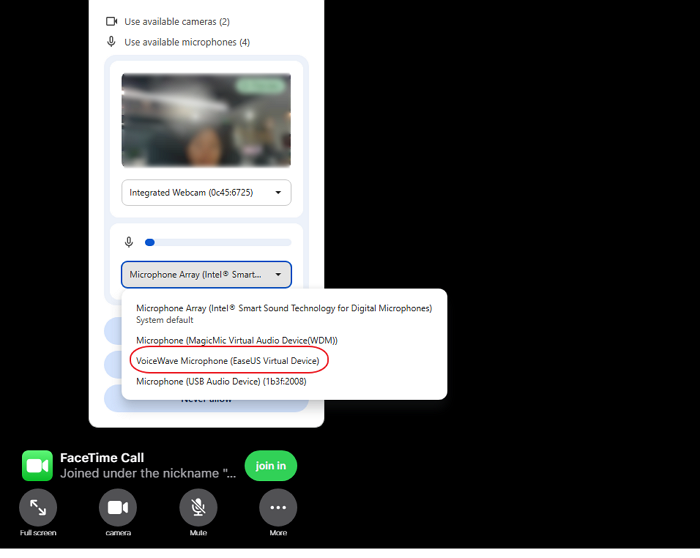
Step 5. Join the FaceTime Call
Click the green "Join" button on the screen. Once the host lets you in, your voice will be transformed in real time via the browser, with no noticeable audio lag.
Pro Tip: Keep EaseUS VoiceWave open in the background during your call. This allows you to switch between different voice filters, trigger soundboard effects, or adjust the pitch instantly while talking.
Final Words
Using a voice changer on FaceTime is possible, but the best method depends on your device. While iPhone and iPad users have limited options for real-time voice changing, Windows users can apply live voice effects by joining FaceTime calls through a FaceTime Link and using a virtual microphone.
Whether you prefer desktop software, mobile voice apps, or external hardware, each solution offers different features and levels of compatibility. If real-time voice changing is your priority, choosing a reliable voice changer with virtual microphone support can help you get the best experience during FaceTime calls.
FAQs
1. Can I use a voice changer on FaceTime from an iPhone?
Most voice changer apps cannot directly change your voice during a live FaceTime call on iPhone.
2. Does FaceTime work with a virtual microphone?
Yes. When using FaceTime through a browser with a FaceTime Link, Windows users can select a virtual microphone from compatible voice changer software as their audio input.
3. Why doesn't my voice changer work with FaceTime?
Common reasons include incorrect microphone settings, unsupported devices, or using a voice changer that only works for recorded audio. Make sure your virtual microphone is selected as the input device before joining the call.